Fleet Management
The SODOO Fleet Management module lets you manage your company
What You Will Learn in This Section
- Managing the company vehicle fleet centrally
- Assigning vehicles to employees and tracking use
- Monitoring fuel consumption and analysing costs
- Planning periodic maintenance and tracking services
- Insurance, tax and contract management
- Calculating TCO (Total Cost of Ownership)
- Managing accident and damage records
Overview
The SODOO Fleet Management module lets you manage your company's entire vehicle fleet on a central platform. You can track every kind of vehicle from cars to commercial vehicles, from construction machines to motorcycles, analyse costs and increase operational efficiency.
Vehicle Inventory
Detailed information, documents, photos and status tracking for all vehicles.
Fuel Management
Fuel purchases, consumption analysis, cost per km and trend reports.
Maintenance Tracking
Planned maintenance, service records, part replacements and reminders.
Cost Analysis
Total cost of ownership (TCO), reports per vehicle and per category.
Scenario: Setting Up a New Vehicle Fleet
Situation: Your company has bought 15 new cars and you will hand them out to the sales team. Tracking of all vehicles, driver assignments and cost control are needed.
- Choose the vehicle models from the catalogue or add a new make/model
- Enter the plate, chassis number and purchase details for each vehicle
- Upload the registration, insurance policy and comprehensive cover documents
- Assign the vehicles to the sales representatives
- Define periodic maintenance plans (oil change every 10,000 km etc.)
- Set up the integration with the company fuel card
- Monitor fleet performance from the dashboard
The Fleet Management Workflow
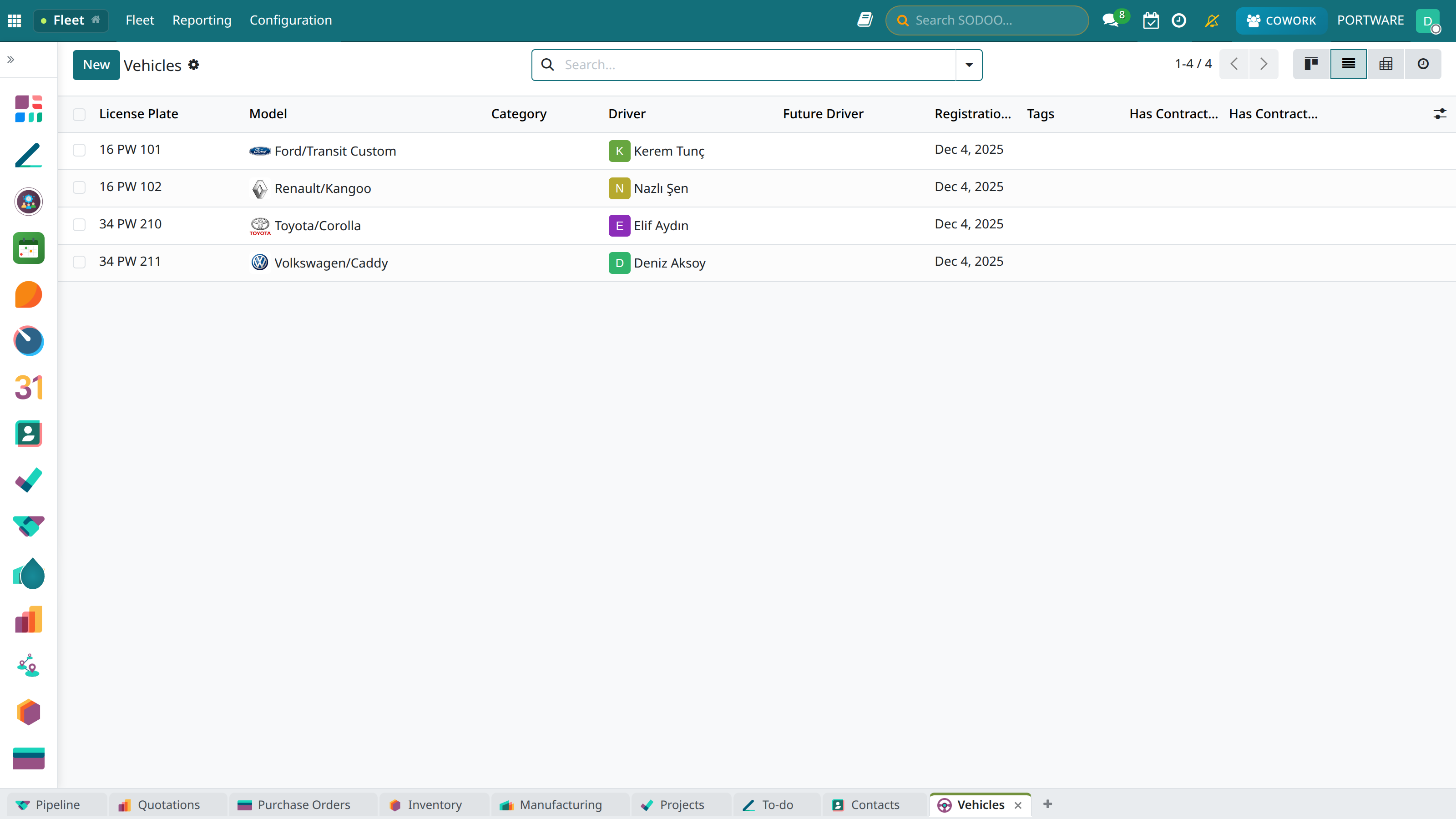
Vehicles in the list view — plate, model, driver and contract details
Vehicle Management
Build your fleet inventory, manage vehicle details and track their states.
Vehicle States
See each vehicle's current state instantly:
Active In Service Reserved Sold
Adding a New Vehicle
- Go to the Fleet → Vehicles → New menu
- Choose the make and model from the vehicle model list (add a new one if missing)
- Enter the basic details:
- Plate number
- Chassis (VIN) number
- Engine number
- Model year
- Save the purchase details (date, price, vendor)
- Upload the vehicle photos and documents
- Set the category and tags
Vehicle Fields
| Field | Description | Required |
|---|---|---|
| Make/Model | The vehicle make and model name | Yes |
| Plate | The registration plate (TR format: 34 ABC 123) | Yes |
| Chassis No (VIN) | The 17-character vehicle identification number | No |
| Engine No | The engine serial number | No |
| Model Year | Year of manufacture | Yes |
| Fuel Type | Petrol, Diesel, LPG, Electric, Hybrid | Yes |
| Transmission | Manual, Automatic, Semi-automatic | No |
| Mileage | The current odometer value | Yes |
| Colour | Vehicle colour | No |
| Number of Seats | Passenger capacity | No |
| State | Active, In Service, Reserved, Sold | Yes |
Vehicle Categories
Car
Executive cars, sales cars, company cars
Commercial
Pick-up, van, panel van, lorry, tractor unit
Construction Machine
Forklift, excavator, crane, generator
Motorcycle
Courier vehicles, motorcycle fleet
Make and Model Catalogue
Manage vehicle makes and models in a central catalogue:
- Add a new make with Fleet → Configuration → Makes
- Define the models for each make with Fleet → Configuration → Models
- Set the model details:
- Fuel type (default)
- CO2 emission value
- Horsepower
- Engine displacement
Driver Assignment
Assign vehicles to employees, track the usage history and manage driver documents.
The Driver Assignment Process
The Assignment
- Click the Assign Driver button on the vehicle card
- Choose the driver from the employee list (HR module integration)
- Set the assignment start date
- Add an end date if needed (temporary/project-based assignment)
- Add the reason for the assignment as a note
- Complete the assignment with Save
Assignment Types
| Type | Description | Used For |
|---|---|---|
| Permanent Assignment | An open-ended assignment without an end date | Company cars, executive cars |
| Temporary Assignment | Use within a set date range | Project-based, replacement vehicle |
| Pool Vehicle | Shared by several users | Shared-use vehicles |
Driver Documents
Track the driving licence and other mandatory documents:
Driving Licence
Class (B, C, D, E), number, validity date, restrictions
SRC Certificate
Mandatory for driving commercial vehicles (SRC1, SRC2, SRC3, SRC4)
Psychotechnical Test
A test renewed every 5 years for commercial drivers
Health Report
Driver health check and report validity
Driver History
See who used each vehicle and when:
- The list of previous driver assignments
- Usage periods and mileages
- Fuel consumption compared per driver
- Accident and damage history
Fuel Tracking
Record fuel purchases, analyse consumption and optimise costs.
Creating a Fuel Entry
- Click the Add Fuel button on the vehicle card
- Enter the purchase details:
- Date and time
- Quantity (litres)
- Unit price
- Total amount
- Record the current odometer reading
- Add the station/vendor details
- Upload the invoice or receipt image (optional)
Scenario: Using a Company Fuel Card
Situation: Your company uses a fuel card under an agreement with Petrol Ofisi or Shell. You want to record entries in bulk from the monthly statement.
- Get the statement from the card provider in Excel/CSV format
- Open the Fleet → Fuel Logs → Import menu
- Upload the file and map the fields
- Check the vehicle matching by plate
- Complete the import
- Fill in missing odometer readings manually
Consumption Metrics
| Metric | Formula | Description |
|---|---|---|
| L/100km | (Litres × 100) / Km | Standard consumption measure (Türkiye/Europe) |
| Km/L | Km / Litres | Distance travelled per litre |
| TL/km | Amount / Km | Fuel cost per kilometre |
| Monthly Fuel | Σ Monthly Amount | Total monthly fuel expense |
Fuel Types
Petrol
95 Octane, 97 Octane
Diesel
Eurodiesel, Additive Diesel
LPG
Autogas
Electrical
kWh, Charging Time
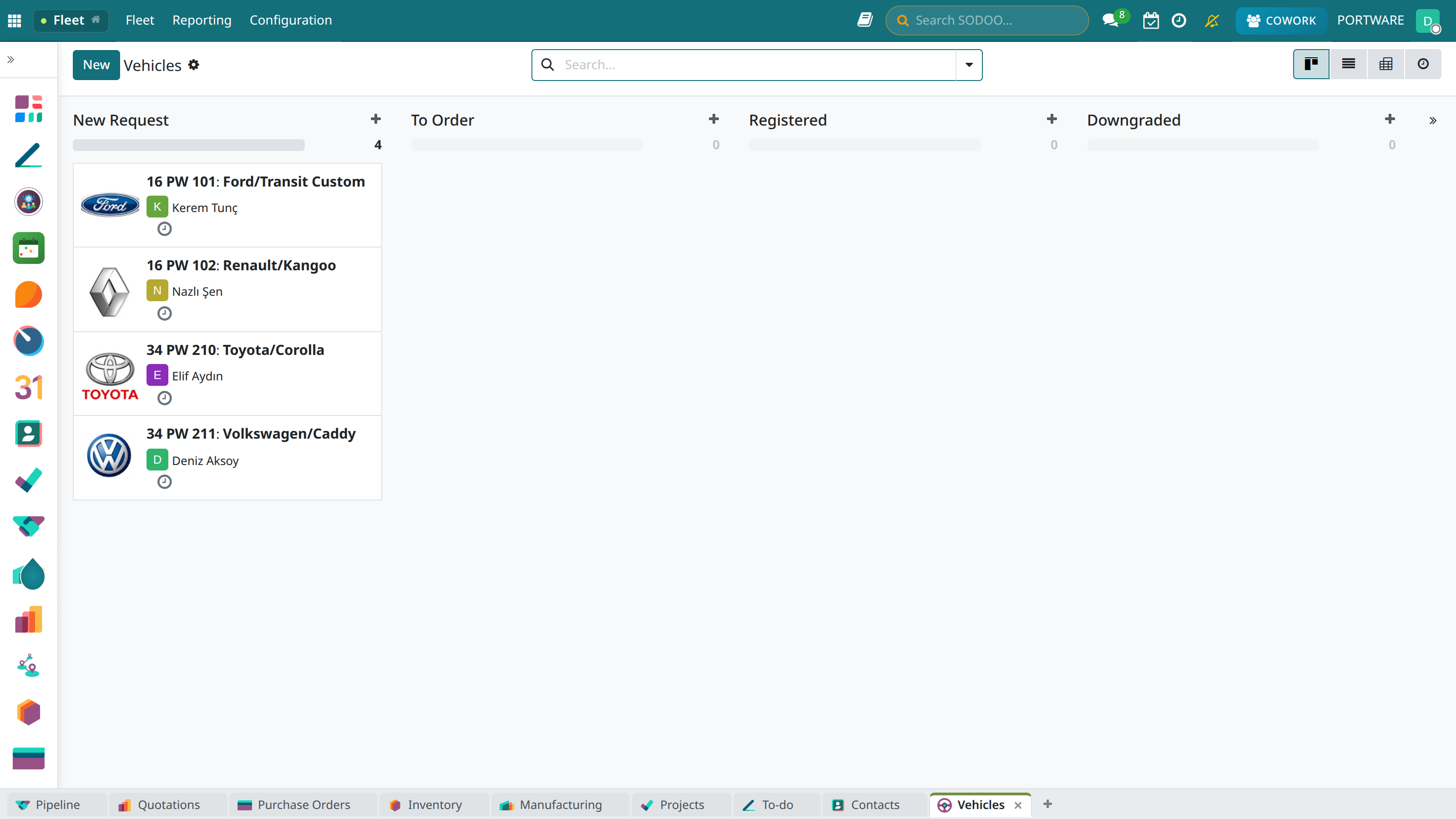
Fleet Management - the main dashboard screen
Maintenance and Service
Manage planned maintenance, keep service records and track repair costs.
Maintenance Types
Periodic Maintenance
Oil change, filter change, antifreeze, brake fluid
Tyres
Tyre change, balancing, wheel alignment, winter/summer tyre sets
Brake System
Pads, discs, drums, ABS sensors
Inspection
Mandatory vehicle inspection (every 2 years)
Air Conditioning
AC gas, filter, compressor maintenance
Repair
Fault fixing, part replacement, bodywork
Maintenance Planning
Create automatic maintenance reminders by km or time:
| Maintenance Operation | Km Interval | Time Interval |
|---|---|---|
| Engine Oil Change | 10,000 km | 12 months |
| Oil Filter | 10,000 km | 12 months |
| Air Filter | 20,000 km | 24 months |
| Pollen Filter | 15,000 km | 12 months |
| Brake Pads | 40,000 km | - |
| Battery Check | - | 24 months |
| Timing Belt Kit | 100,000 km | - |
| Vehicle Inspection | - | 24 months |
Creating a Service Record
- Click the Add Service button on the vehicle card
- Choose the service type (maintenance, repair, tyres etc.)
- Set the service provider (authorised service, independent garage)
- Record the work done in detail
- List the replaced parts (part number, brand)
- Enter the labour and parts costs
- Add the warranty details (if any)
- Set the next maintenance date/km
- Upload the invoice and work order documents
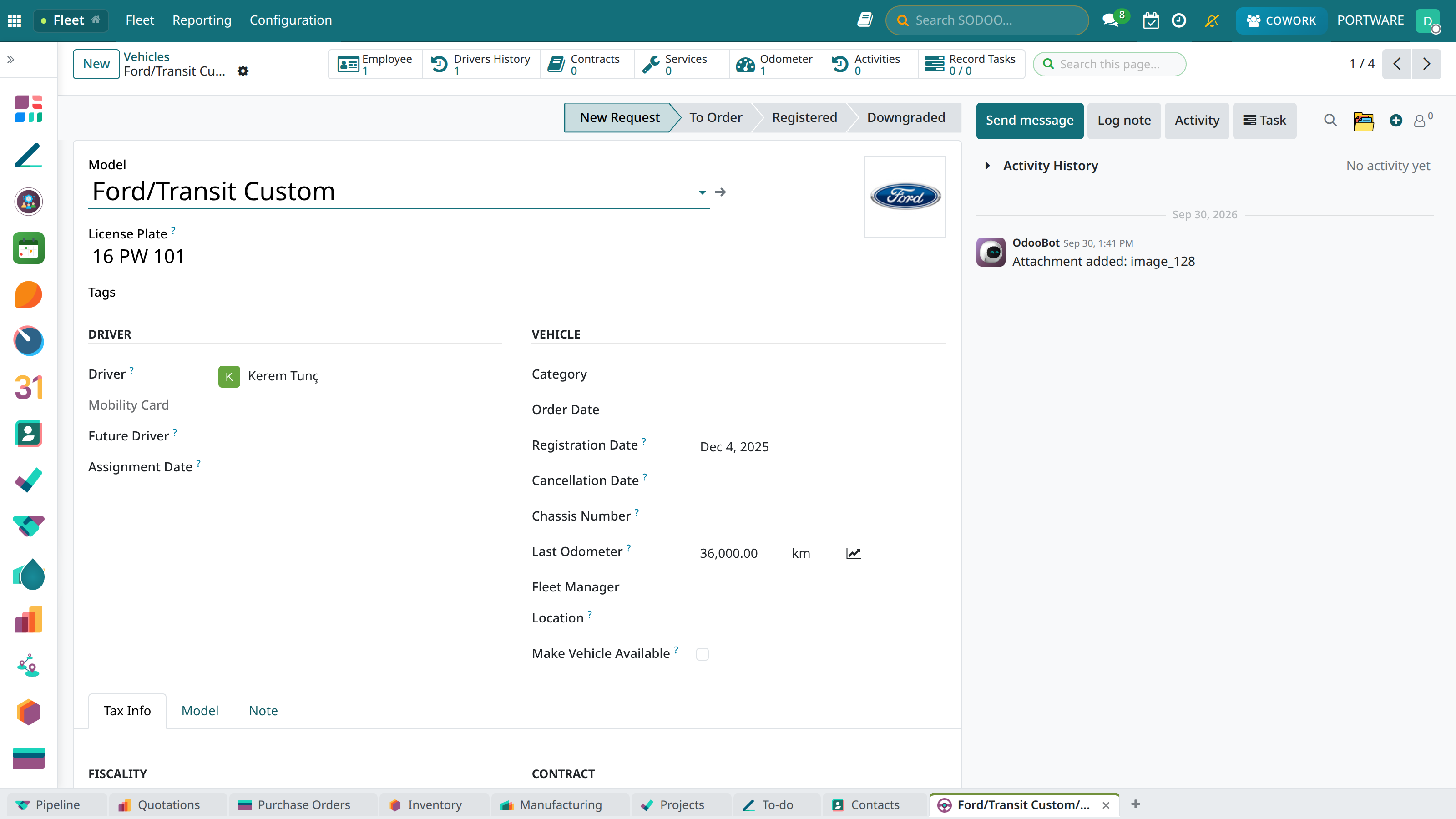
A vehicle's card — plate, model, driver, contract and service history
Insurance and Tax
Track vehicle insurance, tax payments and legal obligations.
Insurance Management
Compulsory Traffic Insurance
A legal obligation, third-party liability insurance
Comprehensive Cover
Vehicle damage, theft, natural disaster cover
Personal Accident
Driver and passenger cover insurance
Voluntary Liability
Additional cover above compulsory traffic insurance
Insurance Record
| Field | Description |
|---|---|
| Policy No | The insurance policy number |
| Insurance Company | The company that issued the policy |
| Start Date | Policy start date |
| End Date | Policy end date |
| Premium Amount | Annual insurance premium |
| Cover Amount | Maximum cover limit |
| Deductible | The customer's share in case of damage |
| Agency | Insurance agency details |
MTV (Motor Vehicle Tax)
Track Motor Vehicle Tax payments:
- Payment periods: 2 instalments, in January and July
- Calculation: Set by engine displacement, age and vehicle type
- Collection: Through the tax office or a bank
- Late payment: Daily late-payment interest is applied
Other Legal Obligations
- Exhaust emission: A mandatory measurement every 2 years
- Vehicle inspection: TÜVTÜRK every 2 years
- K Certificate: Commercial transport authorisation
- Cargo insurance: Mandatory in freight transport
Contracts
Manage vehicle rental, leasing and maintenance contracts.
Contract Types
Financial Leasing
Long-term rental with transfer of ownership at the end of the term
Operational Leasing
Fleet rental, returned or renewed at the end of the term
Maintenance Contract
Service agreement, extended warranty, roadside assistance
Fuel Contract
Corporate fuel card agreement
Contract Details
| Field | Description |
|---|---|
| Vendor | Leasing/rental/service company |
| Contract No | Contract reference number |
| Start/End | Contract date range |
| Duration | Contract duration (months) |
| Monthly Payment | Periodic instalment amount |
| Total Amount | Total contract value |
| Km Limit | Maximum km allowed per year |
| Excess Km Charge | Charge per km above the limit |
| Scope | Included services (maintenance, insurance, tyres etc.) |
Operational Leasing Scope
Full-service operational leasing typically includes:
- ✅ All periodic maintenance
- ✅ Tyre changes (summer/winter)
- ✅ Compulsory traffic insurance
- ✅ Comprehensive cover
- ✅ MTV payment
- ✅ 24/7 roadside assistance
- ✅ Replacement vehicle (during service)
- ❌ Fuel (usually excluded)
- ❌ Traffic fines
Accident Management
Record traffic accidents and vehicle damage, and follow the insurance processes.
Creating an Accident Record
- Click the Report Accident button on the vehicle card
- Enter the accident details:
- Date, time and location
- Accident type (collision, rollover, single-vehicle etc.)
- Weather and road conditions
- Driver details
- Record the damage details
- Upload the photos and documents:
- Photos of the scene
- Accident report
- Alcohol report (if any)
- Enter the other party's details (if any)
- Update the insurance notification status
Accident Types
Collision
Vehicle-vehicle or vehicle-object collision
Single-Vehicle
Hitting a barrier, running off the road
Parking Damage
Damage while parked
Natural Disaster
Flood, hail, storm damage
The Insurance Process
Damage Tracking
| State | Description |
|---|---|
| New | Accident record created |
| Reported | Reported to the insurer |
| Assessment | Damage assessment in progress |
| In Repair | Vehicle at the garage, repair in progress |
| Closed | Process complete |
Reports and Analysis
Analyse fleet performance and optimise costs.
Main Reports
TCO Report
Total Cost of Ownership: purchase, fuel, maintenance, insurance, depreciation
Fuel Report
Fuel consumption analysis by vehicle, driver and period
Maintenance Report
Maintenance costs, service frequency, vendor performance
Vehicle Performance
Utilisation rate, daily km, idle time
Driver Analysis
Consumption, accident rates and cost comparison per driver
Periodic Report
Monthly/quarterly/annual cost and performance summary
TCO (Total Cost of Ownership)
Calculate the total of all costs per vehicle:
| Cost Item | Description | Period |
|---|---|---|
| Depreciation | The purchase value spread over the years | Yearly |
| Fuel | Total fuel expense | Monthly |
| Maintenance | Periodic maintenance and repair | Yearly |
| Insurance | Traffic + comprehensive premiums | Yearly |
| Tax | MTV payment | Yearly |
| Tyres | Tyre replacement cost | Every 2 years |
| Other | Washing, parking, bridge/motorway tolls | Monthly |
Dashboard Metrics
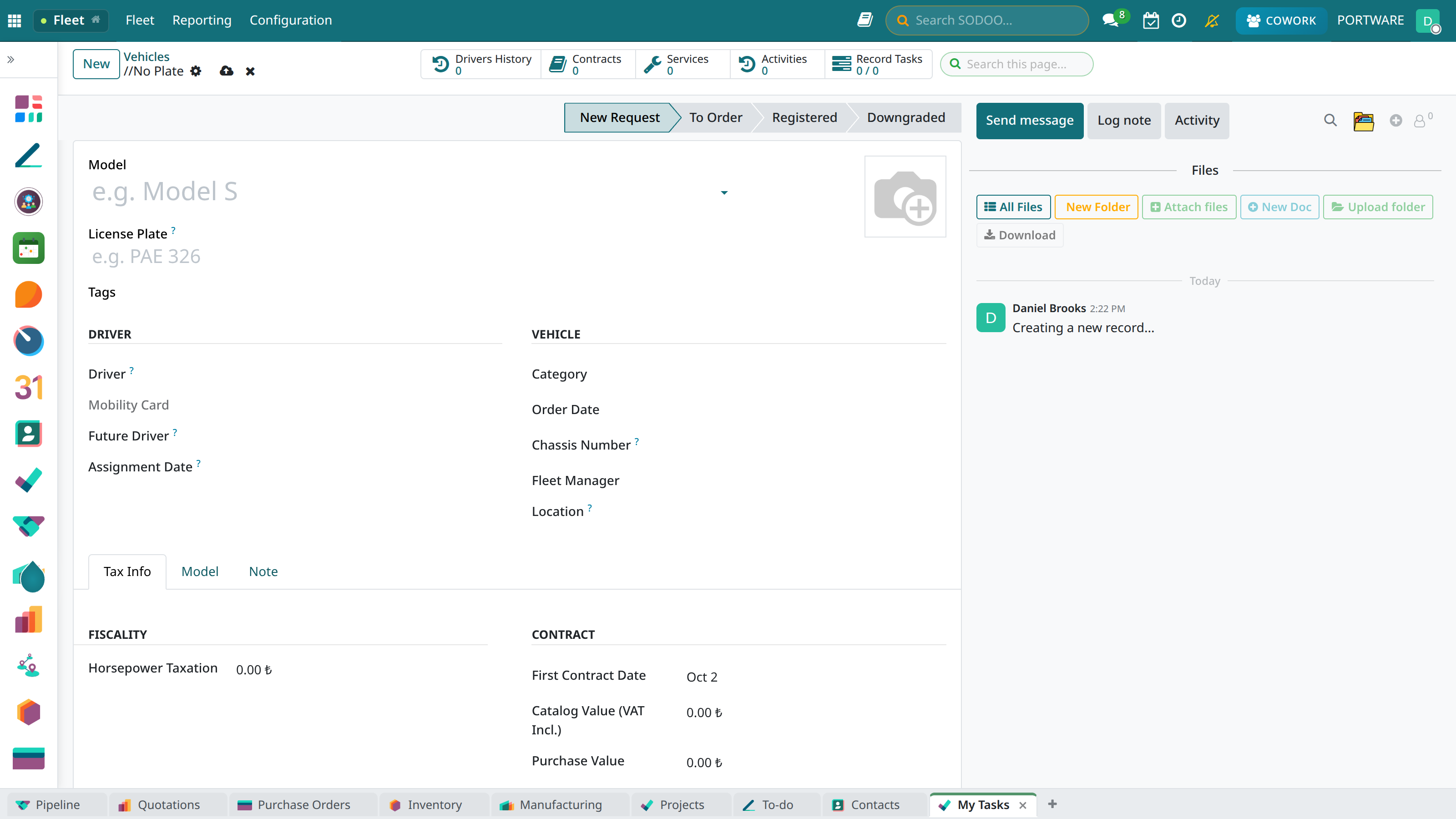
Creating a new fleet record and tracking costs
Configuration
Manage the fleet module settings and default values.
General Settings
From the Settings → Fleet Management menu:
| Setting | Description |
|---|---|
| Default Fuel Type | The default fuel type for new vehicles |
| Km Unit | Kilometres or Miles |
| Fuel Unit | Litres or Gallons |
| Reminder Period | How many days before end dates to warn |
| Consumption Threshold | Abnormal consumption warning percentage |
Make and Model Management
Fleet → Configuration → Makes/Models
- Define the vehicle makes
- Add the models for each make
- Set the default values per model:
- Fuel type
- Engine displacement
- Horsepower
- CO2 emission value
- Average consumption
Categories and Tags
- Categories: Car, Commercial, Construction Machine, Motorcycle
- Tags: Executive, Sales, Logistics, Pool, Rented
- State: Active, In Service, Reserved, Sold, Scrapped
Service Types
Define the maintenance and service categories:
- Periodic Maintenance
- Tyre Work
- Brake System
- Engine/Gearbox
- Electrical/Electronics
- Bodywork/Paint
- Glass Work
- Inspection
Access Rights
| Role | Permissions |
|---|---|
| Fleet Manager | All operations, reports, configuration |
| Fleet User | Viewing vehicles, adding fuel/service records |
| Driver | Viewing only their own vehicles, adding fuel |
Frequently Asked Questions
Can a vehicle be assigned to more than one driver?
How can I import a fuel card statement?
- Get the statement from your fuel card provider in Excel or CSV format
- Go to the Fleet → Fuel Logs → Import menu
- Upload the file
- Map the columns: Plate, Date, Litres, Amount, Station
- Check with the preview
- Complete the import
How does the km-based maintenance reminder work?
How are leased vehicles tracked?
- Mark the ownership type as "Leasing"
- Enter the leasing details in the contract section
- Record the monthly instalments as a periodic cost
- Define the km limit and the excess km charge
- Update the vehicle state to "Returned" when the contract ends
What should I do when a vehicle is sold?
- Change the state on the vehicle card to "Sold"
- Enter the sale details: date, buyer, sale price
- End the current driver assignment
- Cancel or transfer the insurance policies
- Upload the vehicle documents (sale contract, transfer document)
How does the integration with the HR module work?
- A driver can also be assigned from the employee record
- The assigned vehicle is shown on the employee form
- Licence and SRC details are integrated into the HR documents section
- When an employee leaves, the vehicle assignment ends automatically
- Vehicle usage information is reflected in the employee's personnel file
Can I track charging for electric vehicles?
- Choose "Electric" or "Hybrid" as the fuel type
- Enter the charging records in kWh
- Record the charging cost as TL/kWh
- Consumption metrics are calculated as kWh/100km
- Km/kWh efficiency is reported automatically
How is a bulk vehicle update done?
- Select the vehicles to update (checkbox)
- Open the Action → Edit menu
- Choose the field to change (category, state, tag etc.)
- Enter the new value
- Confirm
- For the integration with maintenance, see the Maintenance Management documentation
- For employee vehicle assignments, look at the Human Resources module
- For purchasing processes, look at the Purchase module