Live Chat
SODOO Live Chat: how the application is used, screen by screen.
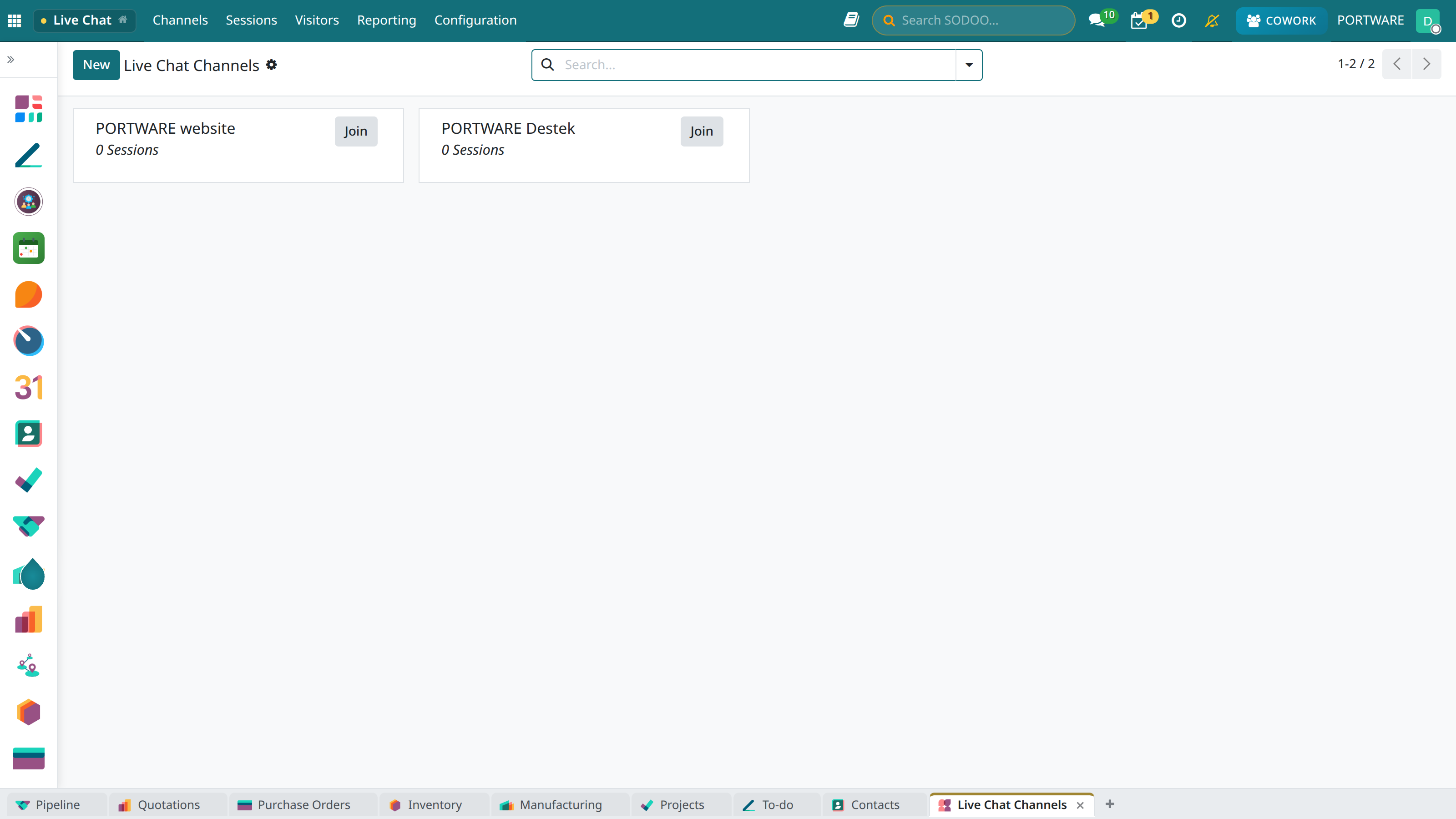
The Live Chat channels management screen
Overview
The SODOO Live Chat module offers a support channel integrated into your website. Visitors can ask their questions instantly, your sales team can reach prospects and support requests can be resolved quickly.
Real Time
Reply quickly to visitors with instant messaging. Typing indicator and read receipts.
Chatbot
Automatic answers to frequently asked questions. Automatic greeting outside working hours.
Operator Assignment
Route chats to suitable operators automatically or manually.
Mobile App
Follow and reply to chats on iOS and Android.
Installation
Placing the Widget
To add the live chat widget to your website, add the following code at the end of your page's <body> tag:
Creating a Channel
You can create separate channels for each website or department:
- Go to the Live Chat > Channels menu
- Click the "New" button
- Enter the channel name (e.g. "Sales Support")
- Assign the operators
- Customise the welcome message
- Copy the widget code
Operators
Operators are the team members who answer live chat messages. Each operator can be assigned to more than one channel.
| Feature | Description |
|---|---|
| Maximum chats | The number of chats an operator can handle at once (default: 5) |
| Priority | The priority order in chat assignment (lower = higher priority) |
| Working hours | The hours the operator is available |
| Status | Online, Busy, Away, Offline |
Chatbot
The chatbot reduces operator load by giving automatic answers to frequently asked questions. For complex questions it can hand the chat over to an operator.
Chatbot Scenarios
Welcome
Show a greeting when the visitor clicks the widget.
FAQ
Give predefined answers based on keywords.
Transfer
Hand the chat over to the right department for certain topics.
After Hours
Show a contact form while no operators are available.
Chatbot Commands
| Command | Description |
|---|---|
/transfer [department] |
Transfer the chat to the given department |
/ticket |
Create a new support ticket in Helpdesk |
/lead |
Create a new lead in the CRM |
/help |
Show the available commands |
Canned Responses
Save frequently used replies as templates and send them quickly with shortcuts.
: in the chat box and enter the shortcut. For example, by typing :price you can insert the pricing information template.
Example Canned Responses
:hello- Welcome message:price- Pricing information:delivery- Delivery times:return- Return policy:closing- Chat closing message
Reports
Various reports are available to track live chat performance:
Operator Statistics
Response time, number of chats, customer satisfaction scores.
Chat Durations
Average chat duration, first response time, waiting times.
Customer Rating
Post-chat satisfaction surveys and ratings.
Trend Analysis
Daily, weekly, monthly chat volume and quality trends.
Integrations
- CRM: Creating leads from chats automatically
- Helpdesk: Turning a chat into a support ticket
- E-commerce: Seeing the basket, payment support
- Visitor tracking: The pages the visitor viewed
- Discuss: Integration with internal communication
Settings
Customising the Widget
- Colour: The widget and title bar colour
- Position: Bottom-right or bottom-left corner
- Welcome message: The first message shown
- Operator photo: Showing the profile picture
- Sound notification: A new message sound
Automatic Rules
- Open the widget automatically on certain pages
- Show a chat invitation after X seconds
- Trigger by page scroll percentage
- Exit-intent detection