Lesson 5 · Bills of materials
Engineering, normal and spare BoMs; the multi-level tree, where-used and BoM comparison.
Goal of this lessonTo tell the engineering, production and spare-part trees apart, find where a part is used and compare two trees.
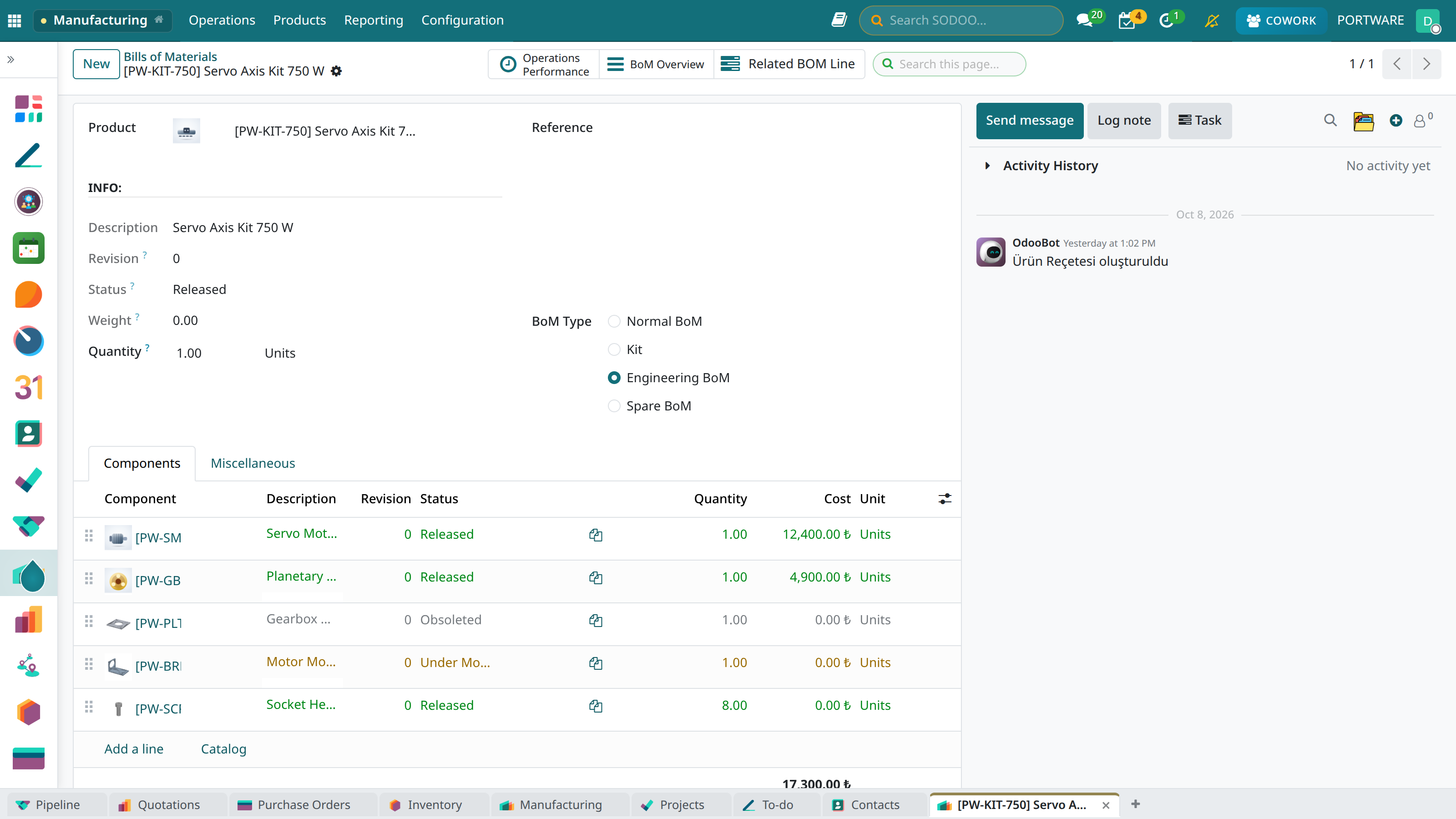
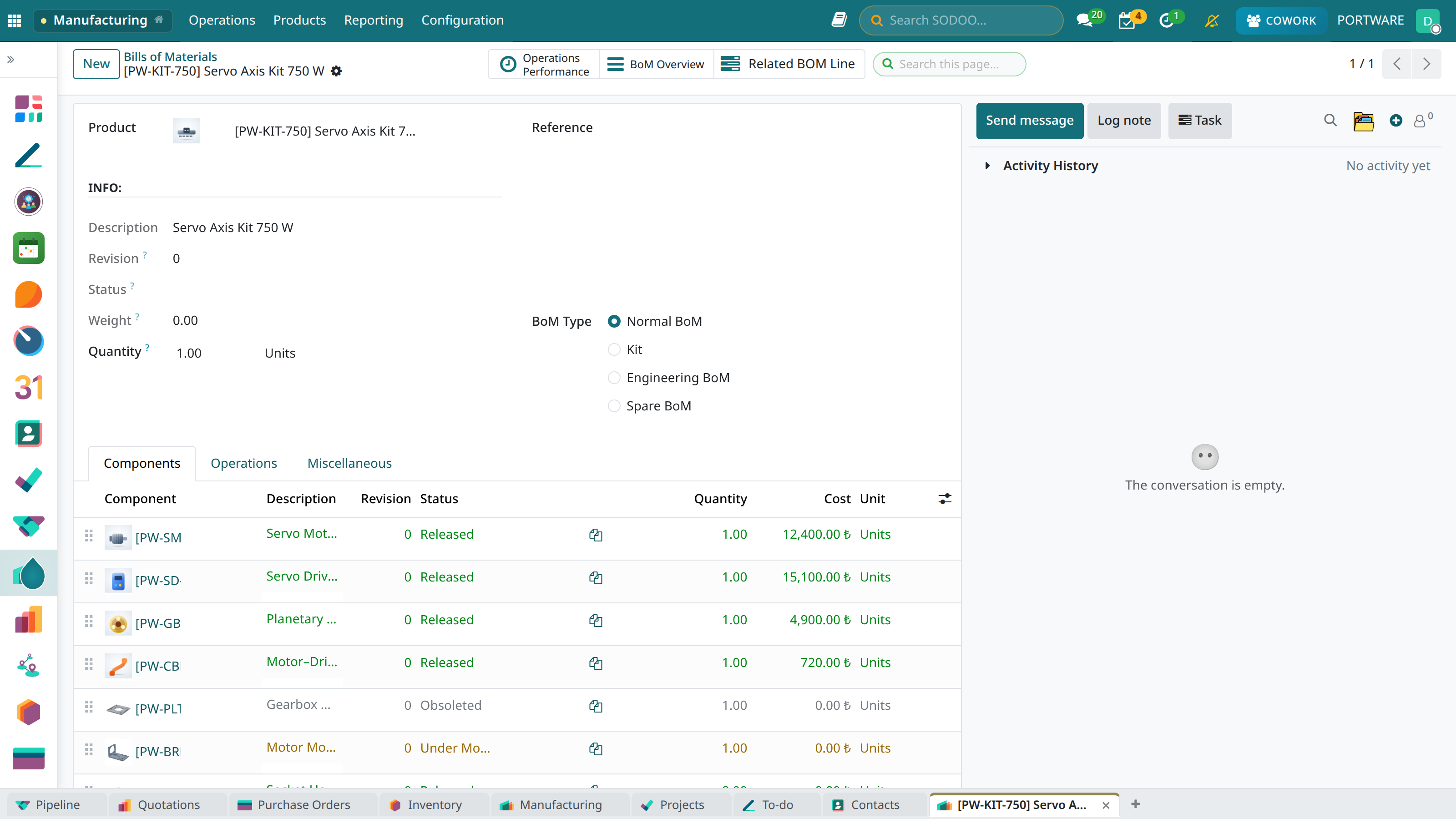
The engineering BoM (EBOM) is the structure as designed, usually from the CAD client. The normal BoM is the structure production uses; it may carry items the design does not (here the drive and the cable). The spare BoM lists the parts sold as spares. A revision copies all three; the new revision's tree is edited independently of the old one.
Step by step
Read the engineering BoM
The Component Relations menu lists the three kinds of tree separately. An EBOM's type is “Engineering BoM”, and the lines show each component's revision and state.
 123
123- BoM type: Engineering BoM.
- Line headers: component, revision, state, quantity.
- The motor bracket: rev 0, Under Modify.
Look at the normal BoM
Production uses the normal BoM. To make a normal BoM from the EBOM the part screen's action menu has Create Normal Bom; for the spare tree, Create Spare Bom.
 123
123- BoM type: Manufacture this product (normal).
- The drive: not in the design, added by production.
- An obsolete revision: the plate rev 0. The parent's tree does not move to the new revision by itself.
Open the multi-level tree
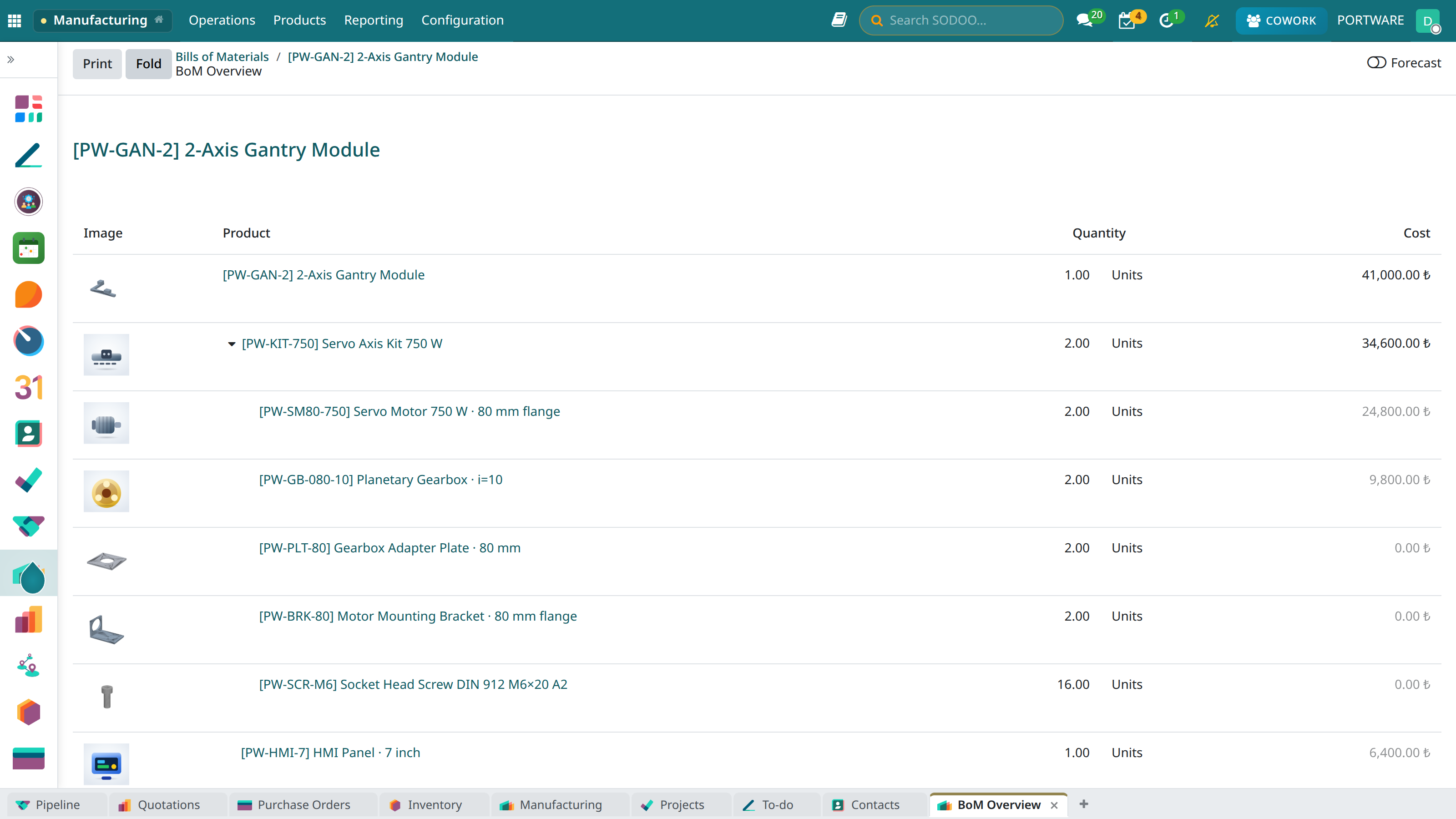
The BoM Overview button on the BoM form shows the tree at every level; Unfold opens every sub-assembly.
 123
123- Fold
- Sub-assembly: PW-KIT-750 (×2).
- Second level: the bracket.
Where-used
One level: Used In
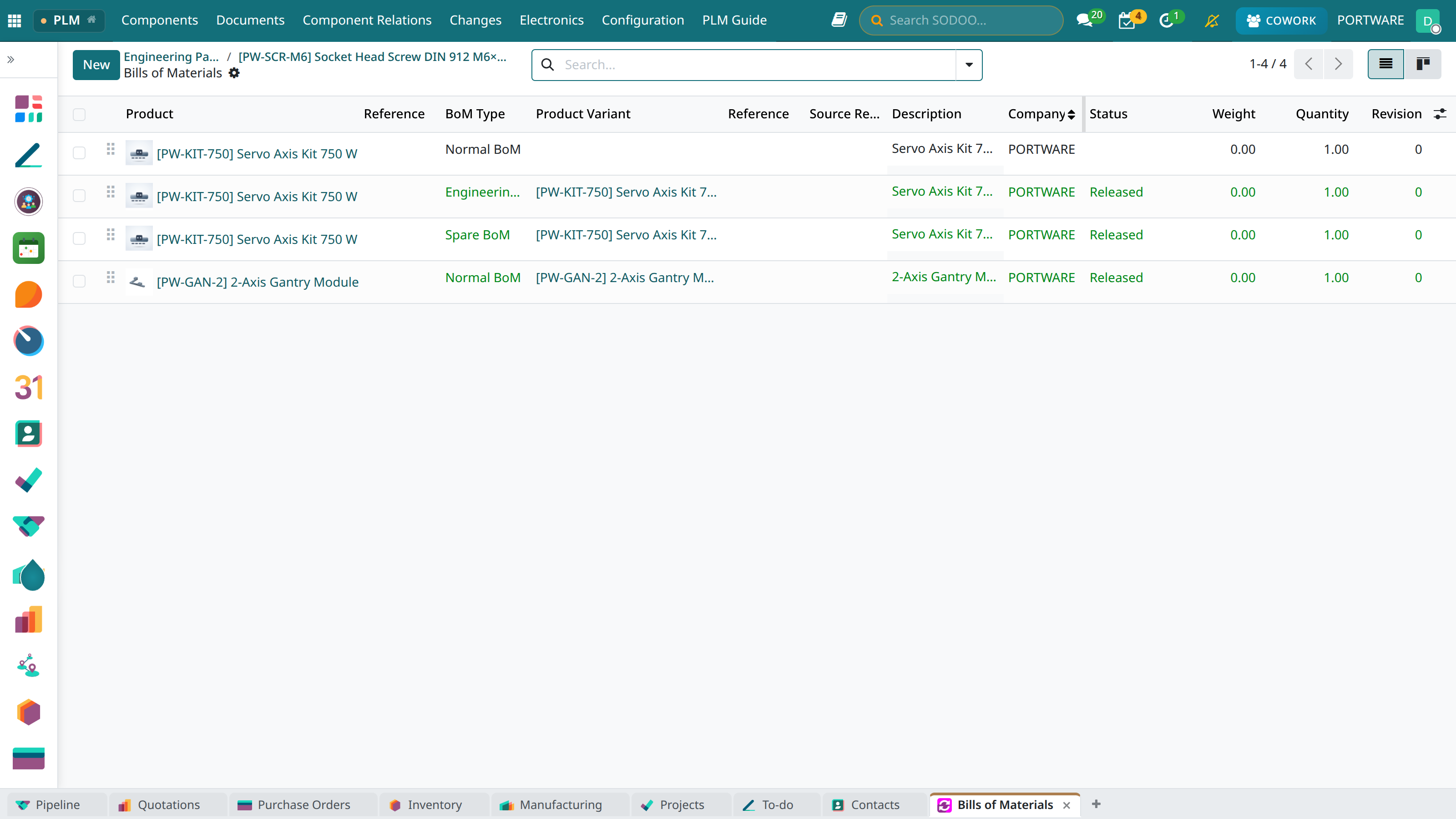
One of the counters on the part form lists the trees the part is a direct component of (under More when it does not fit).
 123
123- Whose trees: PW-SCR-M6.
- BoM type: normal, engineering, spare — one row each.
- The gantry module uses the screw directly too.
Every level: Check Product Change Impact
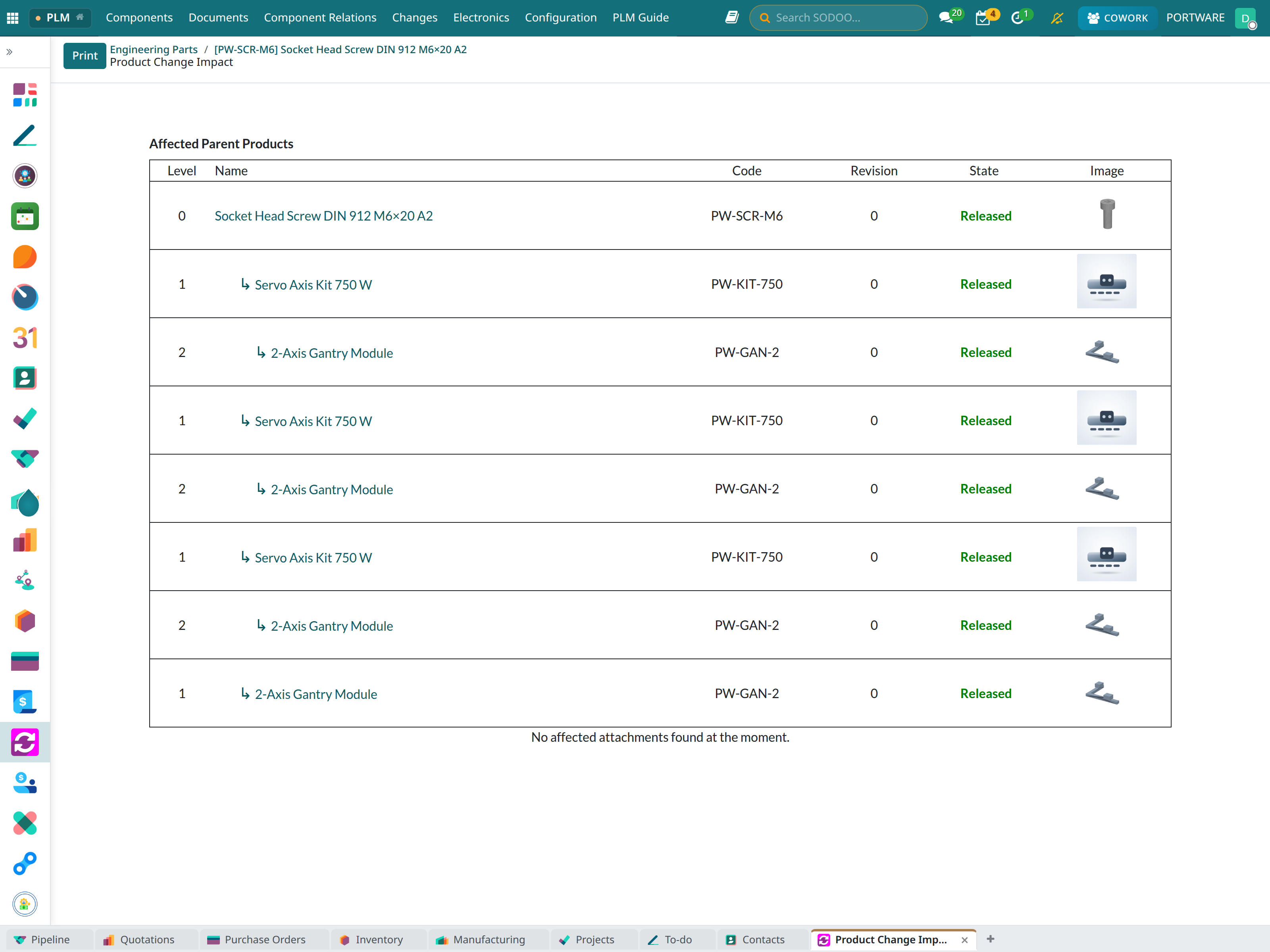
Check Product Change Impact in the part form's action menu (⚙) reports every parent assembly level by level. If the part is in several trees of one assembly (normal, engineering, spare) each is its own row.
 1
1- Report: Product Change Impact — affected parent products, level, code, revision, state.
Compare two trees
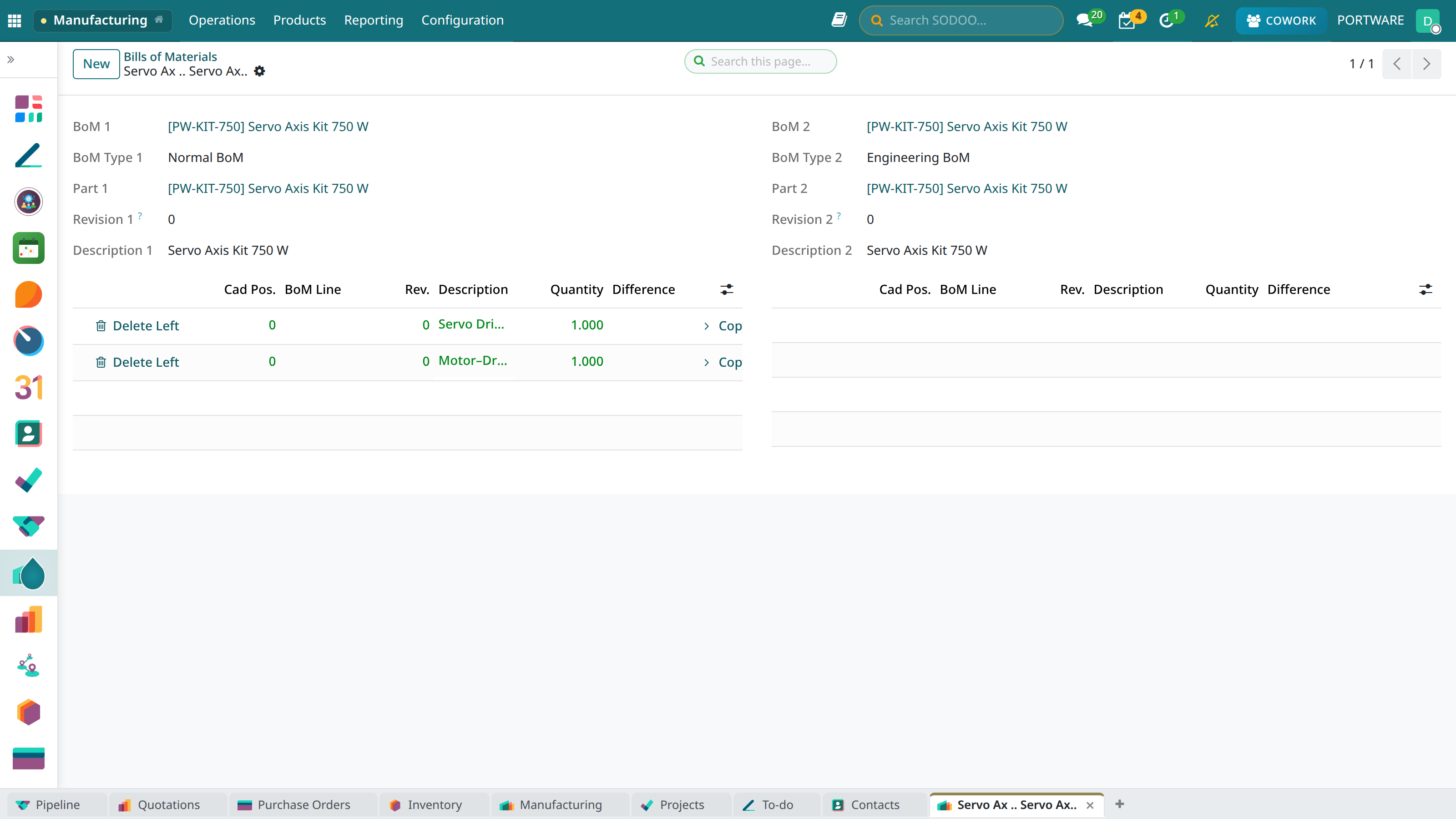
Select two trees in the BoM list and choose Compare BoMs in the action menu; the wizard shows the differences line by line. That is how you see what a revision changed, or how the EBOM differs from the normal BoM.
 123
123- BoM 1's type: normal.
- BoM 2's type: Engineering BoM.
- Lines only in the normal BoM: the drive and the cable.
Freeze the structure: a baseline
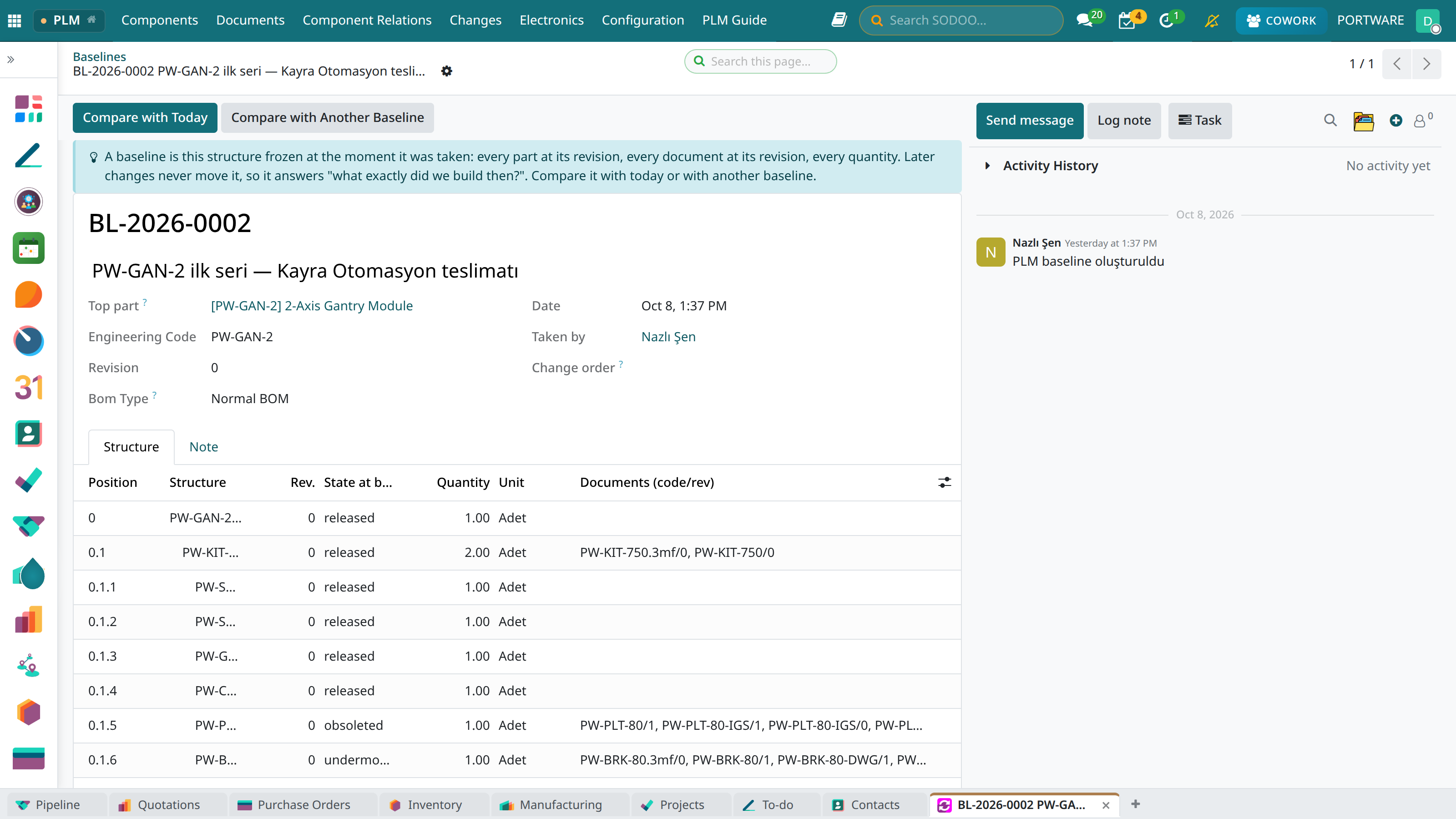
Take Baseline in a released part's blue box freezes the structure as it is: every part at its revision, every document at its revision, every quantity. Later changes never move it; it answers “what exactly did we build in March?”. Every applied change order takes its own baseline too. Baselines are under Changes › Baselines.
 12345
12345- Compare with Today: the difference between the baseline and today.
- Compare with Another Baseline: the difference between two baselines.
- The top part that was frozen.
- Structure: level, part, revision, quantity.
- Explanation: what a baseline is.
Products with variants (150% BoM)
One bill of materials can hold every option of a configurable product (a 150% BoM): each line says for which attribute values it is used. In the blue box on the product form's variants tab, Configure shows the BoM of any selection before a variant exists; when the selection obeys the rules, Create Variant creates it. Check All Combinations scans every combination for rule breaches and empty BoMs. Rules that say one value requires another carry an engineering reason and are applied on sale order lines too.
Mini case: the screw supplier changes
- Question
- If PW-SCR-M6 changes, which products are affected?
- Where-used
- PW-KIT-750 (×8, in three trees) and PW-GAN-2 (×12 directly, ×2 through the kit).
- Result
- The change request names both assemblies as affected items (Lesson 6).