CRM — Customer Relationship Management
CRM (Customer Relationship Management) is a system that lets you gather, track, and manage all interactions with your customers in one central place. But CRM is more than software — it…
- No opportunity is forgottenEvery lead, quote and conversation is followed by an activity.
- The pipeline at a glanceWhich deal is at which stage, who owns it and what it is worth.
- From quote to invoice without a gapThe opportunity becomes a quote, an order and an invoice on the same record.
What You Will Learn in This Guide
- What CRM is and how it creates tangible value for your business
- The difference between Leads, Opportunities, and Customers
- How to manage your sales pipeline effectively
- How to apply real business scenarios in SODOO
- How to use BANT and other qualification frameworks
- How to analyze your sales performance with built-in reports and KPIs
What is CRM?
CRM (Customer Relationship Management) is a system that lets you gather, track, and manage all interactions with your customers in one central place. But CRM is more than software — it is a customer-first business philosophy.
Real-World Example
Situation: Imagine a sales rep working the old-fashioned way. Customer details are in Excel, call notes are scribbled on paper, and emails are buried in an inbox...
One day an important customer calls: "What was the status of that proposal we discussed last month?"
The rep frantically opens the spreadsheet, digs through emails, searches for notes… Every second the customer waits is lost trust.
With CRM: You type the customer name and instantly see every email, phone call, note, and quotation — all in one timeline. You answer confidently in seconds.
What Does a CRM System Do?
Central Data Hub
All customer info, contacts, interactions, and documents stored in one place — accessible by the whole team.
Sales Pipeline Visibility
See exactly where every deal stands, what stage it is in, and what action is needed next.
Activity Tracking
Schedule calls, meetings, and emails so no follow-up ever slips through the cracks.
Performance Analytics
Measure conversion rates, deal values, sales cycles, and team performance with real-time reports.
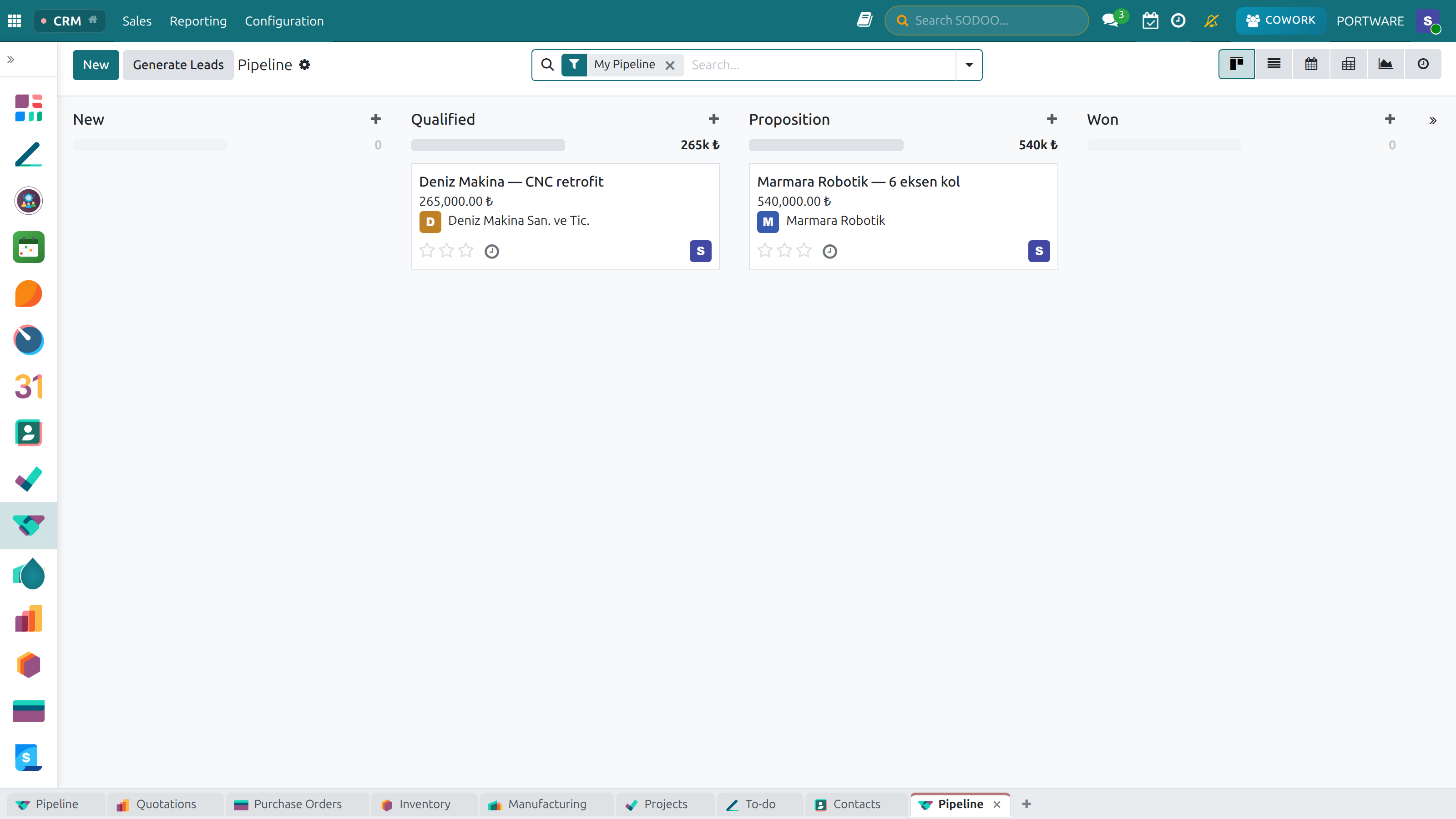
SODOO CRM — the customer relationship home screen
Why Use CRM?
Businesses that implement CRM report measurable improvements across the board:
With CRM
- All customer data in one system
- Full team visibility on every deal
- Automated follow-up reminders
- Data-driven management decisions
- Fast customer handover between reps
- Accurate sales forecasting
Without CRM
- Data scattered across spreadsheets & inboxes
- Knowledge locked in individual reps
- Missed follow-ups and lost deals
- Gut-based management decisions
- Long onboarding for new hires
- Unreliable revenue projections
Core CRM Concepts
Before diving into SODOO CRM, it is important to understand the key terminology. These concepts are used consistently throughout the module.
Lead
An unqualified contact or inquiry. You don't yet know if this person has a genuine need or budget. Requires qualification.
Opportunity
A qualified lead with a real chance of becoming a sale. Has a defined product, estimated value, and expected close date.
Customer
A contact or company that has completed at least one purchase. Has a full history in the system.
Pipeline
The visual representation of all open opportunities across every sales stage.
Stage
A step in the sales process (e.g., New, Qualified, Proposal, Negotiation, Won). Each stage has a win probability.
Activity
A scheduled interaction: phone call, email, meeting, or task. Keeps every opportunity moving forward.
The Lead-to-Cash Journey
First Steps in SODOO CRM
Before you start entering leads, spend a few minutes configuring your CRM to match your sales process.
Initial CRM Setup in SODOO
Step 1: Configure Sales Stages
- Go to
- Click New to add a stage
- Enter the stage name (e.g., "Initial Contact", "Demo Scheduled", "Proposal Sent")
- Set the Probability percentage for each stage
- Drag and reorder stages to match your actual sales process
Step 2: Set Up Sales Teams
- Go to
- Create a team for each sales group (e.g., "Enterprise", "SMB", "Inside Sales")
- Assign a team leader and add team members
- Set the Email Alias so inbound emails auto-create leads
Step 3: Configure Lead Tags
- Go to
- Create tags to categorize leads: "Hot", "Cold", "Referral", "Website", "Trade Show"
- Tags are searchable and filterable across all reports
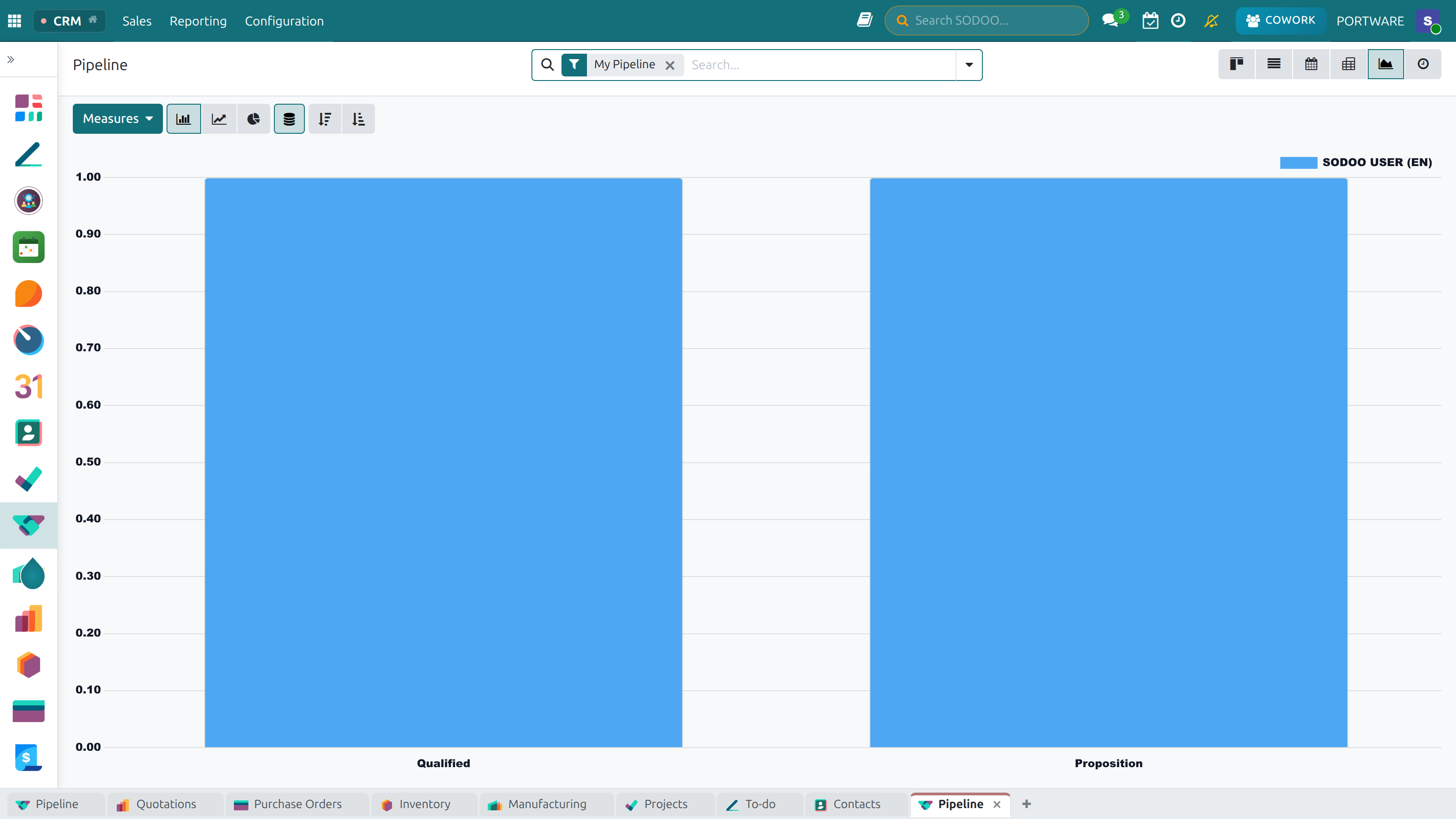
CRM Dashboard — an overview of leads and opportunities
Lead Management
What is a Lead?
A lead represents a potential sales contact who has expressed interest in your product or service but has not yet been qualified. Think of it as the raw material of your sales pipeline. Not every lead becomes an opportunity — the goal is to qualify quickly and focus energy on the best prospects.
Lead Sources
Understanding where your leads come from helps you allocate marketing budget and sales effort:
Website / Landing Page
Contact forms and demo requests captured directly from your website. Often the highest volume source.
Inbound Phone Call
Prospects calling your sales line. Quick to capture, requires immediate follow-up.
Referrals
Leads introduced by existing customers or partners. Highest conversion rate of any source.
Trade Shows / Events
Business cards and contacts collected at industry events. Require quick follow-up while memory is fresh.
Email Campaigns
Responses to targeted email marketing campaigns. Can be high volume, lower initial quality.
Cold Outreach
Proactive prospecting by the sales team. Requires more effort but lets you target ideal customers.
Entering Leads in SODOO
How to Create a Lead in SODOO
Manual Lead Entry
- Go to and click New
- Enter the Contact Name and Company Name
- Fill in Phone, Email, and Source
- Assign to the correct Sales Team and Salesperson
- Add any initial notes in the Internal Notes tab
- Click Save
Bulk Import from Excel / CSV
- In the list view, click Favorites › Import Records
- Click Upload File and select your Excel or CSV file
- Map columns: Excel "Name" column → SODOO Lead Name field
- Preview the import and click Import
Automatic Lead Capture
SODOO can create leads automatically from:
- Email: Emails sent to your sales alias (e.g., sales@yourcompany.com) create leads
- Website forms: Contact and quotation request forms integrate directly with CRM
- Live Chat: Chat conversations can be converted to CRM leads
Lead Qualification — The BANT Framework
Not all leads are worth the same sales effort. The BANT framework helps you quickly assess whether a lead is worth pursuing as a full opportunity.
B — Budget
Does the prospect have allocated funds? What is the purchase authority? Is price a concern?
N — Need
Does the prospect have a genuine problem your product solves? How painful is the problem?
T — Timeline
When does the prospect need a solution? Is there urgency driving the purchase decision?
Converting a Lead to an Opportunity
Once a lead passes your qualification criteria, convert it to an opportunity to bring it into the active pipeline with a stage, expected revenue, and close date.
Lead Conversion Steps
- Open the lead record from
- Click the Convert to Opportunity button in the top bar
- In the dialog, confirm or update the Customer, Sales Team, and Salesperson
- Check Merge with existing opportunities if a duplicate exists for this customer
- Click Convert to Opportunity — the lead is now a Kanban card in your pipeline
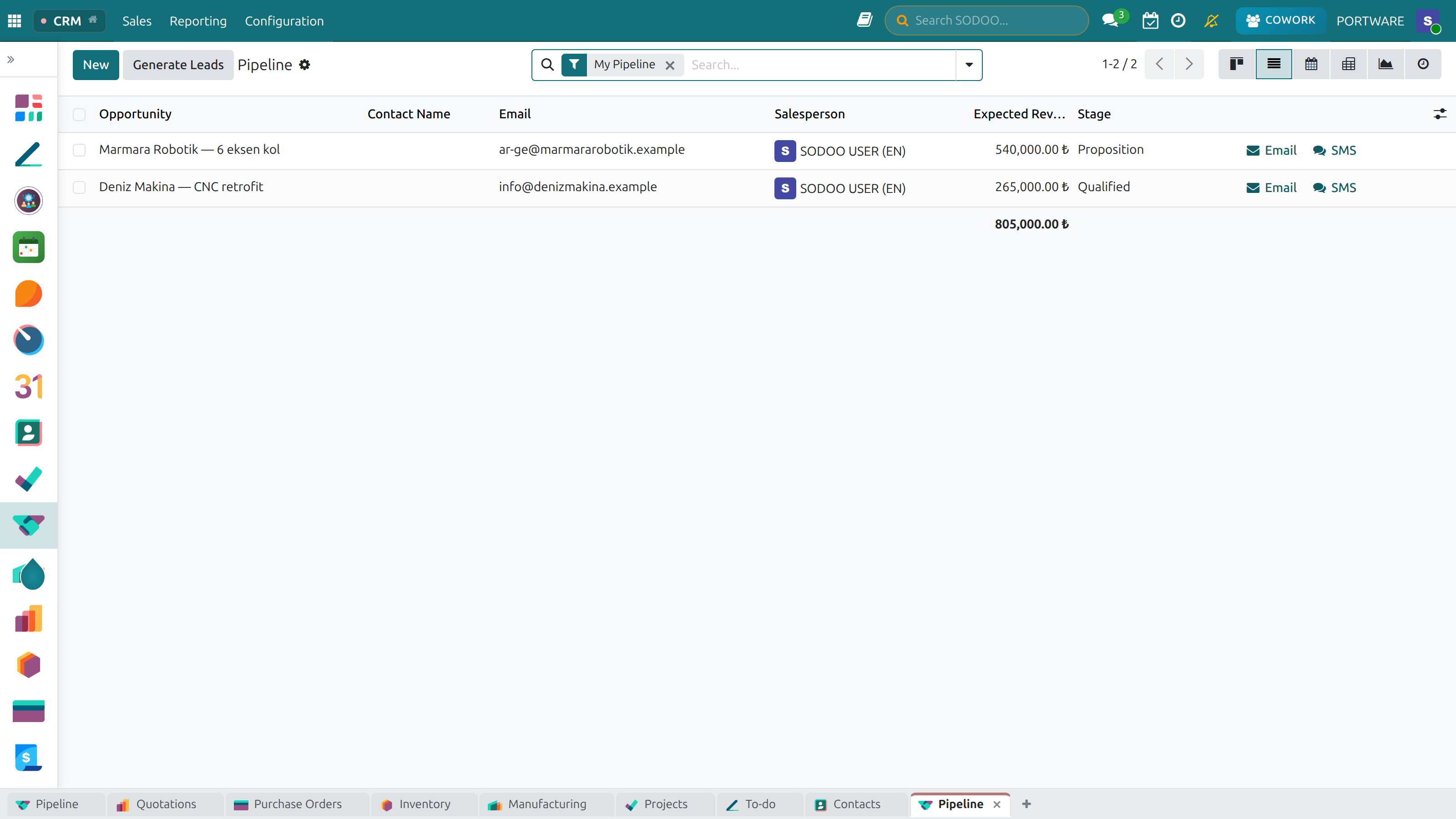
CRM Leads List — your prospects in a table
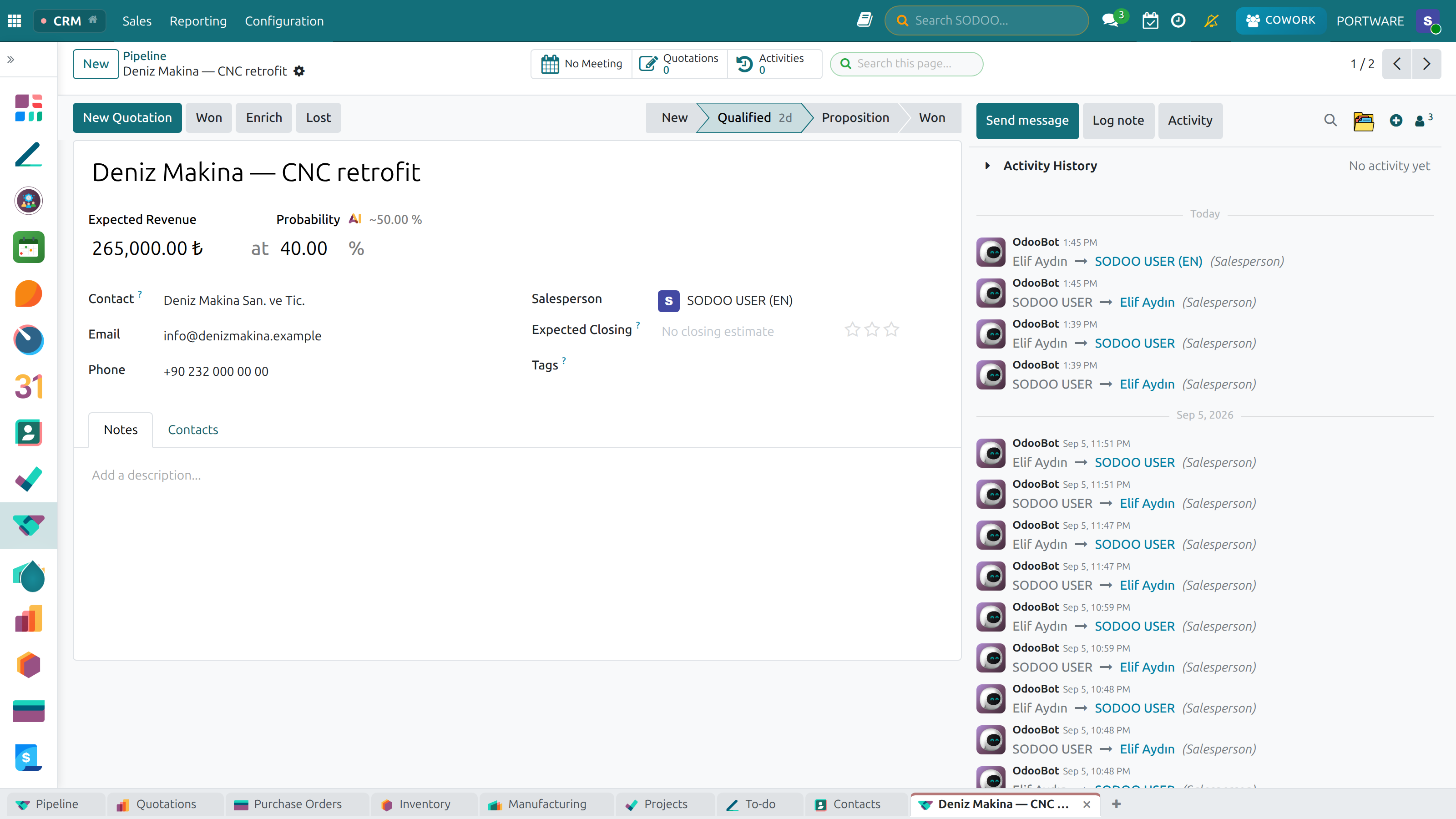
Lead Detail — contact information and qualification notes
Leads, Kanban View — manage leads by dragging and dropping
Pipeline Management
The pipeline is the heart of your CRM. It gives you a visual, real-time view of every open deal and where it stands in the sales process.
Designing Your Opportunity Stages
A well-designed stage structure reflects your actual sales process. A typical B2B pipeline looks like this:
| Stage | Meaning | Win Probability | Key Action Required |
|---|---|---|---|
| New / Incoming | Recently converted from lead, not yet engaged | 10% | Schedule discovery call |
| Qualified | BANT passed, genuine opportunity confirmed | 20% | Schedule product demo |
| Demo / Proposal | Demo delivered or proposal submitted | 40% | Follow up, address objections |
| Negotiation | Price or terms being discussed | 60% | Escalate discount if needed, push for decision |
| Contract Ready | Verbal agreement, contract being signed | 80% | Send contract, get signature |
| Won | Deal closed successfully | 100% | Create sales order, handover to delivery |
Working the Pipeline in SODOO
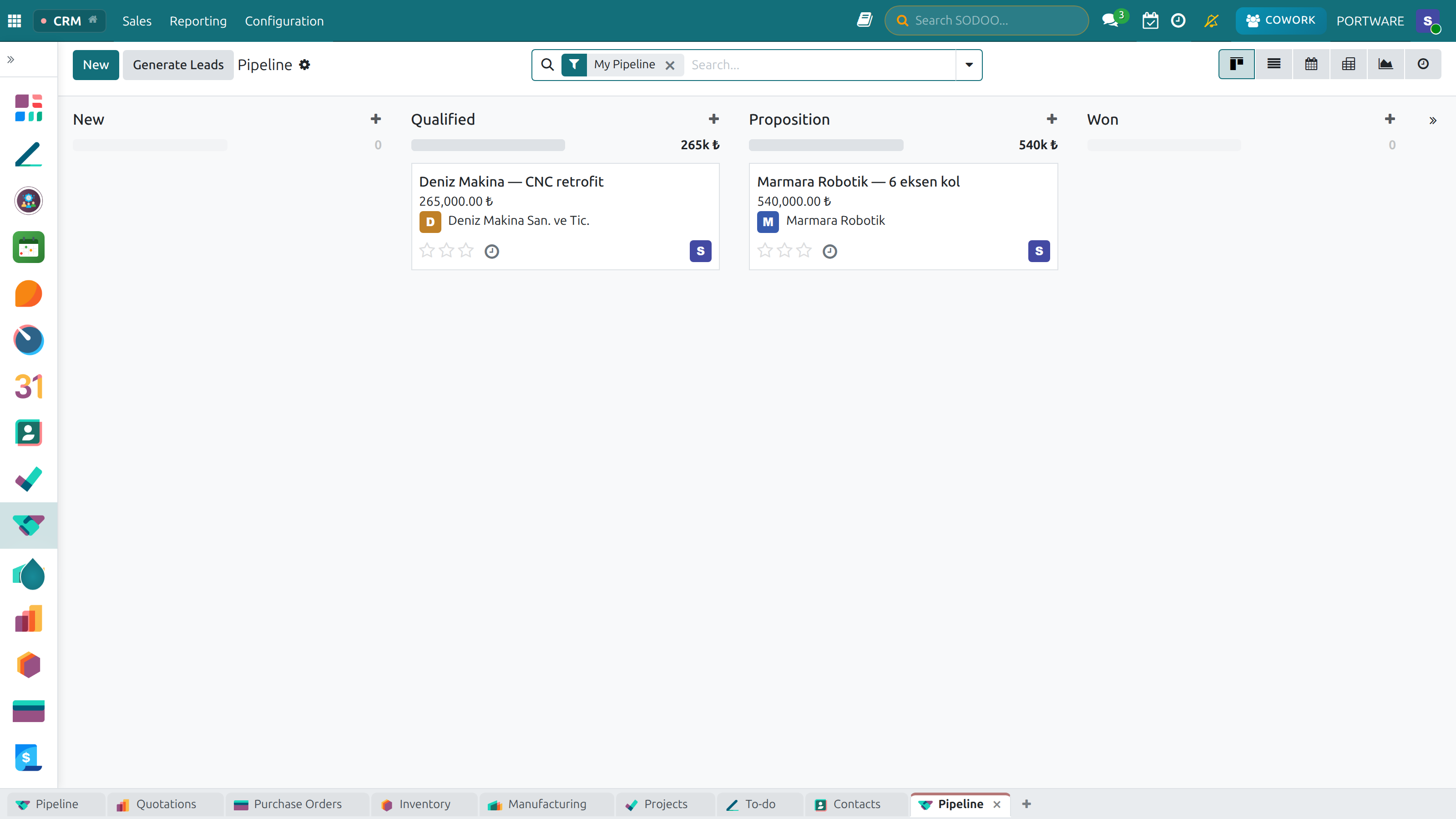
Kanban View (Recommended)
- Go to
- You see each stage as a column with opportunity cards
- Drag and drop cards between columns to advance them through stages
- Click the colored dot on a card to quickly mark it Won or Lost
- The revenue total shown at the top of each column helps prioritize effort
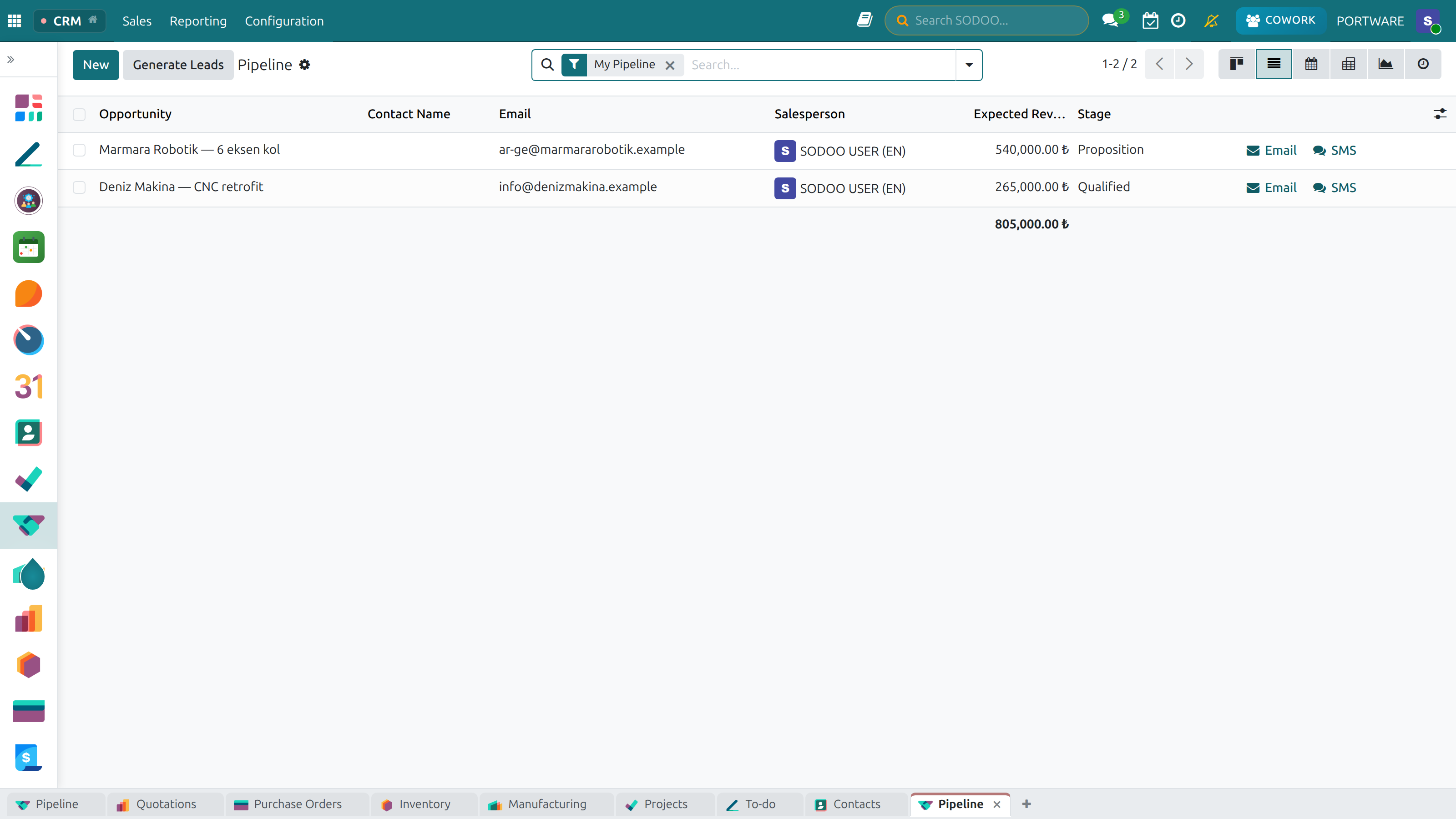
List View (for bulk operations)
- Switch to list view using the icon at top right
- Select multiple opportunities using checkboxes
- Use the Action menu to bulk-assign, bulk-tag, or bulk-move to a stage
Filtering the Pipeline
Click Filters to narrow down your view:
- My Pipeline — see only your own opportunities
- Overdue Activities — deals that need attention today
- Expected Closing: This Month — deals forecast to close soon
- Sales Team — filter by a specific team
Activity Planning
Every opportunity should always have a scheduled next activity. An opportunity without a next activity is a forgotten opportunity.
Phone Call
Log a call that happened or schedule a future call. Set a deadline and reminder.
Track email follow-ups. Draft and send directly from SODOO without switching to your mail client.
Meeting
Schedule and record meetings. Syncs with your calendar and sends invitations automatically.
To-Do Task
Generic task for anything else: send a document, prepare a demo, research a competitor.
Scheduling Activities in SODOO
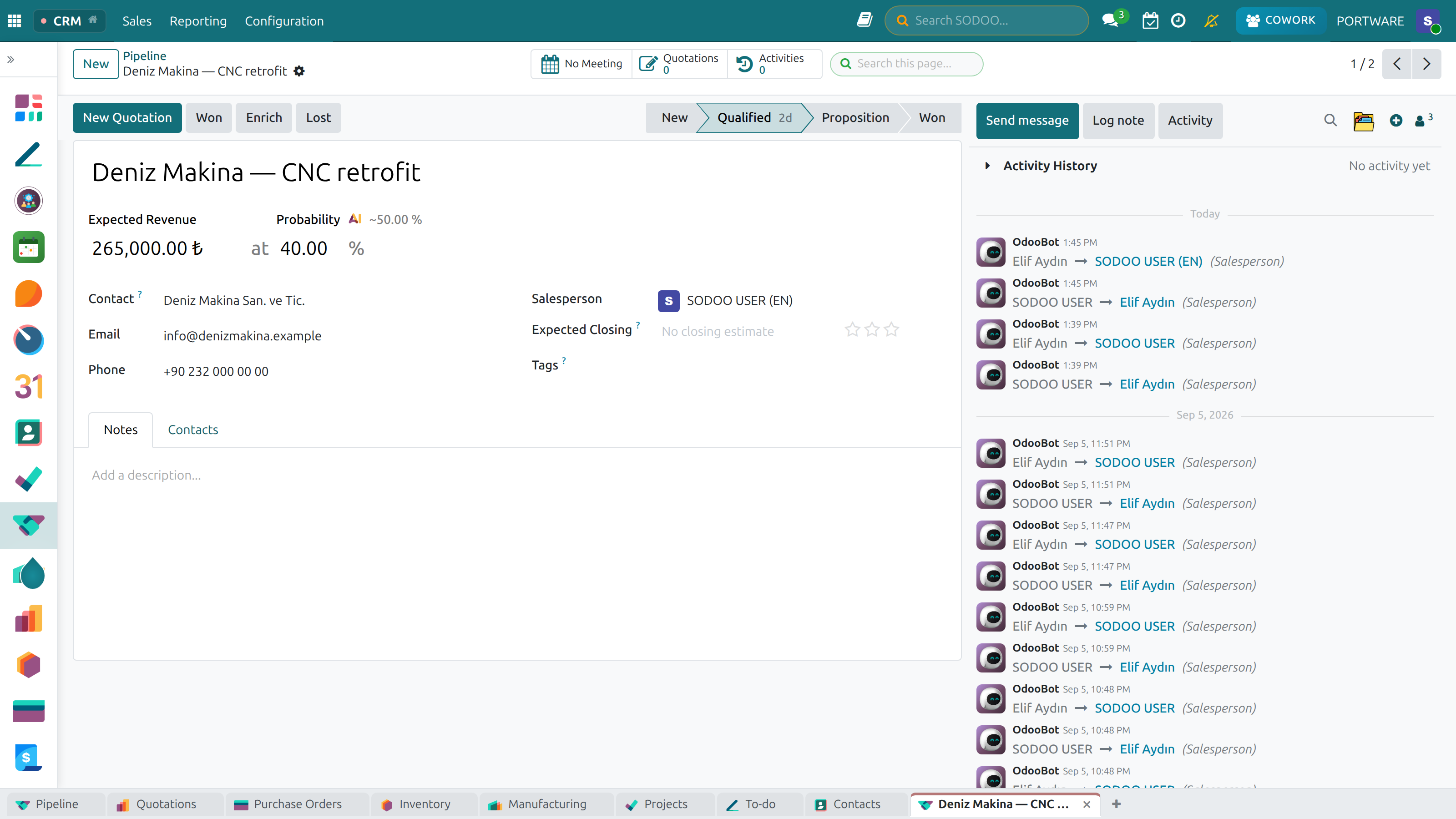
- Open an opportunity and click Schedule Activity in the top chatter
- Select the activity type: Phone Call, Email, Meeting, or Task
- Set a Due Date and assign a Responsible user
- Add a Note summarizing the purpose (e.g., "Follow up on pricing proposal")
- Click Schedule — the activity appears on the kanban card as a colored icon
Activity icons color-code by urgency: Green = today, Orange = overdue, Red = very overdue.
Creating a Quotation from CRM
When a prospect is ready for pricing, create a quotation directly from the CRM opportunity without duplicating data:
Quotation from Opportunity
- Open the opportunity
- Click the New Quotation button at the top
- The customer, sales team, and salesperson are pre-filled from the opportunity
- Add product lines with quantities and prices
- Click Send by Email to deliver the quotation to the customer
- The quotation count appears as a smart button on the opportunity: Quotations (1)
Closing a Deal (Won or Lost)
Marking a Deal Won or Lost
Mark as Won
- Open the opportunity in the final stage
- Click the Mark as Won button
- Confirm the action — the opportunity moves out of the active pipeline
- A sales order can be created automatically from the linked quotation
Mark as Lost
- Click the Mark as Lost button
- Select a Lost Reason (e.g., Price, Competitor, No Budget, Timing)
- Add optional notes explaining what happened
- Click Confirm
Opportunities List — everything in your sales pipeline
Lead Detail — full tracking with activities and notes
Customer Relations
360° Customer View
Every customer record in SODOO aggregates all relevant data in a single screen:
Communication History
All emails, phone call notes, and meeting records shown in chronological order.
Sales History
All quotations, sales orders, invoices, and payments for this customer.
Support Tickets
Open and resolved helpdesk tickets (requires Helpdesk module).
Projects
All customer-related projects and tasks (requires Project module).
Customer Segmentation
Treating all customers the same is inefficient. Segmentation lets you apply the right strategy to each group:
| Segment | Definition | Recommended Strategy |
|---|---|---|
| VIP | High-volume, loyal customers | Dedicated account manager, priority support, executive access |
| Growth | High-potential, expanding customers | Cross-sell and upsell campaigns, success check-ins |
| Standard | Regular mid-tier purchasers | Efficient service, standard processes, periodic outreach |
| At Risk | Declining purchases, signs of dissatisfaction | Proactive outreach, problem resolution, special offers |
Accessing the 360° Customer View in SODOO
Opening a Customer Card
- Click the customer name link inside any Opportunity or Lead record
- Or navigate to and search for the customer
Smart Buttons
At the top of the customer card you will find smart buttons showing related data counts:
- Opportunities (3) — all CRM opportunities
- Sales (5) — all sales orders
- Invoices (8) — all invoices and payment status
- Support (4) — helpdesk tickets
Tagging for Segmentation
- Open the customer contact record
- Click the Tags field
- Add segment tags: "VIP", "Growth", "At Risk", "Standard"
- Use these tags as filters in reports and mailing campaigns
Building Customer Loyalty
Retaining an existing customer costs 5–7× less than acquiring a new one. SODOO supports retention efforts through:
- Scheduled check-in activities: Set a recurring reminder to contact each customer quarterly
- Renewal opportunities: Create new opportunities for contract renewals before they expire
- Customer satisfaction tracking: Log feedback and complaints directly in the chatter
- Targeted email campaigns: Use Email Marketing to reach specific customer segments
Team Management
If you have multiple sales reps, team management becomes critical. SODOO lets you organize your team and track individual and collective performance.
Sales Team Structures
Organize teams by geography, product line, or customer segment:
- Geographic: East Region, West Region, Export Team
- Product-Based: Software Sales, Hardware Sales, Professional Services
- Segment-Based: Enterprise Team, SMB Team, Channel Partners
Lead Assignment Methods
Round Robin
Leads are distributed sequentially among team members. Ensures equal workload distribution.
Geographic
Leads are routed to the rep responsible for the prospect's location.
Industry / Vertical
Leads are assigned based on the prospect's industry to leverage specialist expertise.
Manual
Manager reviews each lead and assigns it manually based on context and rep availability.
Managing Your Team in SODOO
Sales Manager Dashboard
- Go to
- Click Group By › Salesperson
- Compare pipeline value and deal count per rep
Access Control
Sales reps see only their own pipeline by default. Managers see all pipelines for their team. Configure in .
Reports & KPIs
"If you can't measure it, you can't manage it." CRM reports give you the insight to understand your performance and make data-driven improvements.
Core Sales KPIs
Sales Forecasting
Use pipeline probabilities to project expected revenue by month or quarter:
| Stage | Open Deals | Total Value | Win Probability | Expected Revenue |
|---|---|---|---|---|
| Qualified | 8 | $400,000 | 20% | $80,000 |
| Proposal | 5 | $350,000 | 40% | $140,000 |
| Negotiation | 3 | $200,000 | 60% | $120,000 |
| Total Expected Revenue | $340,000 | |||
Generating CRM Reports in SODOO
Pipeline Analysis
- Go to
- Default view shows pipeline value grouped by stage
- Switch chart types: Bar, Line, Pie
- Click Measures and select:
- Expected Revenue — total pipeline value
- Prorated Revenue — probability-weighted value
- Count — number of opportunities
Sales Forecast Report
- Go to
- View expected monthly or quarterly revenues
- Group by Salesperson or Sales Team to compare performance
Exporting Reports
- From any report view, click Export
- Choose XLSX or CSV format
- The file downloads automatically
Frequently Asked Questions
What is the difference between Expected Revenue and Prorated Revenue?
Expected Revenue is the full deal value entered on the opportunity, regardless of win probability. Prorated Revenue = Expected Revenue × Win Probability. Prorated gives a more realistic forecast. For example, a $100,000 deal at 40% probability contributes $40,000 to prorated revenue.
How do I track activities across the whole team (not just mine)?
Go to . Remove the "My" filter to see all team activities. Group by Salesperson to compare activity levels. You can also use and remove the "My" filter.
Can I restore a lost opportunity?
Yes. Go to , enable Filters › Lost, find the opportunity, open it, and click Restore. It returns to the active pipeline.
How do I prevent duplicate customer records?
SODOO warns you when creating a contact with a name or email that already exists. Use to deduplicate existing records. A strict "search before create" policy among your team is the best prevention.
Integrations
CRM and Sales Module
CRM opportunities connect seamlessly to the Sales module, creating an end-to-end revenue flow:
Email Integration
SODOO can integrate your email inbox with CRM so all communications are tracked automatically:
- Auto-link inbound emails: Emails from customers are matched and attached to the correct CRM record
- Send from CRM: Send emails to customers directly from the opportunity without switching to your email client
- Email templates: Use pre-built templates for common messages (follow-up, proposal intro, thank you)
- Email sequences: Automate multi-step follow-up sequences with defined delays
sales@yourcompany.com for your sales team.
Any email sent to that address automatically creates a new lead in SODOO — no manual entry needed.
Best Practices
Weekly Sales Review Checklist
Run this 30-minute review every Friday to keep your pipeline healthy:
- Review all opportunities that haven't moved in 7+ days — take action or mark lost
- Check for opportunities with no scheduled next activity — schedule one immediately
- Review deals closing this month — confirm close dates are realistic
- Look at the won/lost ratio for the week — is it improving?
- Review new leads entered this week — are they qualified or should they be closed?
A consistent weekly review keeps your pipeline accurate and your forecast reliable.