To-Do
SODOO To-Do is a simple but powerful tool designed for personal task management. Create your daily to-do list, prioritise it and tick items off when done. All SODOO…
What You Will Learn in This Section
- Creating and managing to-do lists
- Prioritising and tagging tasks
- Setting deadlines and reminders
- Linking tasks to other SODOO records
- Increasing your personal productivity
Overview
SODOO To-Do is a simple but powerful tool designed for personal task management. Create your daily to-do list, prioritise it and tick items off when done. It works integrated with all SODOO records (customers, orders, opportunities).
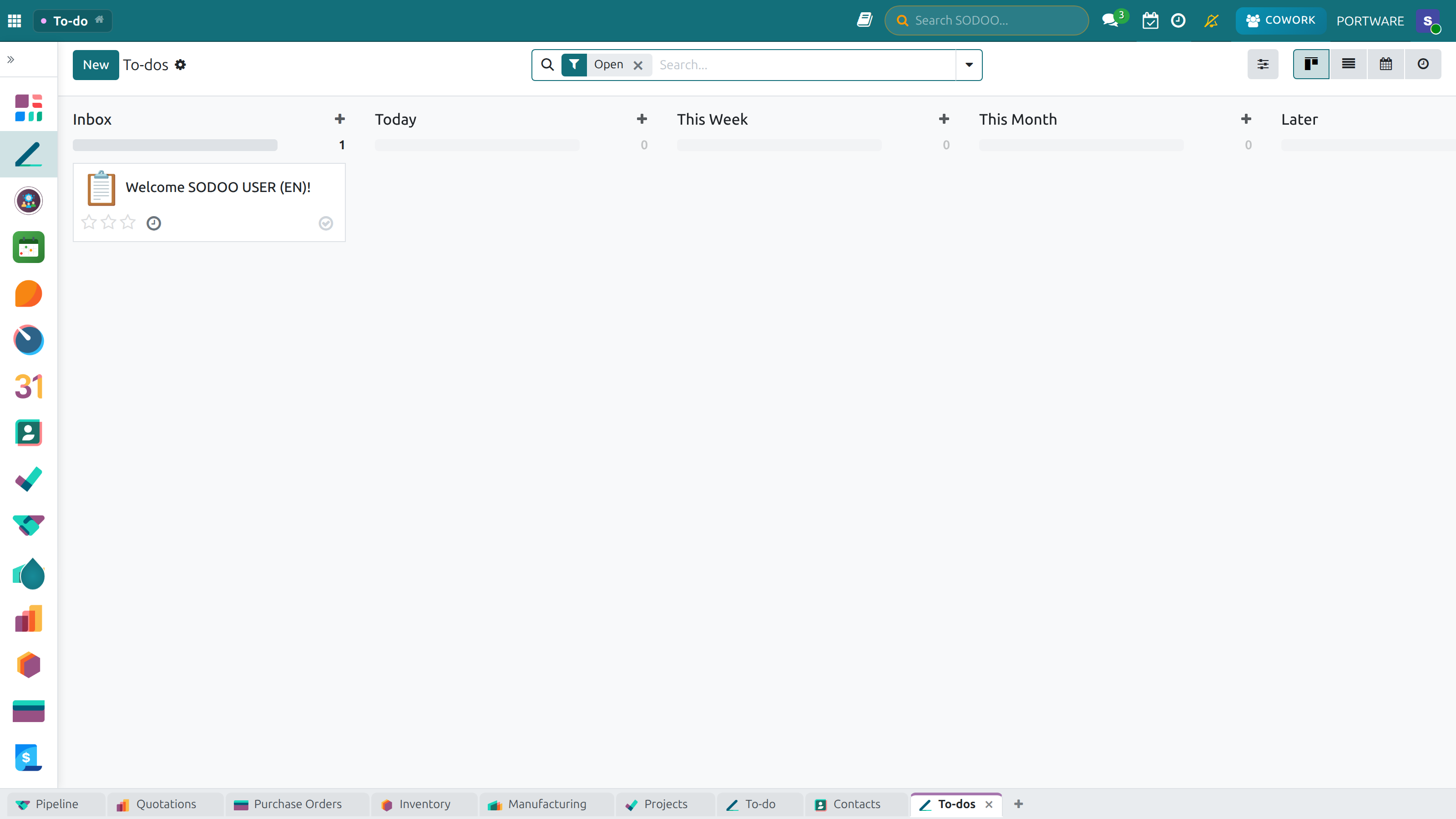
To-Do - task management in the kanban view
Simple Task Management
Add and edit your tasks quickly and tick them off when done.
Prioritisation
Order your tasks with high, medium and low priority levels.
Reminders
Miss no task with deadlines and reminders.
Record Link
Link tasks to customers, orders or opportunities.
Creating a Task
You can use several ways to create a new task:
Quick Add
Open the To-Do app and click the + New button, or type straight into the input field under the task list.
My Tasks Today
-
Contract meeting with ABC Company
-
Prepare the monthly sales report
-
Send a quotation to customer XYZ
-
Team meeting for the inventory count
Creating a Task from the Chatter
You can create a task from the chatter of any SODOO record (customer, order, opportunity etc.) by clicking the Schedule Activity button. The task is linked to that record automatically.
With the keyboard shortcut Alt + Shift + T you can switch to the To-Do app quickly from any screen.
Prioritisation
Focus on the most important work by ordering your tasks by priority:
Priority Levels
- High - Urgent and critical tasks that must be done today
- Medium - Important but not urgent tasks
- Low - Tasks with no time constraint
Tags and Categories
Organise your tasks better by categorising them with tags:
Creating Custom Tags
You can create your own tags. In the task edit window, type a new name in the tag field and choose a colour.
Dates and Reminders
You can add a deadline and a reminder to every task:
End Date
- Pick a date from the calendar or use shortcuts such as "Today", "Tomorrow", "Next Week"
- Overdue tasks are highlighted in red
- Tasks without a date appear under the "No date" filter
Reminders
- Get an e-mail or notification before the deadline
- Set a custom reminder time (1 hour before, 1 day before etc.)
- Automatic reminders for recurring tasks
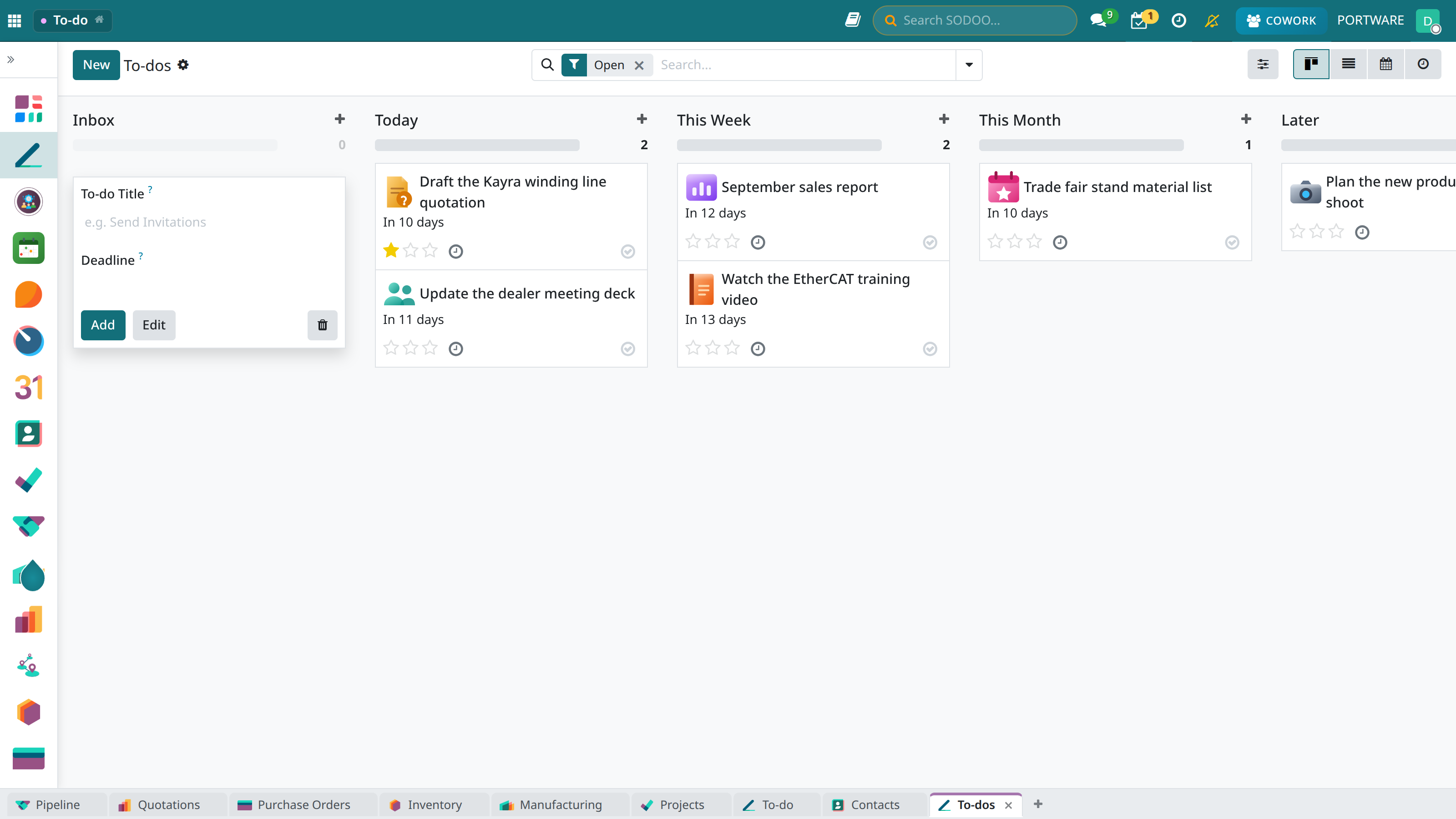
Reminders list
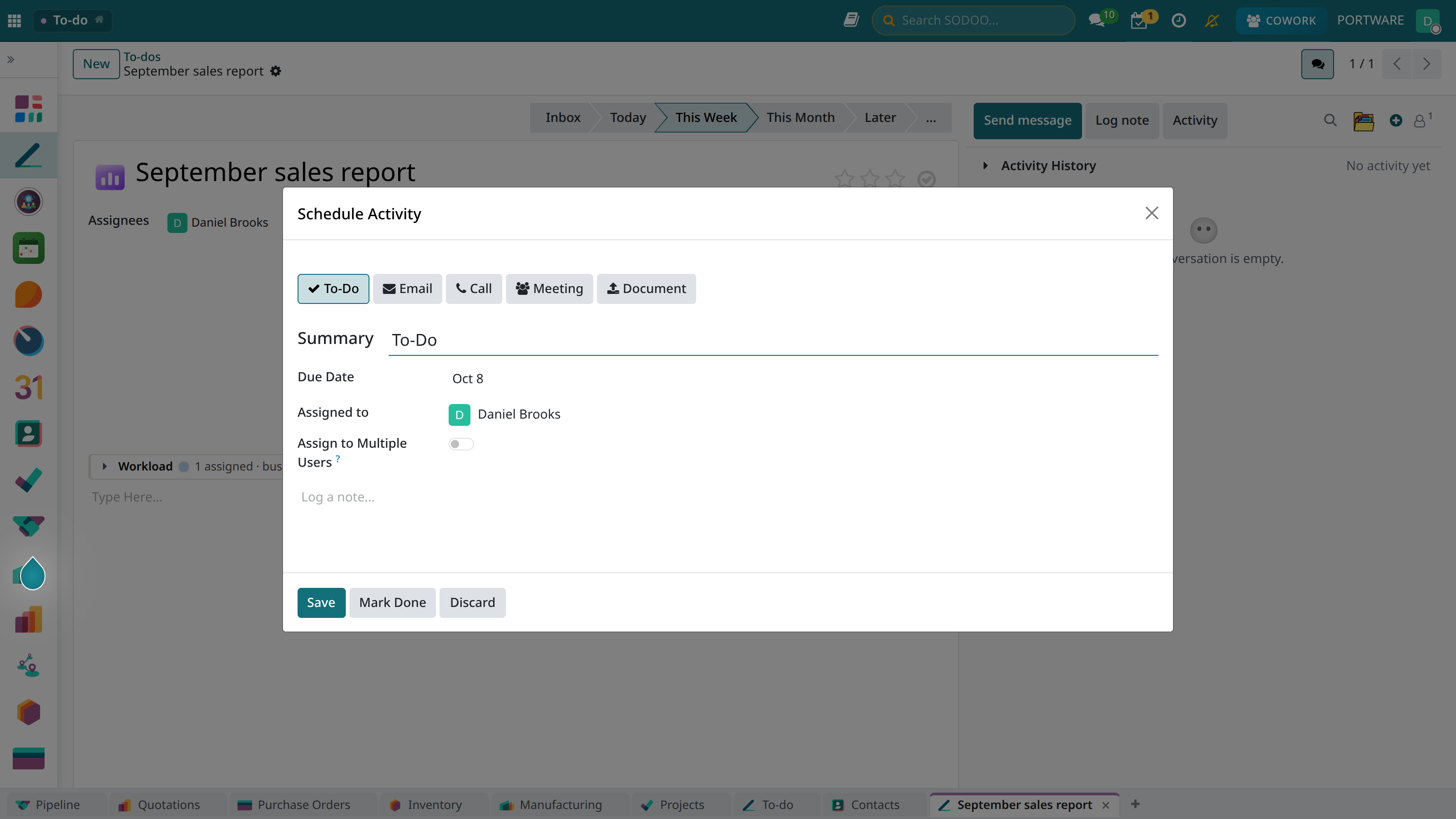
Scheduling an activity on a to-do — reminder date and assignee; a notification arrives when it is due
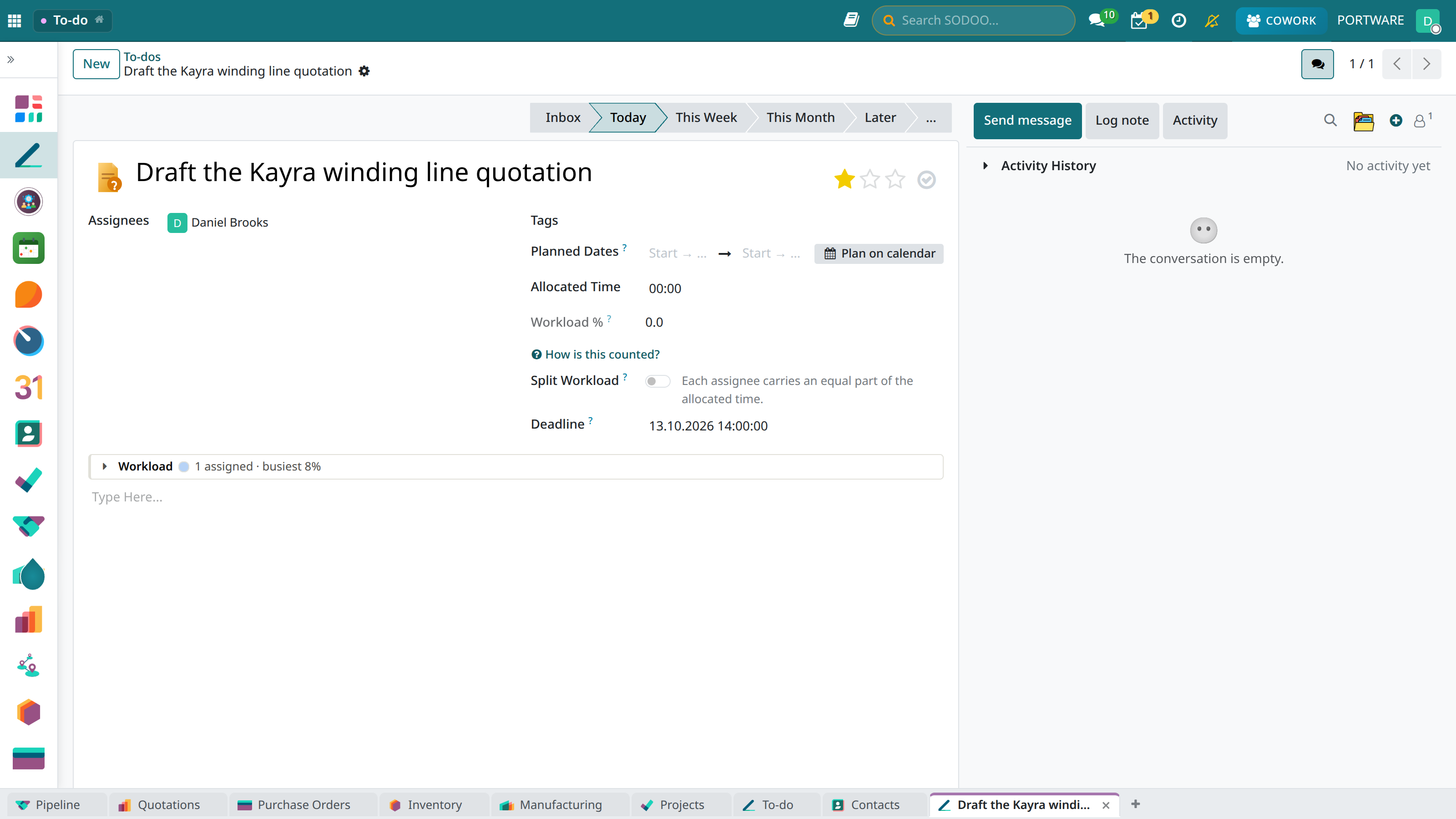
A to-do — personal stage, time limit, planned dates and priority star
Reminders can be sent both as browser notifications and by e-mail. You can edit your notification preferences in Settings > Preferences.
Linking to Records
Give your tasks context by linking them to other records in SODOO:
Record Types That Can Be Linked
- Contacts: Customer, vendor or business partner
- Sales orders: Orders needing follow-up
- CRM opportunities: Work in the sales process
- Support tickets: Tickets to be resolved
- Projects: Project tasks
Making the Link
When creating or editing a task, choose the record you want to link in the "Related Record" field. A direct link to the linked record appears on the task card.
When you need to phone a customer, link the task to that customer. Then you can reach the customer's details with one click from the task.
View Options
The To-Do app offers different view options:
List View
See all tasks as a detailed list.
Kanban View
See tasks in columns (To Do, In Progress, Done).
Calendar View
See tasks on the calendar by their dates.
Activity View
See your planned activities as a summary.
Recurring Tasks
Set up automation for tasks that repeat regularly:
- Daily: Tasks repeating every day
- Weekly: Repeating on certain days (e.g. every Monday)
- Monthly: Repeating on certain days of the month
- Custom: Repeating at the interval you want
When a recurring task is completed, a new task is created automatically for the next occurrence. To stop the recurrence, remove the recurrence option from the task settings.
Statistics and Reports
Track your personal productivity:
- Completed tasks: Daily, weekly, monthly
- On-time completion rate: Keeping to deadlines
- Priority distribution: Priority analysis of tasks
- Category analysis: Which category has the most tasks
Keyboard Shortcuts
Shortcuts you can use to work fast:
- N - Create a new task
- E - Edit the selected task
- Space - Mark the task done/not done
- Delete - Delete the selected task
- ↑ ↓ - Move between tasks
- / - Focus the search box