Timesheets
Time entries recorded on the project in the card view — person, task, date and duration
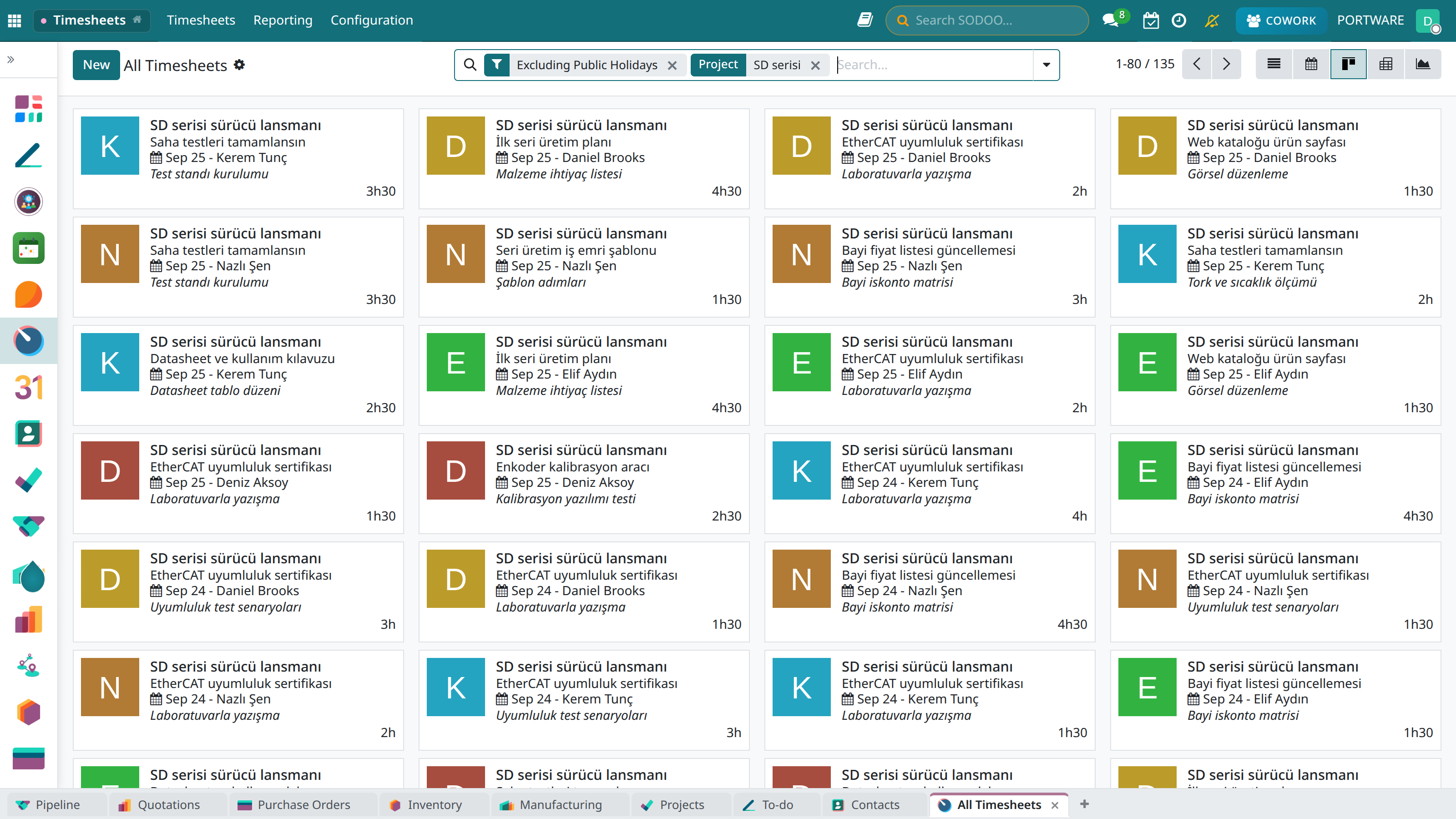
Time entries recorded on the project in the card view — person, task, date and duration
Overview
The SODOO Timesheets module lets employees record the time they spend on projects and tasks. This data is used for invoicing, cost calculation and efficiency analysis.
Time Recording
Manual entry or automatic tracking with a timer.
Invoicing
Calculating billable hours automatically.
Reporting
Detailed time reports and efficiency analysis.
Mobile Entry
Recording time in the field or remotely.
Time Entry
Entry Methods
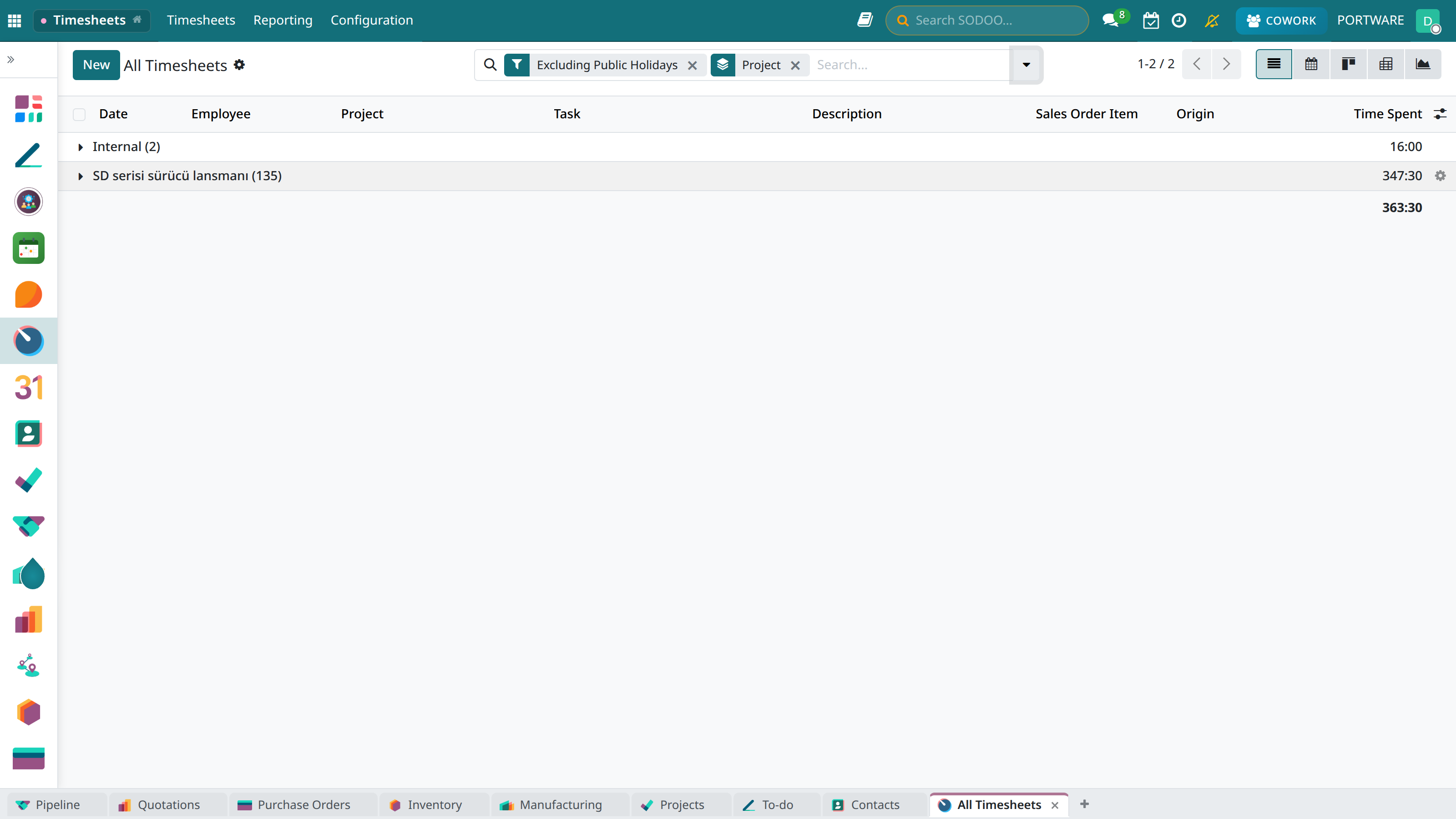
All timesheets grouped by project — each project's total hours; public holidays excluded
| Method | Description | Use |
|---|---|---|
| Manual entry | Entering the duration in hours and minutes | Past entries, bulk entry |
| Timer | Automatic calculation with start/stop | Real-time tracking |
| Calendar | Drag and drop in the calendar view | Weekly planning |
| Grid | Quick entry in a weekly table view | Bulk time entry |
Time Entry Fields
- Date: The date the work was done
- Project: The related project
- Task: The specific task under the project
- Duration: Hours and minutes spent
- Description: A note about the work done
- Employee: The person entering the time
Invoicing
Timesheet entries work integrated with the invoicing process:
Billable Hours
- Automatic calculation: The hourly rate according to the project contract
- Different rates: Rates that vary by role or task type
- Overtime: An extra rate for work beyond normal hours
- Non-billable: Hours such as internal meetings and training
The Invoicing Process
- Time entries are approved
- Billable hours are calculated
- They are grouped by project/customer
- An invoice draft is created
- It is sent to the customer
Views
List
See all entries as a detailed table.
Kanban
As cards per project or task.
Calendar
Day, week, month and year scales; chosen with the scale button above the calendar. The opening scale is month.
Pivot
A multi-dimensional analysis table.
My Timesheets
You can review your personal time entries in different views:
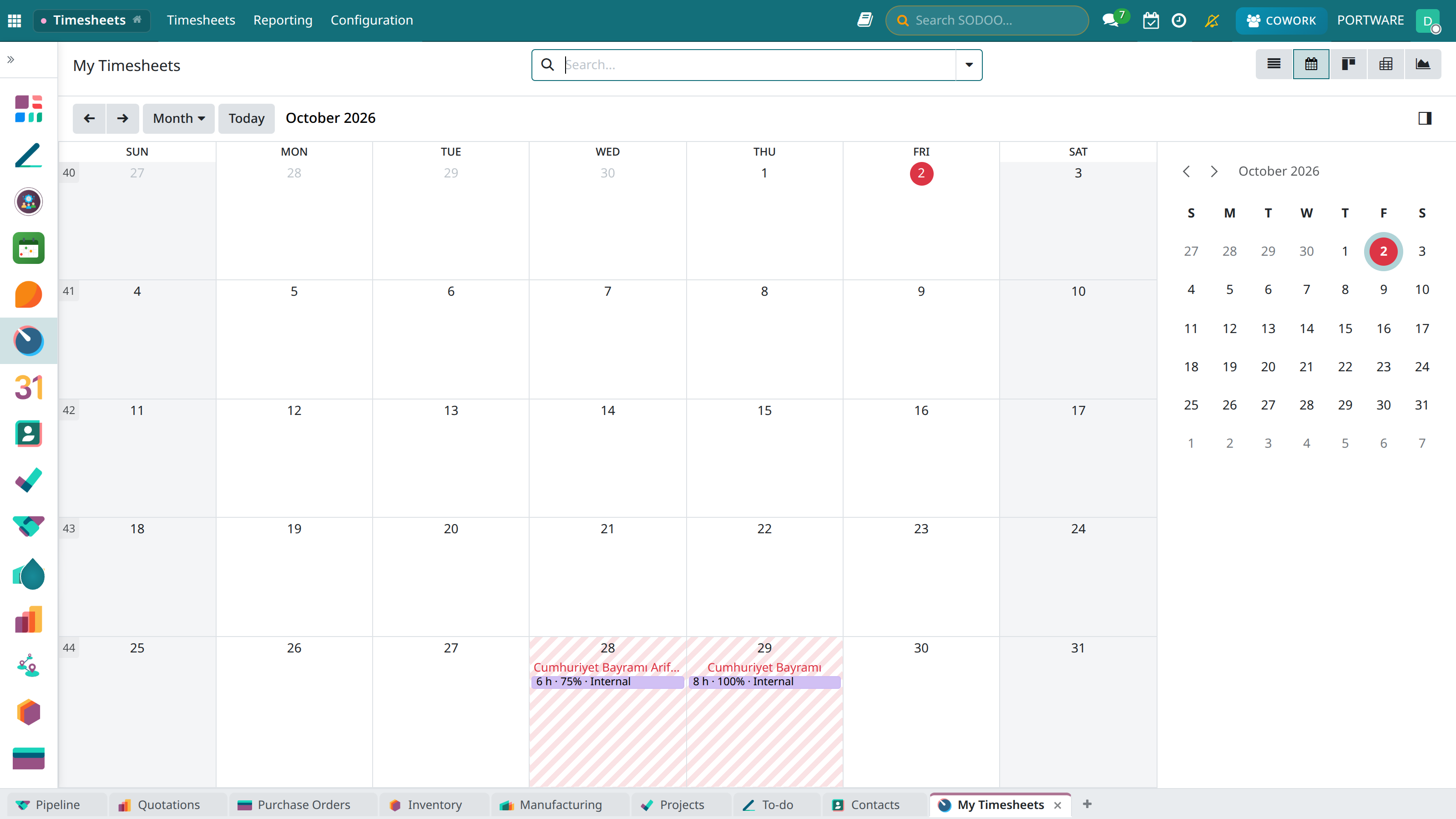
My Timesheets - calendar view
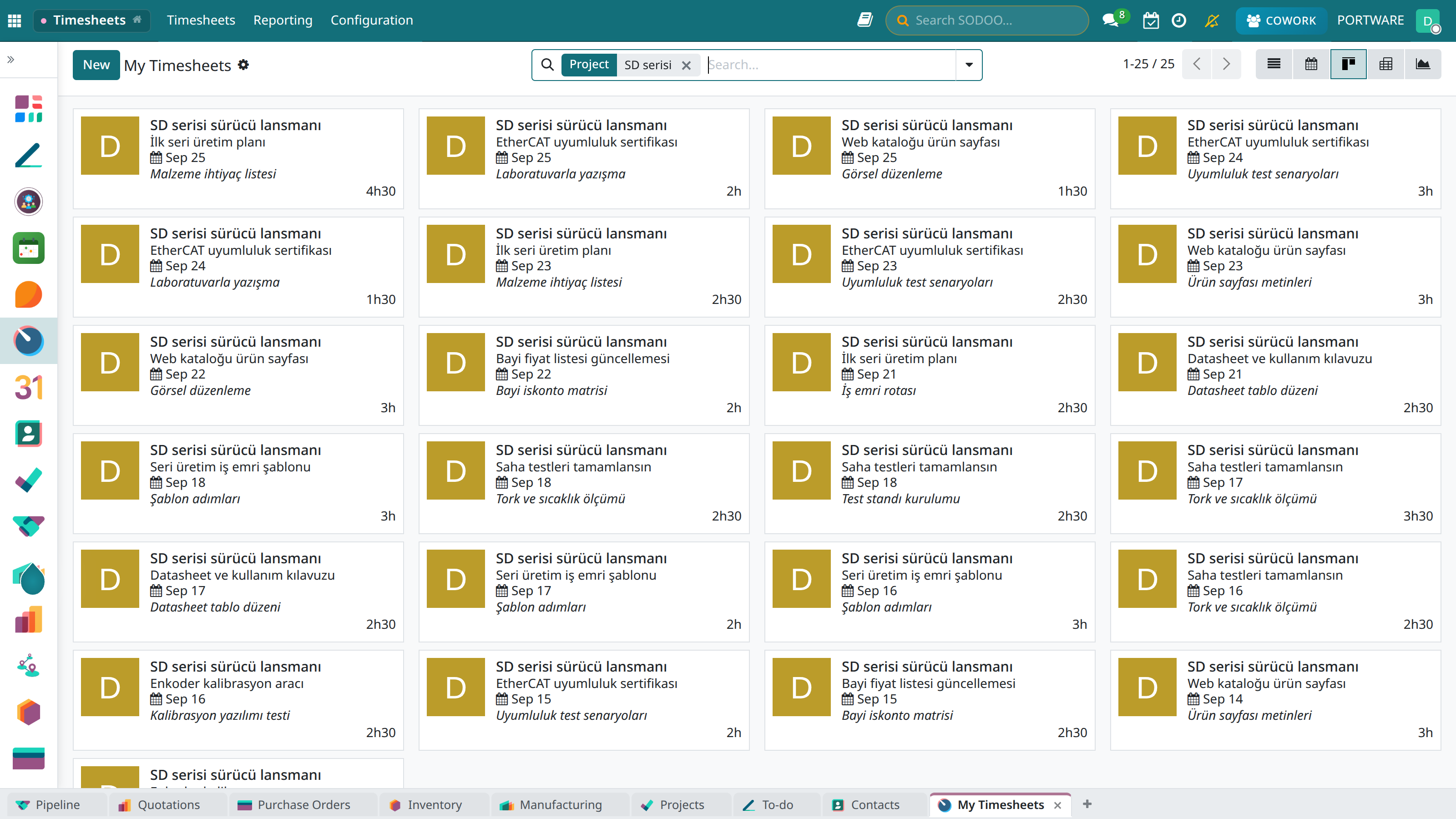
The same entries in the card view — how much on which task on which day
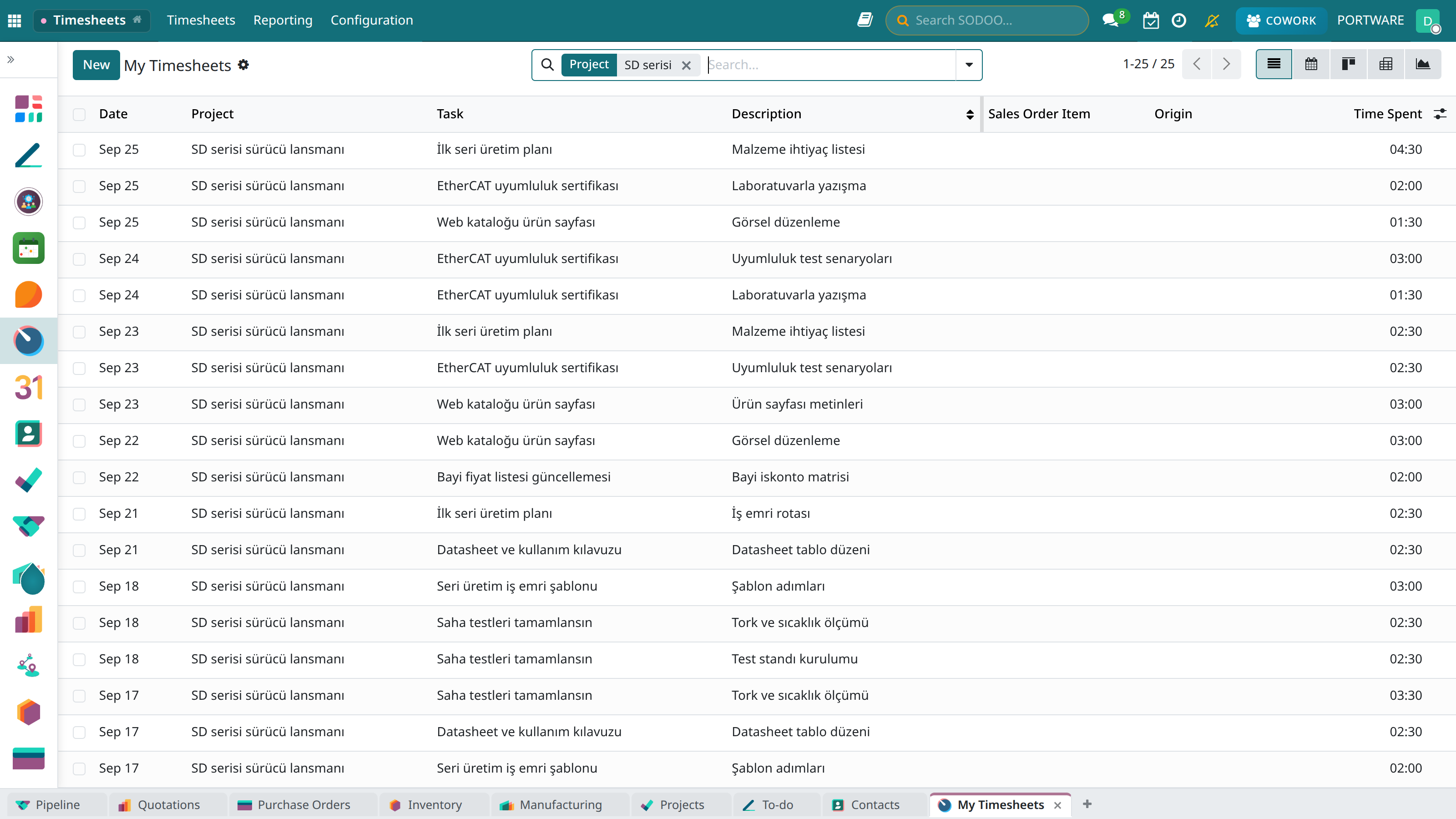
Your own entries — date, project, task, description and time spent
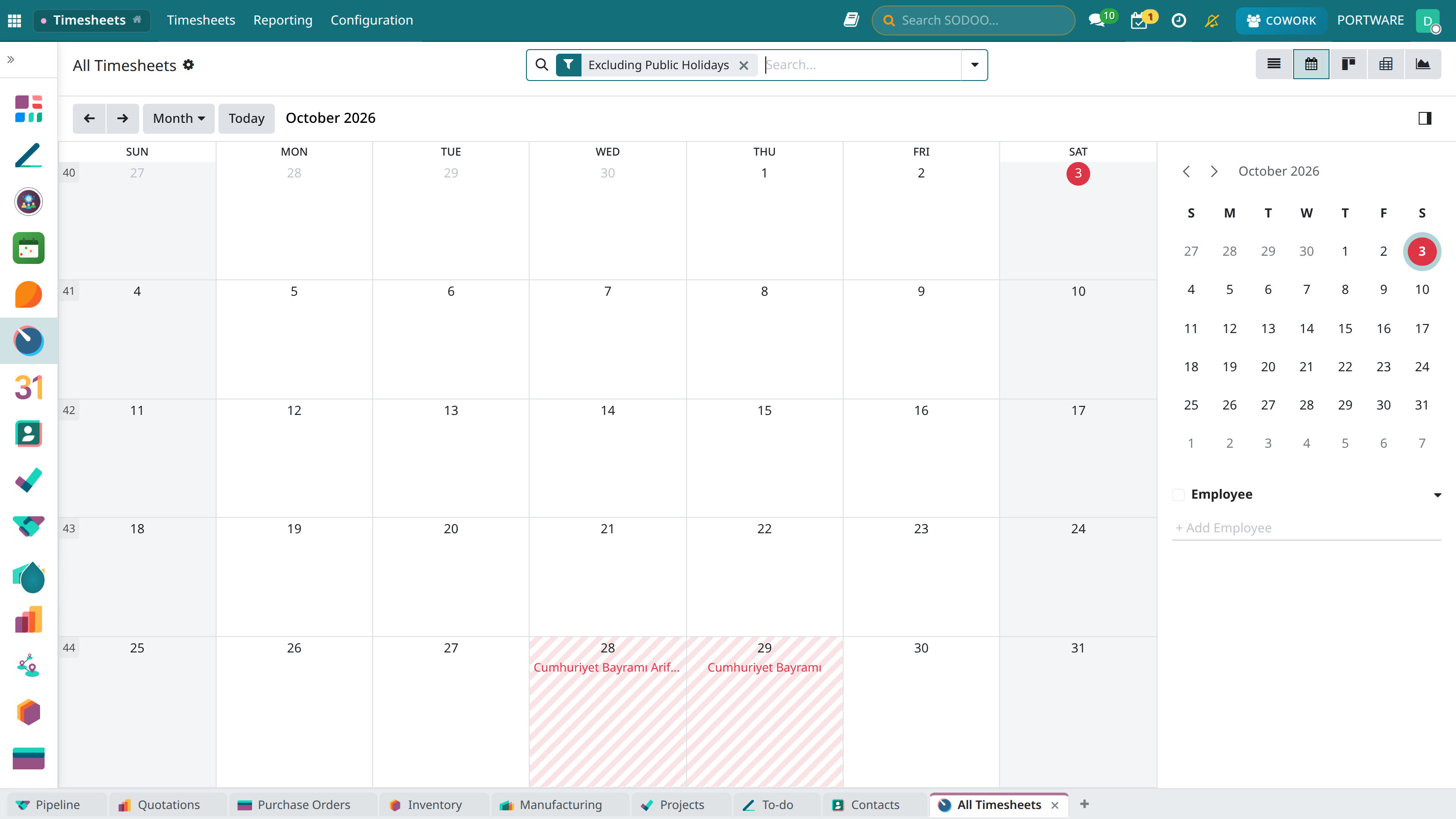
Timesheet calendar view
The Approval Process
A multi-stage approval flow for time entries:
| State | Description |
|---|---|
| Draft | Entered by the employee, not submitted yet |
| Pending | Submitted for approval |
| Approved | Approved by the manager |
| Refused | Sent back for correction |
Reports
Employee Report
Working hours and efficiency per person.
Project Report
Total hours spent per project, budget comparison.
Invoicing
Billable vs non-billable hours.
Cost Analysis
Actual vs planned time comparison.
Integrations
- Project: Automatic time tracking per task
- Helpdesk: Time spent on support tickets
- Field Service: Time recording for field work
- Payroll: Transferring working hours to the salary calculation
- Accounting: Reporting by cost centre
Settings
General Settings
- Minimum unit: 15 minutes, 30 minutes or 1 hour
- Rounding: Up, down or nearest
- Daily limit: A maximum working-hours warning
- Required description: A note required for every entry
Notifications
- Reminder about missing time entries
- Weekly summary e-mail
- Notification of entries awaiting approval