Events
The SODOO Events module lets you manage your physical and online events from start to finish. Conferences, seminars, workshops, webinars, product launches and corporate meetings…
What You Will Learn in This Section
- Creating physical, online and hybrid events
- Setting different ticket types and pricing strategies
- Managing attendee registrations and checking attendees in
- Creating tracks and schedules for multi-session conferences
- Online event integration with Zoom, Teams and YouTube
- Defining sponsor packages and managing visibility
- Setting up automatic e-mail templates and notification flows
- Measuring and reporting event performance
Overview
The SODOO Events module lets you manage your physical and online events from start to finish. It offers a comprehensive solution for conferences, seminars, workshops, webinars, product launches and corporate meetings. Thanks to the website integration, your events are published automatically and attendees can register online.
Why SODOO Events?
- End-to-end management: Planning, ticket sales, registration, check-in and follow-up on one platform
- Website integration: SEO-friendly event pages are created automatically
- Online payment: Credit card, bank transfer and other payment methods
- CRM link: Attendees are added automatically as leads/contacts
- Multiple events: Manage unlimited events at the same time
Online & Physical
Create face-to-face, fully online or hybrid events. Specific features for each format.
Ticket Sales
Different ticket types, early-bird discounts, coupon codes and online payment integration.
Attendee Tracking
Registration confirmation, QR-code check-in, attendance certificates and survey sending.
Analytics
Registration rates, revenue analysis, attendee demographics and satisfaction measurement.
Live Streaming
Integration with Zoom, Microsoft Teams, YouTube Live and similar platforms.
Sponsorship
Sponsor levels, visibility management and sponsor reports.
Event Types Compared
Physical Event
- Venue and address details
- Map integration
- QR-code check-in
- Badge printing
- Sponsor booths
Online Event
- Live stream link
- Automatic reminder
- Recording (replay)
- Chat and Q&A
- Screen sharing
A Typical Event Life Cycle
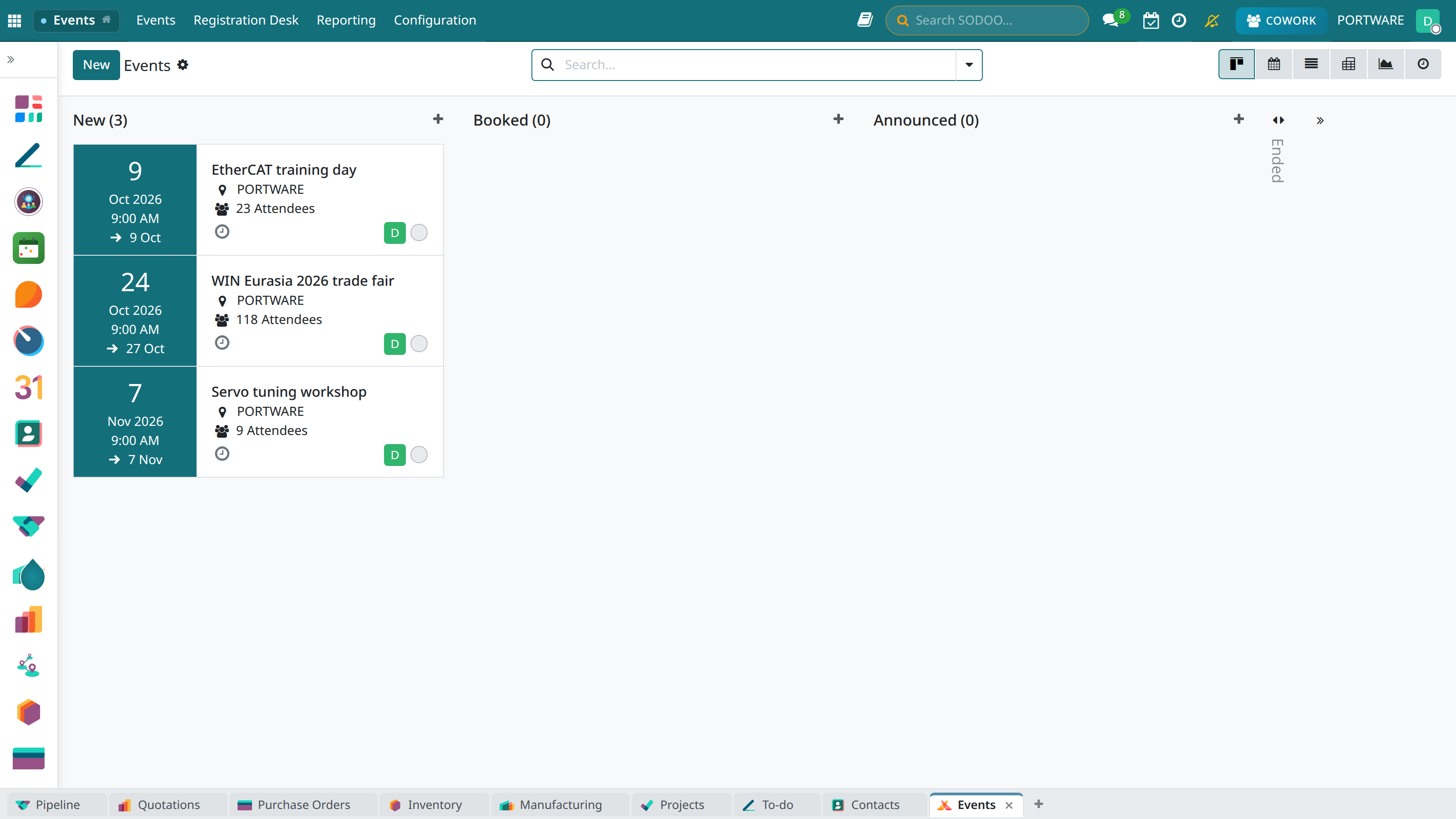
SODOO Events - follow event states in the kanban view
Creating an Event
The step-by-step process for creating a new event.
Basic Information
- Go to the Events → New Event menu
- Enter the event name (e.g. "2026 Technology Summit")
- Choose the event type (Conference, Seminar, Workshop, Webinar)
- Set the start and end date/time
- Choose the time zone (Europe/Istanbul for Türkiye)
- Choose the organising company/department
Venue Settings
| Field | Description | Example |
|---|---|---|
| Venue Type | Physical, Online or Hybrid | Physical |
| Venue Name | Where the event takes place | Hilton İstanbul Bosphorus |
| Address | Full address details | Cumhuriyet Cad. No:50, Harbiye |
| City/Country | Location details | İstanbul, Türkiye |
| Online Link | Live stream URL (for online events) | https://zoom.us/j/123456 |
Scenario: An Annual Technology Conference
Situation: Your company is organising a technology conference for 500 people. It will last 2 days, there will be 3 parallel tracks and sponsors will take part.
- Events → New create the event with:
- Name: "TechSummit 2026"
- Date: 15-16 March 2026
- Type: Conference
- Enter the venue details (hotel/congress centre)
- Tickets add 3 ticket types on the tab:
- Early Bird: 500 TL (until 31 January)
- Standard: 750 TL
- VIP: 1500 TL (lunch + networking dinner)
- Sessions create 3 tracks on the tab:
- AI & Machine Learning
- Cloud & DevOps
- Frontend & Mobile
- Define the sponsor packages on the Sponsors tab
- Make the event visible on the website with Publish
Event Types and Features
| Type | Description | Typical Duration | Special Features |
|---|---|---|---|
| Conference | Large multi-session events | 1-3 days | Parallel tracks, sponsor area, networking |
| Seminar | Single-topic training events | 2-4 hours | Speaker profile, material sharing |
| Workshop | Hands-on training | 4-8 hours | Limited seats, materials list |
| Webinar | Online live broadcasts | 30-90 min | Zoom/Meet integration, recording |
| Meetup | Community meet-ups | 2-3 hours | Free, networking-focused |
| Launch | Product/service introduction | 1-2 hours | Press invitation, demo |
Website Integration
Events are published on your website automatically:
- SEO-friendly page: In the /event/event-name-slug format
- Event calendar: All events are listed on the /events page
- Online registration form: Ticket choice and payment
- Location map: Google Maps integration
- Social sharing: Facebook, Twitter, LinkedIn buttons
- Programme display: Sessions and speakers
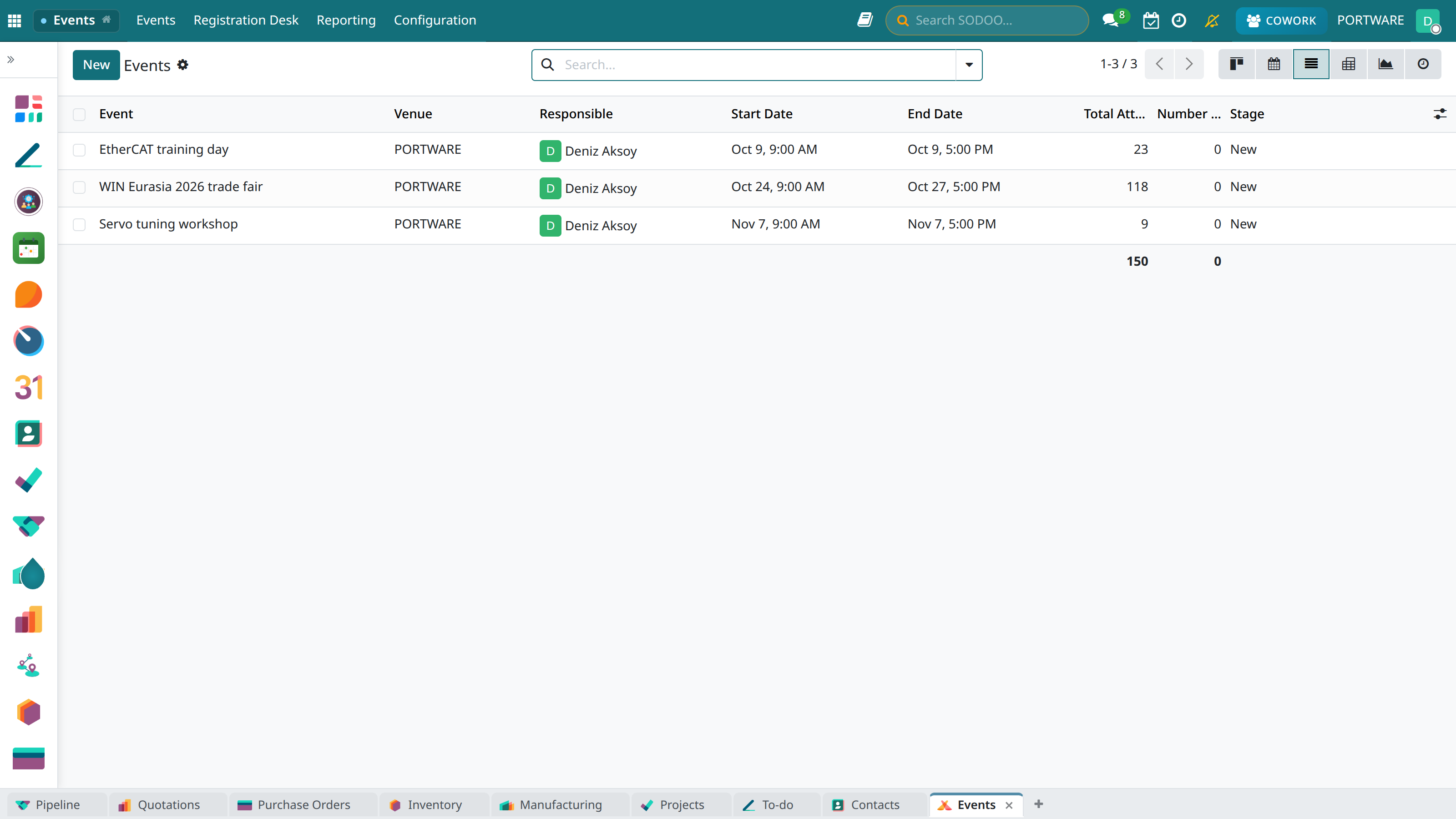
Events in the list view — date, venue, number of registrations and stage
Ticket Management
Offer flexible pricing by creating different ticket types and optimise revenue management.
Creating Tickets
- Go to the Tickets tab on the event page
- Create a new ticket type with Add a line
- Enter the ticket name, price and number of seats
- Set the sales start and end dates
- Add a description if needed (what the ticket includes)
Ticket Types
| Type | Description | Example Price |
|---|---|---|
| Free | Free events that require registration | 0 TL |
| Early Bird | Early registration discount (date-limited) | 500 TL (normally 750 TL) |
| Standard | The main ticket at the normal price | 750 TL |
| VIP | Special privileges (session, meal, gift) | 1,500 TL |
| Student | Discounted with a student card | 300 TL |
| Group (5+) | A package price for bulk registrations | 600 TL/person |
| Online Access | Watching the live stream only | 200 TL |
Pricing Strategies
Early Registration
20-30% off until a set date. Brings early cash flow and makes attendance easier to forecast.
Group Discount
15-25% off corporate registrations of 5+ people. Ideal for company training.
Coupon Code
Special discount codes: sponsor code, referral code, social media campaign.
Tiered Price
Price increases by seat count: the first 50 tickets are cheap, then the price goes up.
Promotion Codes
Run targeted campaigns by creating special discount codes:
- Go to the Events → Promotion Codes menu
- Create a code with New
- Enter the code name (e.g. SPONSOR20, EARLYBIRD)
- Choose the discount type: Percentage (%) or Fixed Amount (TL)
- Set the validity date range
- Set the usage limit (in total or per person)
Capacity Management
- Minimum: The minimum number of attendees needed for the event
- Maximum: The venue/technical capacity limit
- Per ticket: A separate capacity for each ticket type
- Waiting list: A waiting list once capacity is full
Registration and Attendee Management
Track attendee registrations, confirm them and check attendees in on the day of the event.
The Registration Flow
Attendee States
| State | Badge | Description |
|---|---|---|
| Draft | Draft | Registration started, payment pending |
| Confirmed | Confirmed | Registration and payment complete, ticket sent |
| Attended | Attended | Checked in at the event |
| Cancelled | Cancelled | Registration cancelled (a refund may have been made) |
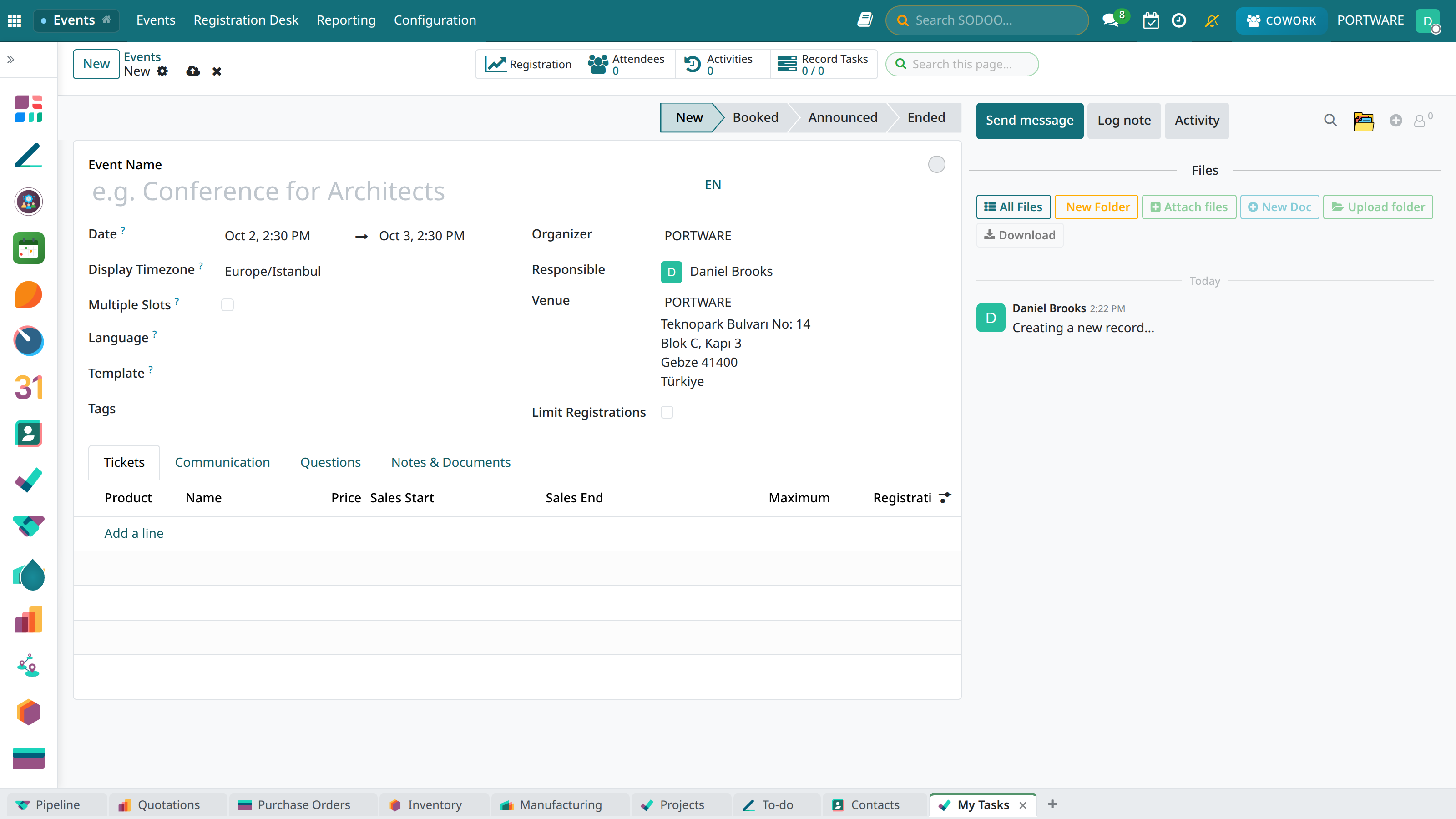
The event creation screen - manage attendee registration states and ticket details
Customising the Registration Form
Besides the standard fields you can add custom questions:
- Standard: First name, last name, e-mail, phone, company
- Custom questions:
- Dietary preference (vegetarian, vegan, gluten-free)
- T-shirt size (S, M, L, XL)
- Areas of interest (multiple choice)
- How did you hear about us? (single choice)
- Special note (free text)
Check-in Methods
| Method | Tool | Speed | Use |
|---|---|---|---|
| QR Code | Mobile app / tablet | Very fast | Large events |
| Barcode | Barcode reader | Fast | If a registered device is available |
| Name Search | Computer / tablet | Medium | If the ticket was forgotten |
| Manual | Printed list | Slow | Emergency |
Scenario: Check-in on the Event Day
Situation: You are checking people in at the registration desk for a 200-person seminar. There are 2 tablets and 1 printer.
- Open the Events → Check-in screen on the tablet
- Have the attendee show their QR code → Scan it
- The system shows the attendee's details → Verify them
- Press the Check In button
- The badge is printed automatically
- Give the attendee a welcome pack
- If the ticket is lost: search by name, verify identity
Attendance Certificate
Automatic certificate sending after the event:
- A personalised certificate in PDF format
- Attendee name, event name, date
- Verification by QR code
- Automatic sending by e-mail
- A link for sharing on LinkedIn
Sessions and Track Management
Track (parallel stream) and session management for multi-session conferences.
The Track Concept
A track represents a group of sessions running in parallel:
- Example: "AI Track", "Cloud Track", "Mobile Track"
- Each track takes place in a different hall
- Attendees can move between tracks
- Each track can have its own coordinator
Creating a Track
- Go to the Sessions tab on the event page
- Create a new track with Add Track
- Choose the track name, description and colour
- Assign the related hall/room
Creating a Session
| Field | Description | Example |
|---|---|---|
| Title | The session topic | "Productivity with GenAI" |
| Track | Which track it belongs to | AI Track |
| Start | Session start time | 10:00 |
| Duration | Session length | 45 minutes |
| Speaker | Presenter/panel members | Dr. Ayşe Yılmaz |
| Level | Technical difficulty | Medium |
| Venue | Room/hall | Hall A |
Speaker Management
Define the speaker profiles:
- Profile: First name, last name, photo, biography
- Title: Company and position
- Social media: LinkedIn, Twitter
- Assignment: Which session they will speak in
Programme View
The programme is shown on the website automatically:
- Daily view (Day 1, Day 2...)
- Filter by track
- Speaker detail pages
- Favouriting sessions (for registered users)
- Building a personal programme
Online Event Management
Live stream integration for webinars, online conferences and hybrid events.
Supported Platforms
Zoom
Meeting and Webinar integration. Automatic link creation and recording.
Microsoft Teams
Teams Meeting integration. Ideal for corporate users.
YouTube Live
Reach a wide audience. Free, unlimited viewers.
Google Meet
For Google Workspace users. Easy access.
Zoom Integration
- Settings → Integrations → Zoom
- Connect your Zoom account with OAuth
- Choose "Online" when creating the event
- Choose Zoom Meeting or Webinar
- The system creates the meeting and assigns the link automatically
- The link is sent to registered attendees automatically
Online Event Features
| Feature | Description |
|---|---|
| Automatic Reminder | E-mail/SMS 24 hours and 1 hour before |
| Access Control | Only registered attendees can join |
| Attendance Tracking | Who watched for how long |
| Q&A Management | Questions subject to moderator approval |
| Poll | Polls during the live stream |
| Recording | Automatic recording and replay link |
Hybrid Event
Support physical and online attendance at the same time:
- Physical ticket: Attending at the venue
- Online ticket: Live stream only
- VIP hybrid: Access to both
- Live stream choice per session
- Questions and answers from both the hall and online
Sponsor Management
Define event sponsors, create packages and manage their visibility.
Sponsor Levels
| Level | Visibility | Typical Price | Benefits |
|---|---|---|---|
| 🏆 Platinum | Maximum | 100,000+ TL | Main stage logo, speaking slot, VIP table |
| 🥇 Gold | High | 50,000 TL | Large logo, booth, social media |
| 🥈 Silver | Medium | 25,000 TL | Medium logo, booth, materials |
| 🥉 Bronze | Basic | 10,000 TL | Website logo, brochure |
| 📍 Media | Dedicated | Barter | Logo in return for coverage |
Adding a Sponsor
- Go to the Sponsors tab on the event page
- Add a sponsor with Add a line
- Choose a company or create a new one
- Choose the sponsor level
- Upload the logo (SVG or high-resolution PNG)
- Enter the website URL
Managing Sponsor Benefits
- Logo placement:
- Website (size and position by level)
- Printed materials (invitation, poster, backdrop)
- Slides between presentations
- E-mail footer
- Physical rights:
- Booth area (m²)
- Speaking/demo time
- VIP dinner invitation
- Number of free tickets
- Digital rights:
- Social media mentions
- E-mail promotion
- Access to the attendee list (GDPR/KVKK compliant)
Communication and Notifications
Communicate with attendees automatically and manually.
Automatic E-mail Flow
| Trigger | Content | |
|---|---|---|
| Registration completed | Registration Confirmation | Ticket PDF, event details, calendar file |
| Payment received | Invoice | Electronic invoice/receipt |
| Event - 7 days | Reminder 1 | Programme, preparation information |
| Event - 1 day | Reminder 2 | Transport, check-in information |
| Event - 1 hour | Final Reminder | Online link (for a webinar) |
| Event + 1 day | Thank You | Survey link, presentation materials |
| Checked in | Certificate | Attendance certificate PDF |
E-mail Templates
Customise the templates:
- Settings → E-mail Templates
- Choose the relevant template (Event - Registration Confirmation)
- Edit the content in the HTML editor
- Use the dynamic fields:
${object.partner_id.name}- Attendee name${object.event_id.name}- Event name${object.event_id.date_begin}- Start date
- Send a test and save
Bulk Messaging
Send messages to all attendees or to specific groups:
- Programme change: Notice of a session cancellation/change
- Last minute: Venue change, weather warning
- Special offer: Early registration for the next event
- Survey reminder: Feedback form
CRM Integration
Transfer event attendees to the CRM automatically and turn them into sales opportunities.
Automatic Lead Creation
Every event registration is processed in the CRM automatically:
- New attendee → a new lead/contact is created
- Existing contact → added to the event history
- If there is company information → linked to the account
- Areas of interest → added as tags
Lead Scoring
| Action | Score |
|---|---|
| Registered for the event | +10 |
| Bought a paid ticket | +20 |
| Bought a VIP ticket | +30 |
| Attended the event | +15 |
| Attended more than one session | +10 |
| Filled in the survey | +5 |
Sales Follow-up
The sales process after the event:
- View the attendee list from the CRM
- Filter the high-scoring leads
- Assign them to a sales representative
- Create a follow-up task
- Create an opportunity
Reports and Analytics
Measure event performance, analyse trends and make decisions.
Key Metrics
Registration Report
Daily registrations, conversion rate, ticket type distribution, source analysis.
Revenue Report
Total revenue, revenue per ticket, payment methods, early-bird vs normal comparison.
Demographic Analysis
Attendee profile, company/sector distribution, city/country analysis.
Satisfaction
Survey results, NPS score, feedback analysis, speaker evaluation.
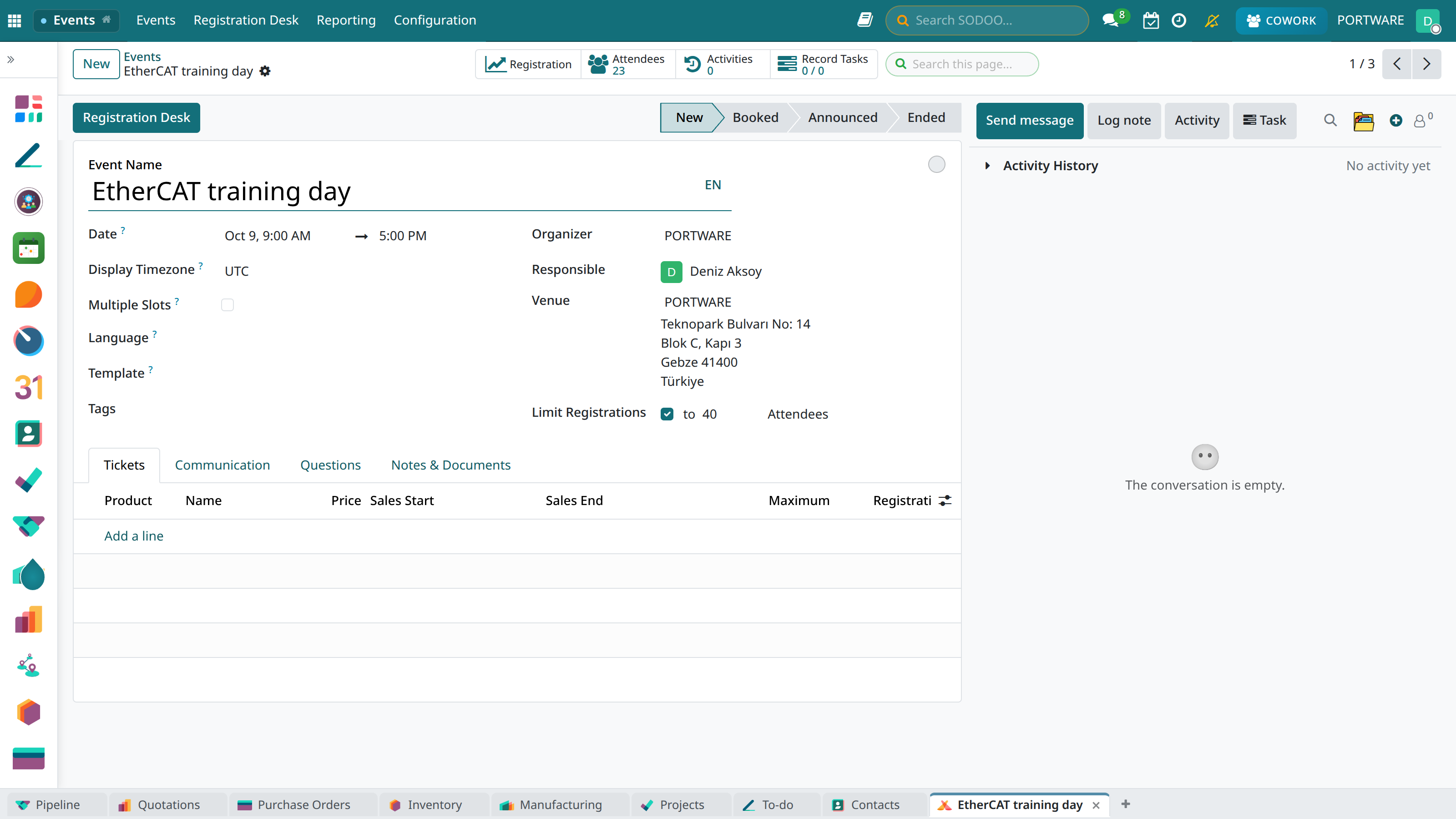
The event detail page - view and manage all event information
Registration Conversion Funnel
| Stage | Number | Rate |
|---|---|---|
| Page Views | 10.000 | 100% |
| Opened the Registration Form | 2.500 | 25% |
| Filled in the Form | 800 | 8% |
| Completed Payment | 500 | 5% |
| Attended the Event | 420 | 4.2% (84% show rate) |
ROI Calculation
Return on event investment:
- Revenue: Ticket sales + Sponsorship + Booth sales
- Cost: Venue + Catering + Marketing + Staff
- Net profit: Revenue - Cost
- ROI: (Net profit / Cost) × 100
Configuration
Customise the events module for your business.
General Settings
- Events → Configuration → Settings
- Configure the following options:
- Default time zone
- Automatic confirmation (after payment)
- Waiting list enabled
- Online payment integration
- CRM integration
Event Categories
Categorise the events:
- Conference, Seminar, Workshop, Webinar
- Training, Networking, Launch, Celebration
- Default settings for each category
Venue Definitions
Define frequently used venues in advance:
- Venue name and address
- Capacity information
- Hall/room options
- Technical equipment list
- Contact details
Payment Configuration
| Payment Method | Integration |
|---|---|
| Credit Card | iyzico, PayTR, Stripe |
| Bank Transfer/EFT | Manual confirmation |
| Pay at the Door | During check-in |
Frequently Asked Questions (FAQ)
When do ticket sales close?
Ticket sales close:
- When the set sales end date arrives
- When capacity is full
- When closed manually
They do not close automatically after the event starts (for sales at the door).
How is a registration cancelled and refunded?
The cancellation and refund process:
- Find the attendee's registration
- Change the state to "Cancelled"
- Set the refund amount (full/partial)
- Start the refund through the payment provider
- A cancellation confirmation e-mail is sent to the attendee
Do not forget to state the refund policy on the event page.
Can an attendee transfer their ticket to someone else?
Yes, a ticket can be transferred:
- The original attendee sends the transfer request
- The manager edits the registration (name/e-mail change)
- The updated ticket is sent to the new attendee
You can set the deadline for transfers in the event settings.
How is a group registered?
There are two ways to register a group:
- Multiple registration: Several attendees' details are entered at once
- Bulk upload: The attendee list is uploaded with an Excel file
The group discount is applied automatically (for 5+ people).
How is an invoice/receipt issued?
Automatic invoice when payment is complete:
- Corporate: e-Invoice (with a tax number)
- Individual: e-Archive Invoice
- Free: Registration receipt
The invoice is sent by e-mail automatically. For a corporate invoice, company/tax details are requested on the registration form.
Does check-in work without internet?
Partly, yes:
- The mobile app supports offline mode
- The attendee list is downloaded in advance
- Check-ins are saved locally
- They are synchronised when the internet comes back
Important: New registrations are not visible in offline mode.
What happens if an event is cancelled?
What to do when an event is cancelled:
- Put the event in the "Cancelled" state
- An automatic cancellation e-mail goes to all attendees
- Start the bulk refund
- A "Cancelled" note is shown on the website
- New registrations are blocked
Can I create a multilingual event page?
Yes, SODOO supports multilingual content:
- The event name and description separately for each language
- Automatic, by the visitor's browser language
- Manual change with the language selector
- E-mail templates per language
- Sales & CRM - Lead management and sales follow-up
- Website - Customising the event page
- Accounting - Invoicing and payment tracking
- Human Resources - Internal events and training