Sales & CRM
The SODOO Sales module manages the entire sales process — from the moment you prepare a quote for a customer to the moment you collect payment. In the business world, this process is…
- Quotes in minutesProfessional quotes from products, pricelists and templates.
- Margin visible while quotingCost and list price beside every line.
- Customers approve onlineThe quote is signed in the portal and the order is created by itself.
Introduction to Sales
What You Will Learn in This Section
- The role of the Sales module in your business
- What the Quote-to-Cash cycle is
- The differences between a quotation, a sales order, and an invoice
- How to optimize your sales process with SODOO
What Does the Sales Module Do?
The SODOO Sales module manages the entire sales process — from the moment you prepare a quote for a customer to the moment you collect payment. In the business world, this process is known as the Quote-to-Cash cycle.
Think of it from a sales representative's perspective: when a customer asks about a product or service, you first prepare a quotation. If the customer accepts, it becomes a sales order. You deliver the goods, issue an invoice, and finally collect payment. SODOO Sales digitizes this entire flow.
Scenario: Your First Sale
- In SODOO, go to Sales → Quotations → New
- Select "ABC Technology" as the customer (or create them as a new contact)
- Add "Laptop Model X" to the order line, Quantity: 50
- Set Expiration: 7 days, Delivery: 1 week from today
- Click "Send by Email" to deliver the quotation
- When John confirms, click "Confirm" to convert it to a sales order
Why SODOO Instead of Excel?
Many businesses still prepare quotes in Word or Excel. So what difference does SODOO make?
| Topic | Excel / Word | SODOO Sales |
|---|---|---|
| Quotation Tracking | Files get lost in folders | All quotes with statuses visible in one click |
| Price Updates | Update each file individually | Change product price once; all quotes reflect it |
| Stock Check | Phone / email the warehouse | Real-time stock visibility, automatic reservation |
| Invoicing | Separate program, re-enter data | One click: sales order → invoice |
| Reporting | Hours of formula writing | Ready-made reports and charts |
How to Do It in SODOO?
Accessing the Sales Application
- Click the menu in the top left
- Find and click the Sales application from the app list
- The default view is the Quotations list
Create Your First Quotation
- Click the New button
- Start typing in the Customer field or use Create and Edit to add a new customer
- In the Order Lines tab, click Add a Product
- Select a product in the Product column and enter the Quantity
- Click Save at the top of the page
View Options
Use the view icons in the top right corner:
- List: See all quotations in a table
- Kanban: Card-based view organized by status
- Pivot: Aggregated analysis table
- Graph: Visual sales charts
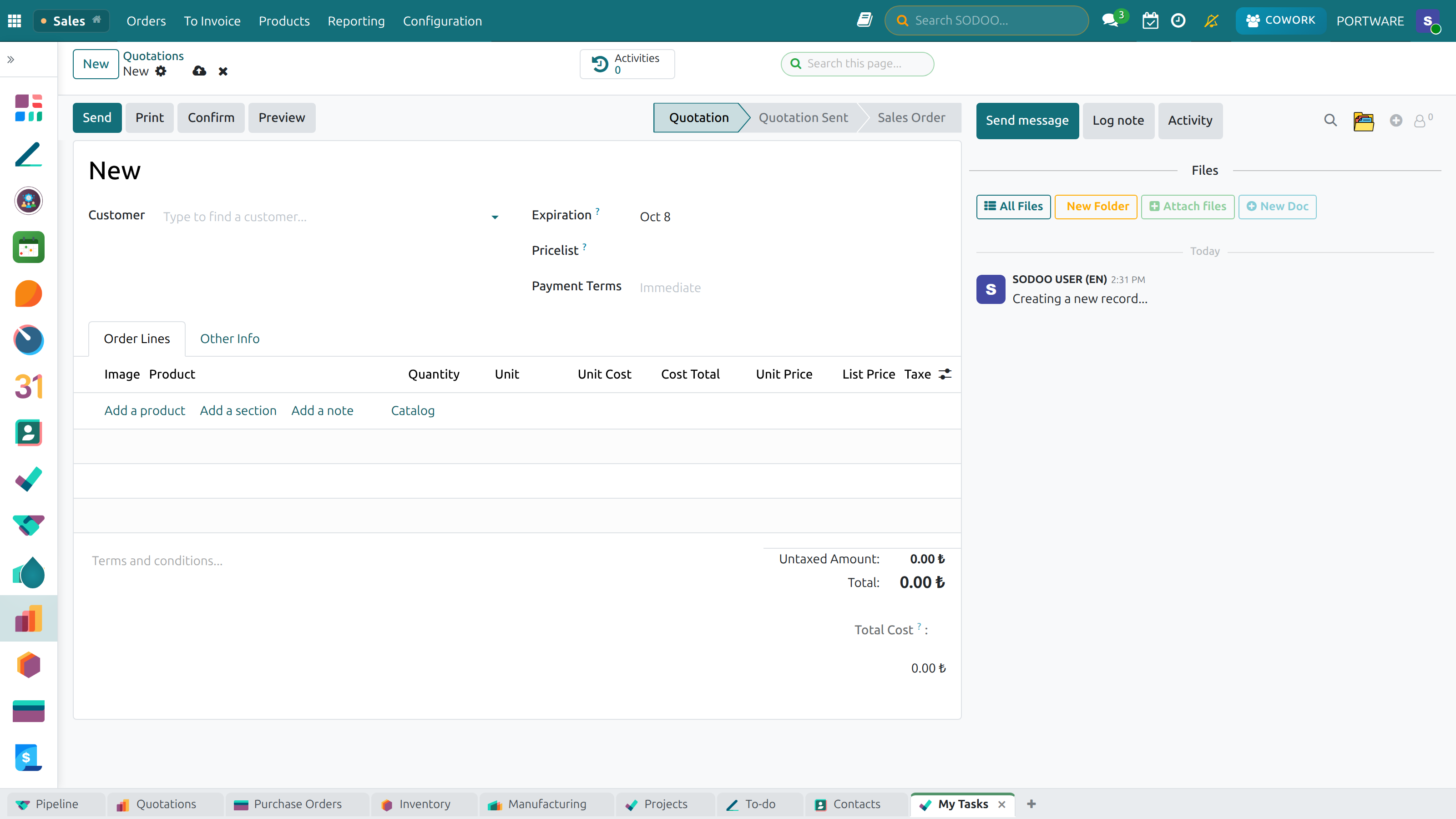
Creating a Sale — starting an order in one click from the quick form
Quote-to-Cash Cycle
The Quote-to-Cash (Q2C) cycle is the complete sequence of business processes — from a customer's initial inquiry to receiving final payment. SODOO Sales is designed to manage every step of this cycle seamlessly.
Document Statuses
| Document | Status / Stage | Description | Next Action |
|---|---|---|---|
| Quotation | Quotation | Draft offer sent or being prepared | Confirm (converts to SO) |
| Sales Order | Sales Order | Customer accepted; delivery triggered | Deliver, then Invoice |
| Delivery | Ready / Done | Warehouse prepares / dispatches goods | Validate delivery |
| Invoice | Posted | Invoice confirmed; payment awaited | Register Payment |
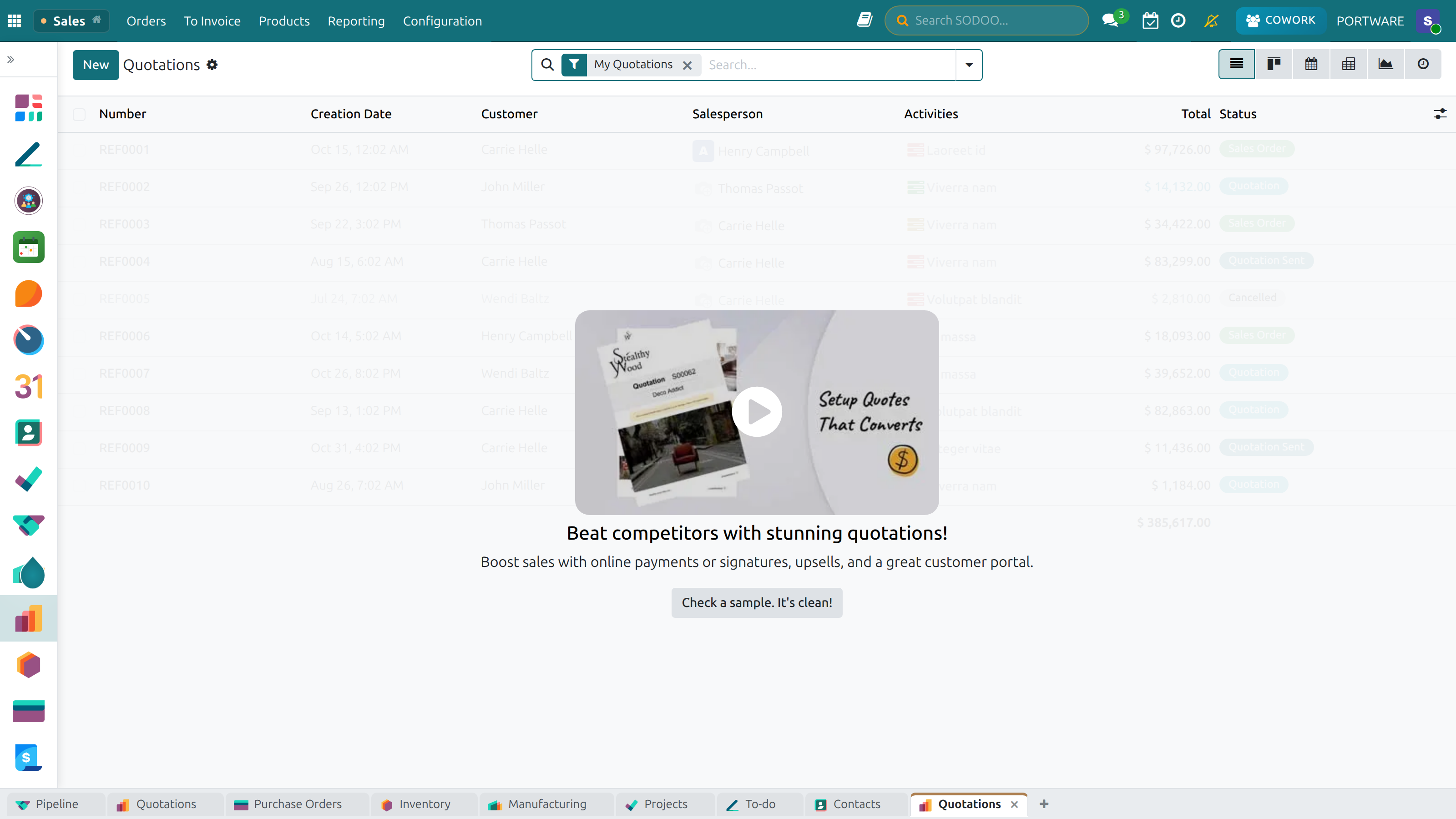
SODOO Sales — the home screen
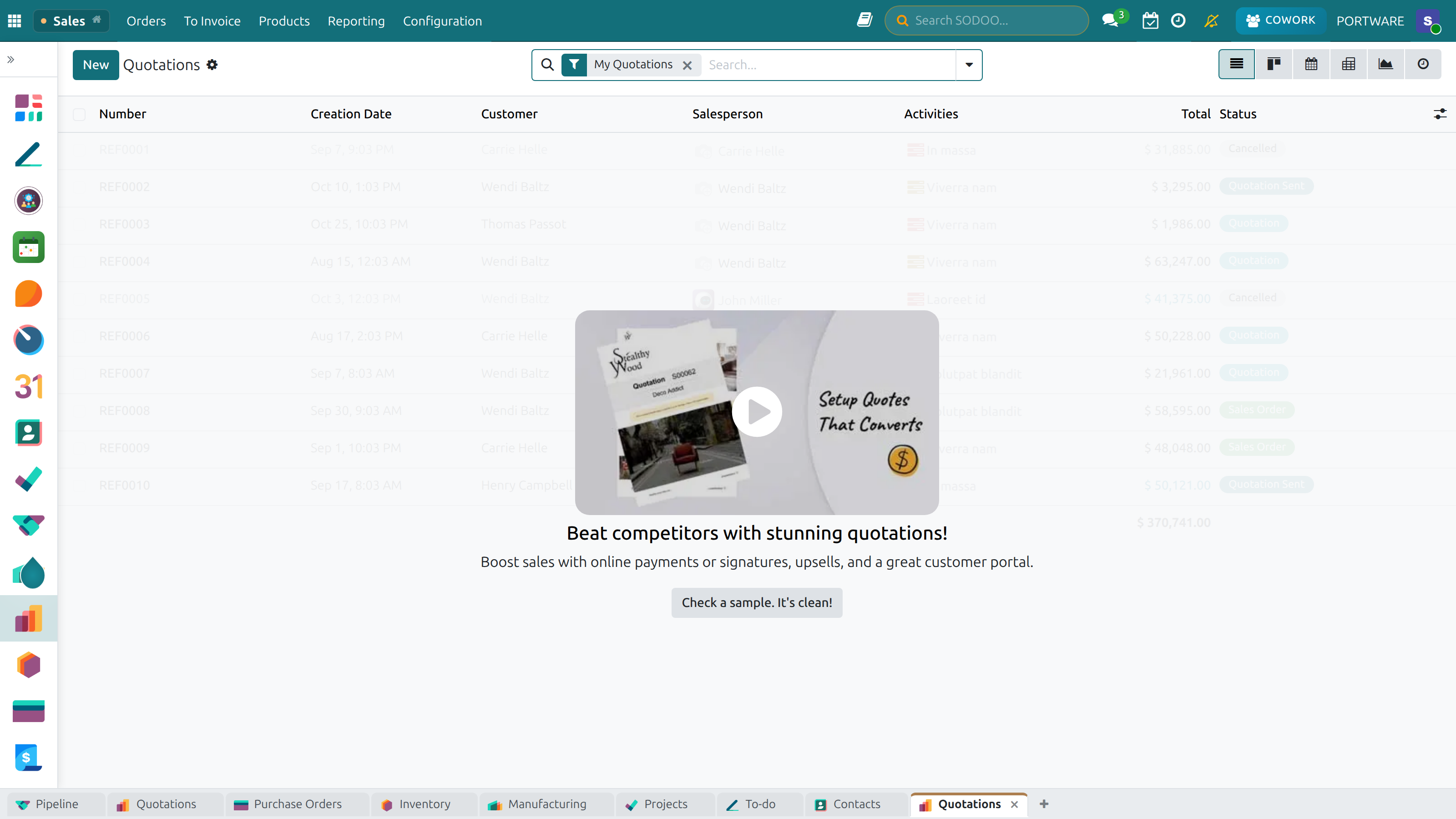
Sales Quotations — every quotation and its status, in list view
Basic Concepts
Quotation
A formal offer to a customer. Can be revised multiple times before acceptance.
Sales Order
A confirmed quotation. Triggers delivery and/or invoicing automatically.
Customer
Contact or company record linked to all their quotes, orders, and invoices.
Product
Item sold — can be a physical good, a service, or a subscription.
Price List
Rules that set prices per customer segment, currency, or time period.
Payment Terms
When payment is due — e.g., immediate, net 30 days, or 50/50 split.
Creating Quotations
What You Will Learn in This Section
- How to create a professional quotation from scratch
- How to structure order lines with products, quantities, and pricing
- How to set expiration dates and delivery lead times
- How to use quotation templates for efficiency
Quotation Header Fields
| Field | Description | Where it comes from |
|---|---|---|
| Customer | The company or person being quoted | Selected from the Contacts list |
| Quotation Date | Date the quote is created | Defaults to today |
| Expiration | How long the offer is valid | Manual or from sales settings |
| Price List | Price schedule to apply | Auto-populated from customer settings |
| Payment Terms | When payment is expected | From customer or company defaults |
| Sales Person | The responsible salesperson | The logged-in user by default |
Order Lines
Each product or service sold is listed as a separate order line:
- Product: Select from the product catalog
- Description: Auto-populated from product; can be customized
- Quantity: Number of units
- Unit of Measure: Units, kg, hours, etc.
- Unit Price: From the selected price list or entered manually
- Discount %: Optional discount per line
- Taxes: Auto-populated from the product's fiscal configuration
- Subtotal: Calculated automatically
Quotation Templates
For standard offerings, create quotation templates to pre-fill products, quantities, and terms. This saves time and ensures consistency:
Sales → Configuration → Quotation Templates → New
How to Do It in SODOO?
Creating a New Quotation
- Go to
- Click New
- In the Customer field, search for the customer — select from the dropdown or click Create and Edit for a new one
- Set the Expiration date
- Check that Price List and Payment Terms are correct
- In the Order Lines tab, click Add a Product and select the first product
- Enter the Quantity and verify the Unit Price
- Add more product lines as needed
- Review the total in the bottom right (subtotal, taxes, grand total)
- Click Save
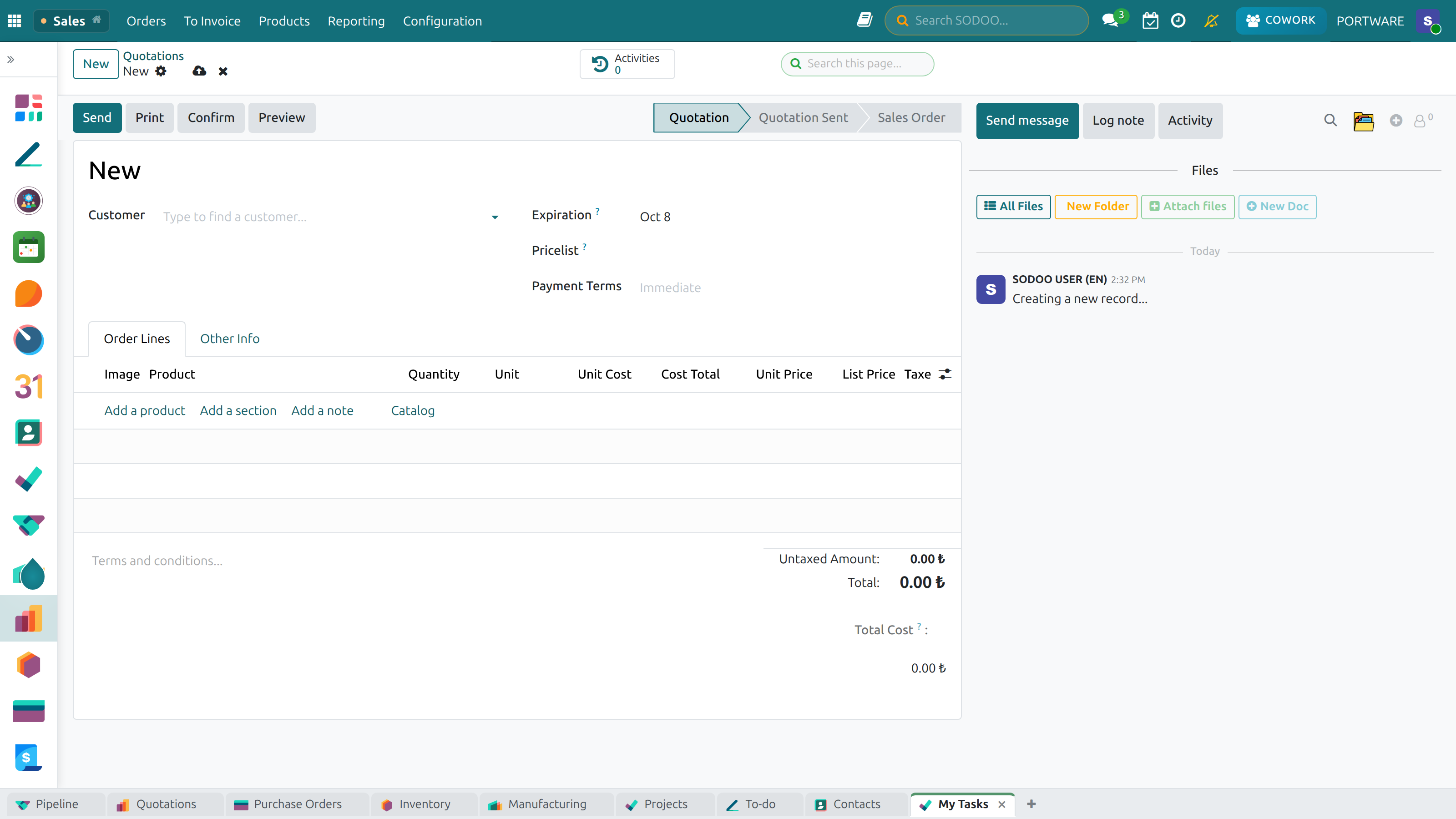
New Quotation — setting the customer, the products and the terms
Pricing Strategies
SODOO Sales supports sophisticated pricing strategies that go far beyond a simple product catalog price. All pricing flows through the Price List system.
Types of Pricing Rules
Fixed Price
A set price for a specific product, overriding the standard sales price.
Percentage Discount
A percentage off the standard price (e.g., 10% discount for VIP customers).
Volume Pricing
Price breaks at quantity thresholds (e.g., buy 100+, get 15% discount).
Currency-based
Separate price lists per currency for international customers.
Time-limited
Promotional prices active only within a specific date range.
Cost-plus
Price calculated as product cost plus a defined margin percentage.
Setting Up Price Lists
Sales → Configuration → Settings → Enable Pricelists
Sales → Configuration → Pricelists → New
Sending Quotations
SODOO offers multiple ways to deliver quotations to customers, all traceable from within the system.
Send by Email
The most common method — SODOO generates a professional PDF and emails it:
- Open the quotation
- Click "Send by Email"
- Review the email subject, body, and the attached PDF
- Click "Send"
- The quotation status changes from "Draft" to "Quotation Sent"
- All email communication is logged in the chatter (message thread) on the quotation
Customer Portal
Customers receive a link to their online portal where they can view the quotation, ask questions via chat, and even sign and accept it electronically.
- Customers can download the PDF directly from the portal
- Online signature and acceptance is supported
- Questions from the customer appear in the quotation chatter in real time
Print and Share
For customers who prefer physical documents:
- Click the Print button to generate a PDF
- SODOO uses your company's custom quotation template (with logo, colors, terms)
Quotation Tracking
One of SODOO's biggest advantages over manual methods is complete visibility into the status of every quotation in your pipeline.
Quotation Statuses
| Status | Meaning | Action Required |
|---|---|---|
| Draft | Being prepared, not yet sent | Review and send |
| Quotation Sent | Emailed to customer; awaiting response | Follow up |
| Sales Order | Customer confirmed; order in progress | Coordinate delivery |
| Cancelled | Lost or declined | Log reason, update CRM |
Activity Scheduling
Schedule follow-up activities directly on a quotation to ensure no opportunity falls through the cracks:
- Click the Activities button on a quotation
- Schedule a call, email follow-up, or meeting
- Activities appear in your personal calendar and reminders
- Completed activities are logged in the chatter
Order Confirmation
When a customer accepts a quotation, the next step is to confirm it as a Sales Order. This action triggers downstream processes automatically.
What Happens When You Confirm an Order?
- The quotation number becomes a Sales Order number (same reference)
- A Delivery Order is created automatically in the Inventory module
- Stock is reserved for the ordered items
- The customer's credit limit is checked (if enabled)
- The order appears in the Sales Analysis reports
- The salesperson receives a confirmation notification
Online Confirmation
Customers can confirm orders directly from the customer portal without any manual action from your sales team:
- Customer receives the quotation email with a portal link
- Customer reviews the quotation online
- Customer clicks "Accept & Sign" (electronic signature)
- The quotation is automatically confirmed as a Sales Order in SODOO
- Your sales team is notified immediately
How to Do It in SODOO?
Confirming a Sales Order
- Open the quotation (from )
- Verify all order lines, quantities, and pricing are correct
- Click the Confirm button
- The page header changes from "Quotation" to "Sales Order"
- A Delivery smart button appears at the top — click it to see the generated delivery order
Delivery Coordination
Once a sales order is confirmed, the Inventory module takes over to manage the physical movement of goods. SODOO's tight integration means you never need to manually create a delivery order — it's done automatically.
Delivery Flow
Delivery Policies
The delivery policy on a product or sales order controls when you can invoice the customer:
- Invoice on Order: Invoice immediately when the order is confirmed, regardless of delivery
- Invoice on Delivery: Invoice only after goods are physically shipped and the delivery is validated
Partial Deliveries
If you can only deliver part of an order (e.g., 30 of 50 units are in stock):
- Validate the delivery for the available quantity
- SODOO creates a backorder automatically for the remaining 20 units
- You can invoice the partial delivery immediately
- The backorder is fulfilled when stock arrives
Invoicing
Creating an invoice from a sales order in SODOO takes a single click — all data is automatically transferred from the sales order.
Invoice from a Sales Order
- Open the confirmed sales order
- Click the "Create Invoice" button (top of the page)
- Select what to invoice:
- Invoiceable Lines (deduct down payment): Full order minus any advance already paid
- Down Payment (percentage): Request a percentage as an advance
- Down Payment (fixed amount): Request a specific advance amount
- Review the generated invoice draft
- Click "Confirm" to post the invoice
- Send to the customer via email or customer portal
How to Do It in SODOO?
Invoicing a Sales Order
- Open the sales order from
- Click the Create Invoice button at the top
- Select the invoicing method in the popup dialog
- Click Create Invoices
- You are redirected to the invoice draft — review line items and totals
- Click Confirm to post the invoice
- Click Send & Print to email to the customer
Collections Tracking
The final step in the Quote-to-Cash cycle is collecting payment. SODOO makes it easy to track what is owed and follow up on overdue accounts.
Monitoring Outstanding Invoices
From the Sales module, you can quickly see:
- Invoiced: Total amount invoiced to customers
- Overdue: Invoices past their due date
- Payment Status: Paid, partially paid, or outstanding
Customer Statement
Send a customer statement (account balance summary) directly from SODOO to prompt payment of outstanding invoices:
Accounting → Customers → Customers → Select Customer → Action → Send Customer Statement
Follow-up Actions
Automated Reminders
Set up automatic email reminders sent X days after invoice due date.
Activity Scheduling
Schedule a call activity on overdue invoices for your collections team.
Credit Hold
Restrict new orders for customers with overdue balances exceeding your limit.
Aging Analysis
Use the Aged Receivable report to prioritize collection efforts by risk.
Recurring Revenue
If your business offers subscriptions, retainers, or any recurring billing, SODOO Subscriptions (an extension of Sales) automates the entire recurring revenue cycle.
Key Recurring Revenue Features
- Automatic invoice generation on a defined schedule (monthly, quarterly, annual)
- Prorated billing when a subscription starts mid-period
- Subscription health metrics: MRR (Monthly Recurring Revenue), ARR, Churn Rate
- Upgrade / downgrade / cancel flows managed within SODOO
- Renewal notifications sent to customers and salesperson in advance
Product Management
Products are the backbone of your sales catalog. In SODOO, a product record contains everything needed to sell, purchase, and account for an item.
Product Types
| Type | Description | Tracking |
|---|---|---|
| Storable Product | Physical goods stored in a warehouse | Full inventory tracking, reorder rules |
| Consumable | Physical goods assumed always available | No stock level tracking |
| Service | Intangible — labor, consulting, licenses | No warehouse movement |
Product Variants
A single product can have multiple variants based on attributes such as size, color, or configuration. Instead of creating 20 separate products for a T-shirt in 4 colors and 5 sizes, create one product with variant attributes.
- Each variant can have its own price (price extra)
- Each variant has its own barcode and reference
- Stock is tracked per variant
How to Do It in SODOO?
Creating a New Product
- Go to
- Click New
- Enter the Product Name
- Select the Product Type (Storable / Consumable / Service)
- Set the Sales Price and Cost
- Under the General Information tab, set the Customer Taxes
- Upload a product image (optional but recommended)
- Click Save
Price Lists
Price lists in SODOO allow you to apply different pricing logic to different customers, channels, or time periods — all managed centrally.
Price List Assignment
Price lists can be assigned at multiple levels:
- Customer level: A specific price list set on the customer record (applies to all their quotes)
- Quotation level: Override the price list on a specific quotation
- Sales team: Default price list for a sales team's territory
Multi-Currency Price Lists
For international sales, create separate price lists per currency. When a customer with a EUR price list places an order, SODOO:
- Uses the EUR prices from the price list
- Converts to your company's base currency (TRY) using the current exchange rate
- Records both the foreign currency and base currency amounts on the invoice
Discount Policies
Managing discounts effectively is critical for maintaining margin while winning customers. SODOO provides multiple discount tools with full visibility and control.
Types of Discounts
Line Discount
Apply a percentage discount per order line. Visible to the customer on the quotation.
Price List Discount
Discount embedded in the price list — customer sees the net price without a visible % discount.
Global Discount
A discount applied to the entire order total (requires Discount module extension).
Loyalty / Coupon
Code-based promotions redeemed at checkout (requires Loyalty Programs module).
Sales Reports & Analytics
SODOO Sales provides rich built-in reporting that helps you understand performance at the team, territory, product, and customer level.
Key Reports
| Report | Location | What it shows |
|---|---|---|
| Sales Analysis | Sales → Reporting → Sales | Orders by product, customer, team, period |
| Forecast | Sales → Reporting → Forecast | Expected revenue from open quotations |
| Margin Analysis | Sales → Reporting → Margins | Gross margin per order line (requires Margin module) |
| Salesperson Performance | Sales → Reporting → Sales (group by Salesperson) | Revenue, order count, win rate per rep |
Pivot and Graph Views
Every list view in SODOO can be switched to Pivot or Graph mode for instant visual analysis. Common configurations:
- Bar chart by month: See revenue trend over the year
- Pie chart by product category: Revenue composition
- Pivot by customer + month: Revenue matrix per account
KPI Tracking
The following KPIs are commonly tracked in SODOO Sales:
Setting Sales Targets
Configure sales targets per salesperson or team in CRM → Configuration → Sales Teams. SODOO shows target vs. actual achievement on the CRM dashboard.
Scenario: Monthly Sales Review
- Go to Sales → Reporting → Sales
- Switch to Graph view and select "Bar Chart"
- Group by Salesperson to compare individual performance
- Switch to Pivot view, group by Product + Month to see top sellers
- Go to Sales → Reporting → Forecast to see pipeline revenue
- Export to Excel for presentation if needed
CRM Module Overview
The CRM (Customer Relationship Management) module in SODOO handles the pre-sales stage — managing leads and opportunities before they become quotations. It works seamlessly alongside the Sales module.
CRM Pipeline
CRM Key Features
Visual Pipeline
Kanban view showing all opportunities by stage with expected revenue.
Lead Scoring
Automatic probability score based on activity history and stage.
Email Integration
Emails sent to your sales alias are automatically converted to leads.
Website Lead Capture
Website contact forms and live chat automatically create CRM leads.
VoIP Integration
Log calls directly from CRM and trigger opportunities from call records.
Forecast Revenue
Weighted pipeline revenue based on probability — predict next month's sales.
Lost Analysis
When an opportunity is marked as Lost, SODOO prompts for a loss reason (price, competition, timing, etc.). This data is invaluable for:
- Identifying common loss reasons to address in your sales process
- Analyzing which competitors you lose to most often
- Measuring win rate trends over time
How to Do It in SODOO?
Creating an Opportunity
- Go to
- Click New
- Enter the Opportunity Name (e.g., "50 Laptops — ABC Technology")
- Select the Customer
- Enter the Expected Revenue
- Set the Expected Closing date
- Click Save
- When ready, click New Quotation to create a quotation directly from the opportunity
Moving an Opportunity to Won
- Open the opportunity
- Click the Won button (top left)
- Confirm the action — the opportunity is marked as Won and archived
- The linked quotation / sales order remains active and proceeds normally
Frequently Asked Questions
Can I cancel a confirmed sales order?
Yes, but with restrictions. If a delivery has not yet been validated and no invoice has been created, you can cancel the order with the "Cancel" button. If a delivery exists, you must cancel the delivery first. If an invoice is posted, you must create a credit note before cancelling the order.
Can I change the price after a sales order is confirmed?
By default, confirmed sales orders are locked and cannot be edited. To change a price, you can either: (1) Enable the "Lock Confirmed Sales" setting in Sales → Configuration → Settings and unlock the specific order, or (2) Create a new quotation / partial credit and debit note to adjust the amount.
How do I add a discount for a specific customer group?
Create a dedicated price list for that customer group with the discount rule defined. Then assign the price list to all customers in that group. When they place an order, SODOO automatically applies the discounted prices from their assigned price list.
How do I handle a return / refund?
For product returns: validate a Return operation from the original delivery order. This creates a reverse transfer (goods back to stock). Then create a Credit Note from the original invoice to refund the customer. Both the stock and the accounting are corrected automatically.
Can the customer sign a quotation electronically?
Yes! Enable Online Signature in Sales → Configuration → Settings. When you email a quotation, the customer can open it in the portal and sign it electronically. The signed quotation is automatically confirmed as a Sales Order and you receive an instant notification.
Best Practices
Quotation Best Practices
- Always set an expiration date: An open-ended quotation creates pricing uncertainty. Standard practice is 15–30 days depending on your industry.
- Use quotation templates: For standard product/service bundles, templates dramatically speed up quotation preparation and ensure consistency.
- Add internal notes: Use the "Notes" tab on the quotation for internal context (customer special requirements, discount approval, etc.).
- Follow up systematically: Schedule an activity on every sent quotation — set a follow-up call for 3–5 business days after sending.
Sales Process Best Practices
- Keep customer data clean: Assign every quotation to the correct customer with a complete address — this ensures correct invoicing and delivery.
- Set payment terms on the customer record: Default payment terms auto-populate to every quotation, saving time and ensuring consistency.
- Confirm orders promptly: Don't leave customer-accepted quotations in draft status — confirm immediately to trigger inventory reservation.
- Link deliveries before invoicing: For product sales, validate the delivery before creating the invoice to ensure you only bill for what was shipped.
CRM Best Practices
- Log every customer interaction: Use the chatter to record calls, meetings, and emails. This builds a complete history visible to the whole team.
- Set realistic closing dates: Accurate forecasts depend on realistic expected closing dates — review and update them weekly.
- Always record lost reasons: This data is essential for improving your win rate. Never skip the lost reason when archiving an opportunity.
- Review your pipeline weekly: Stale opportunities (no activity in 14+ days) should be followed up or moved to lost to keep the pipeline accurate.