Purchase Management
The SODOO Purchase module manages your company
- From need to paymentRequest, order, receipt and bill in one chain.
- The budget is checked at the orderAn order over budget is warned or stopped.
- Supplier comparisonSeveral quotes side by side.
What You Will Learn in This Guide
- How to manage Request for Quotation (RFQ) workflows and select the best offer
- How to create and track purchase orders through the full lifecycle
- How to implement 3-way matching (PO ↔ Receipt ↔ Invoice)
- How to monitor and evaluate vendor performance systematically
- How to set up long-term purchase agreements for cost savings
- How to configure automatic replenishment rules integrated with Inventory and Manufacturing
Overview
The SODOO Purchase module manages your company's Procure-to-Pay (P2P) process from end to end. It digitizes the entire procurement cycle — from need identification to vendor payment — optimizing costs and strengthening supplier relationships.
RFQ Management
Request quotes from multiple vendors simultaneously, compare offers, and choose the best deal.
Order Tracking
Create, approve, and monitor purchase orders through delivery and invoicing.
Vendor Portal
Give vendors a self-service portal to view, confirm, and update orders.
Cost Analysis
Analyze procurement costs, track budget adherence, and identify savings opportunities.
The Procure-to-Pay (P2P) Flow
Scenario: Urgent Raw Material Procurement
Situation: Production planning reports a need for 500 kg of aluminum profile next week. Current stock is 50 kg and the normal lead time is 5 business days. Urgent procurement is required to avoid halting production.
- Go to Purchase → Requests for Quotation → New and create an urgent RFQ
- From your approved vendor list, send the RFQ to 3 vendors simultaneously using Create Alternatives
- Set Expected Delivery: 3 days in the RFQ
- When quotes come in, evaluate them side-by-side in the Compare view
- Select the best combination of price and delivery time
- Click Confirm Order to create the PO and auto-send the email to the vendor
- Track vendor confirmation through the vendor portal
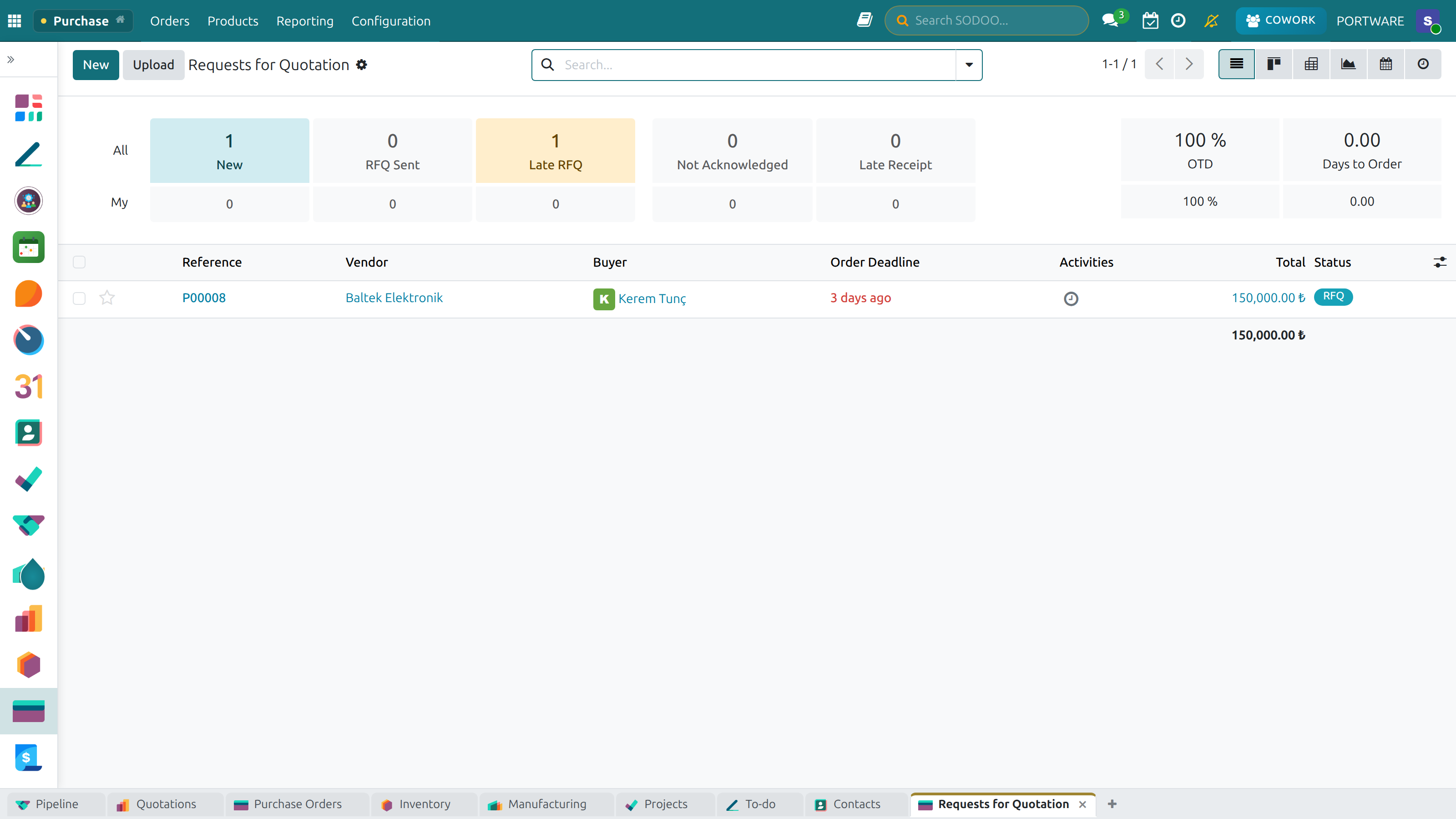
The Purchase overview screen
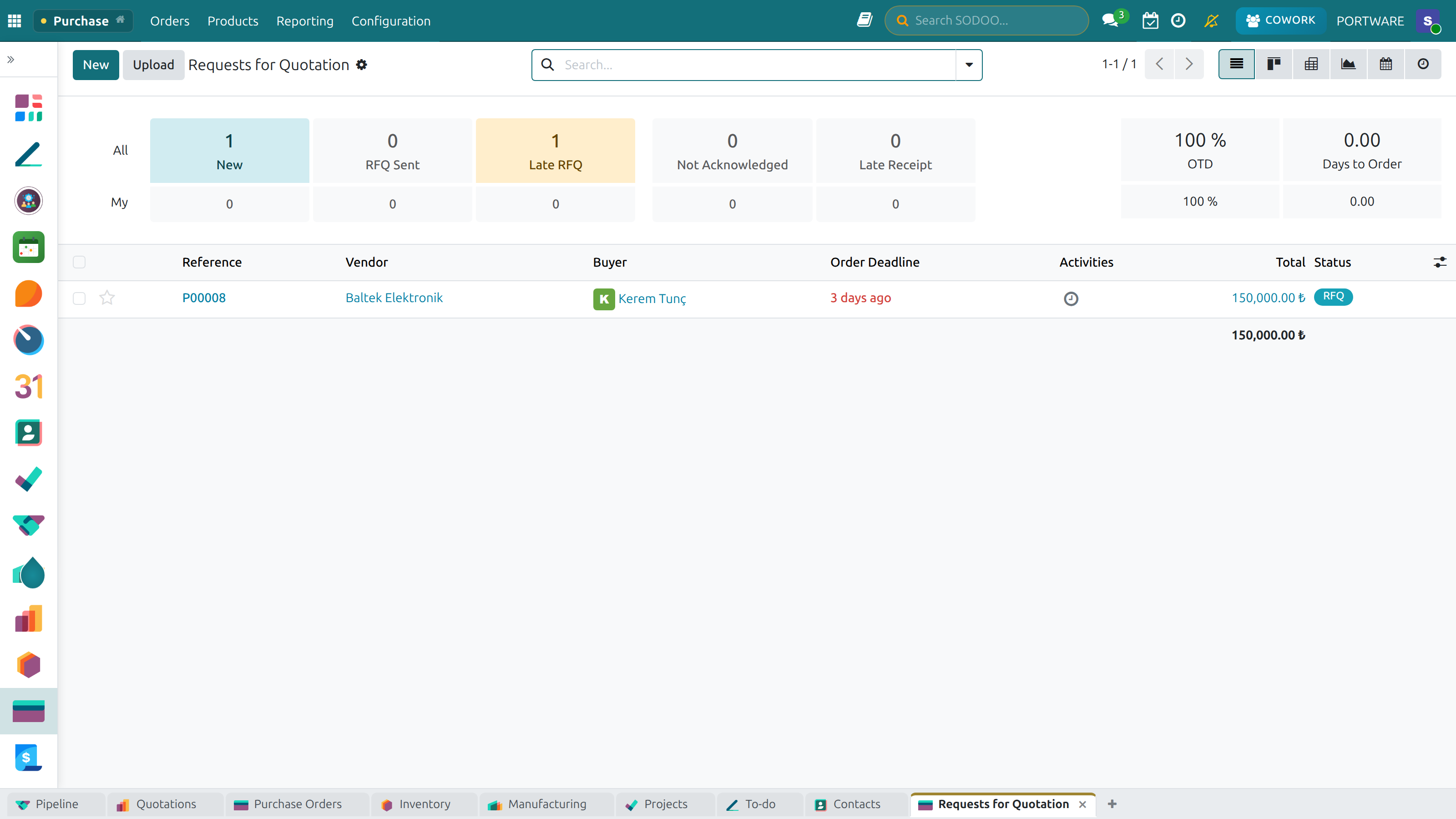
Requests for Quotation — list view
Request for Quotation (RFQ)
A Request for Quotation (RFQ) is the formal document used to solicit pricing from vendors. In SODOO, you can create RFQs, send them to multiple vendors simultaneously, and compare the responses.
Why RFQs Matter
Benefits of Using RFQs
- Competitive pricing through vendor comparison
- Transparent, auditable procurement process
- Stronger negotiating position
- Reduced risk of single-vendor dependency
- Documented justification for spend decisions
Risks of Skipping RFQs
- Overpaying without market comparison
- Sole-source supplier dependency
- Lack of transparency — audit risk
- Missed opportunity costs
- Compliance violations in regulated industries
Creating an RFQ
Step 1: New RFQ
Navigate to
Step 2: Select Vendor
Choose from your vendor list or create a new vendor record on the fly
Step 3: Add Products
Add the required products with quantities and any specific product variants
Step 4: Set Dates
Specify the Order Deadline (when vendor must respond) and Expected Arrival
Step 5: Send
Click Send RFQ by Email — the vendor receives a professional email with the quotation request
RFQ Statuses and Workflow
| Status | Meaning | Available Actions |
|---|---|---|
| Draft | RFQ not yet sent, can still be edited | Edit, Send, Delete |
| Sent | Email sent to vendor, awaiting response | Confirm Order, Resend, Cancel |
| To Approve | Amount exceeds limit, manager approval required | Approve (authorized user), Refuse |
| Purchase Order | RFQ confirmed and converted to a PO | View PO, Print, Receive Products |
| Cancelled | RFQ cancelled | Reset to Draft, Delete |
Alternative Quotes and Comparison
To get quotes from multiple vendors for the same products, use the Create Alternative feature:
Alternative Quote Process
RFQ Email Templates
The emails sent to vendors are fully customizable:
- Navigate to
- Add your company logo and contact information
- Include delivery terms and payment conditions
- Use dynamic fields:
{{ object.name }},{{ object.date_order }}
Managing RFQs in SODOO — Step by Step
Create and Send an RFQ
- Go to and click New
- Select the Vendor from the dropdown (type to search)
- Click Add a Product in the Order Lines tab and select products
- Enter Quantity and review the auto-populated unit price from vendor pricelist
- Set Expected Arrival date
- Click Send RFQ by Email
Compare Alternatives
- From an RFQ, click Create Alternative and repeat the process for each vendor
- After responses arrive, update unit prices on each alternative RFQ
- Click Compare to open the side-by-side comparison view
- Click Choose next to the winning line to confirm that vendor's offer
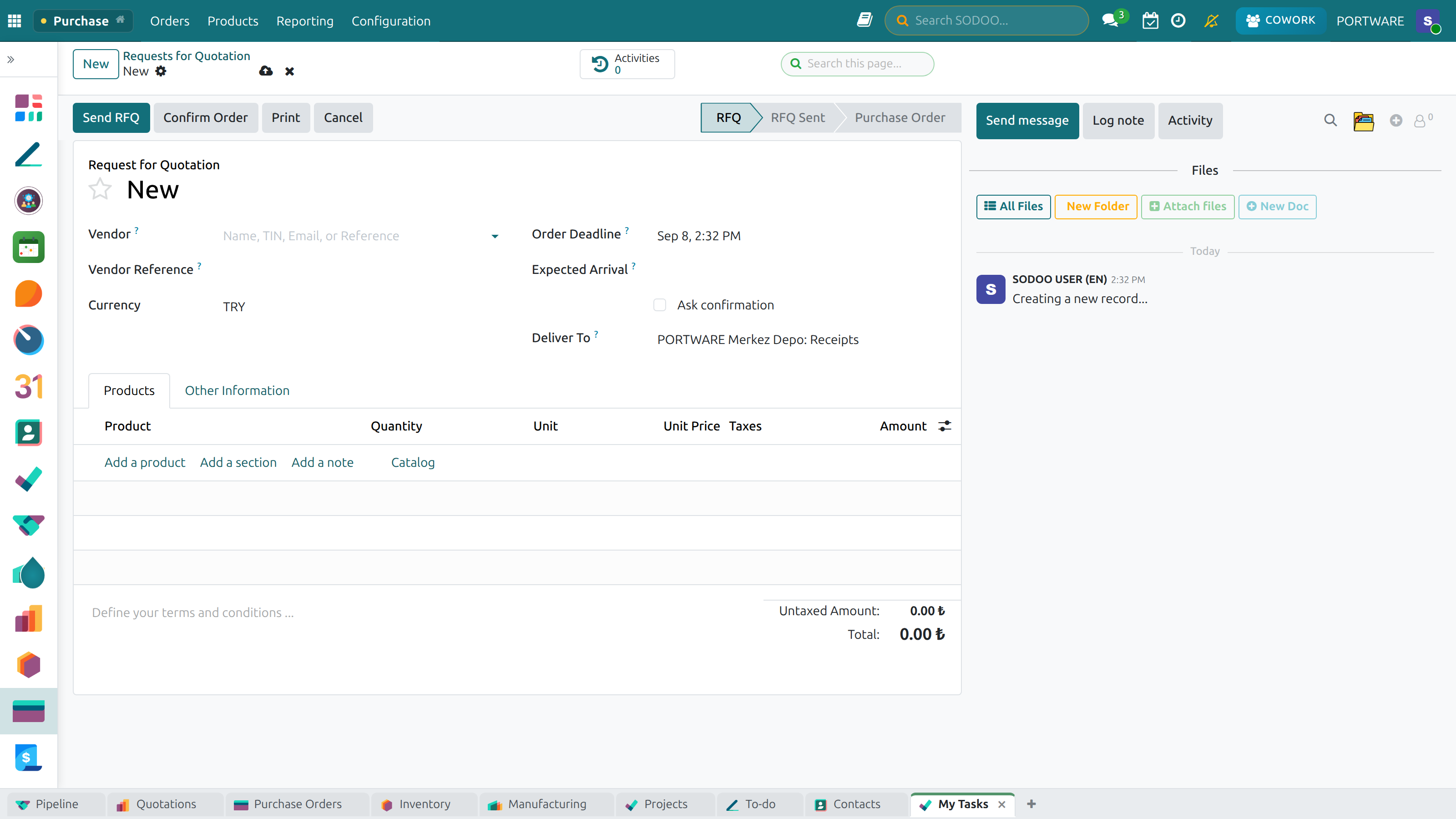
Creating a new request for quotation
Choosing a vendor while raising an RFQ
Purchase Orders (PO)
A Purchase Order (PO) is the legally binding order document sent to a vendor. In SODOO, an RFQ automatically becomes a PO when confirmed, or you can create a PO directly.
PO Creation Methods
From Confirmed RFQ
The most common method. Click Confirm Order on an RFQ to convert it to a PO.
Manual Creation
Go to for direct PO entry. Useful for recurring known purchases.
Auto Replenishment
When reorder rules trigger (stock below minimum), the system creates draft POs automatically.
MRP Integration
Material Requirements Planning generates POs automatically based on production needs and BOMs.
PO Lifecycle
| Status | Meaning | Stock Impact |
|---|---|---|
| Draft RFQ | Order not yet confirmed | None |
| To Approve | Awaiting manager approval (amount threshold exceeded) | None |
| Purchase Order | Confirmed and sent to vendor | Expected stock quantity increases |
| Partial Receipt | Some items received, remaining expected | On-hand stock partially increases |
| Done | All products received and invoiced | All stock levels updated |
| Cancelled | Order cancelled | Expected stock reverts to zero |
Receiving Goods (Goods Receipt Note)
When a vendor delivers products, record the receipt in SODOO:
- Open the PO and click Receive Products
- Physically count and inspect incoming goods
- Enter the Done quantity for each product line
- If lot/serial number tracking is enabled, enter those numbers
- Add notes for any damaged or missing items
- Click Validate to update stock levels in real time
Scenario: Partial Delivery and Invoice Matching
Situation: You ordered 1,000 units. The vendor shipped 600 in the first delivery and 400 in the second. Each shipment has its own invoice.
- When the first shipment arrives, click Receive Products on the PO
- Enter Done quantity: 600 → click Validate
- SODOO automatically creates a backorder for the remaining 400 units
- When the first invoice arrives, click Create Bill or match an existing bill
- Verify that the invoiced quantity (600) matches the received quantity
- Repeat the process when the second shipment arrives
- Once all deliveries and invoices are complete, the PO status automatically becomes "Done"
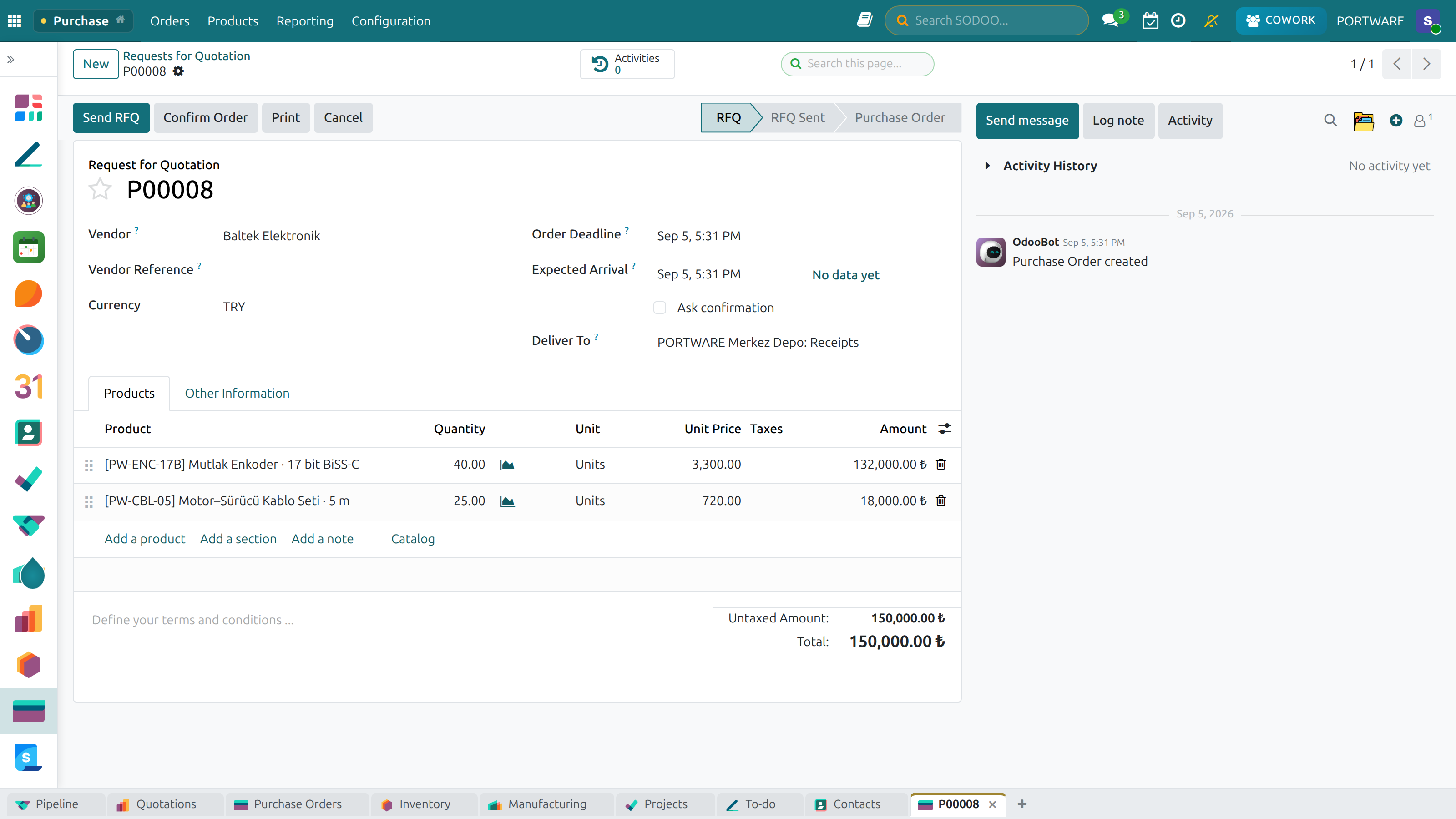
Creating a new purchase order
3-Way Matching
Three-way matching is the critical process of verifying consistency between the purchase order, the goods receipt, and the vendor invoice before authorizing payment. It prevents overpayments, duplicate payments, and fraud.
1. Purchase Order
What you ordered: products, quantities, and agreed unit prices.
2. Goods Receipt (GRN)
What was actually delivered and accepted into your warehouse.
3. Vendor Invoice
What the vendor is billing: products, quantities, and amounts.
Billing Policy Options
| Policy | When Invoice is Created | Best For |
|---|---|---|
| Based on Ordered Quantities | As soon as PO is confirmed | Services, digital goods, trusted vendors |
| Based on Received Quantities | Only after goods are received and validated | Physical goods, high-value items (recommended) |
Creating and Matching a Vendor Bill in SODOO
- Open the confirmed PO with received products
- Click the Create Bill button
- SODOO pre-fills the bill with quantities from the goods receipt
- Compare the pre-filled amounts to the vendor's paper invoice
- If quantities or prices differ, investigate before confirming
- Click Confirm to post the accounting entry
- Process payment from the Accounting module when due
Vendor Management
Maintain vendor information, payment terms, and contact details centrally. Strong vendor relationships are the foundation of a reliable supply chain.
Vendor Record Components
| Tab | Content | Purpose |
|---|---|---|
| General | Name, address, tax ID, contact persons | Core identity information |
| Purchase | Default payment terms, currency, discount rate, lead times | Commercial conditions |
| Accounting | Vendor account, bank details, fiscal position | Financial integration |
| Sales | Customer info if this vendor is also a customer | Bidirectional business relationship |
| Internal Notes | Warnings, special notes, historical issues | Institutional memory |
Vendor Pricelists
Define product-level pricing for each vendor:
- Unit price per product: The vendor's agreed price for each SKU
- Minimum Order Quantity (MOQ): Minimum units per order
- Validity dates: Start and end date for this pricing
- Quantity-based price breaks: Discounted price for bulk orders (e.g., 1–99 units: $10; 100+ units: $8.50)
- Lead Time: Number of days from order to delivery for this vendor
Multi-Vendor Strategy
For critical products, qualify multiple vendors as a risk management strategy:
Advantages
- Reduced supply disruption risk
- Competitive pricing through ongoing comparison
- Stronger negotiating position
- Quality benchmarking between vendors
Considerations
- Increased management complexity
- Potential loss of volume discounts
- Possible quality inconsistency
- More coordination effort required
Managing Vendors in SODOO
Add a New Vendor
- Go to and click New
- Select Company type and fill in the company name and address
- Under the Purchase tab, set Payment Terms and Currency
- Under the Accounting tab, assign the Account Payable account
- Add bank account details for payment processing
- Save the record
Add Vendor Pricelist
- Open the product record and go to the Purchase tab
- Click Add a Line in the Vendor section
- Select the vendor, enter Price, Min. Qty, and Lead Time
- Repeat for each approved vendor of this product
- The lowest-cost vendor automatically appears first on RFQs
Vendor Evaluation
Systematically track and evaluate vendor performance. Make data-driven vendor selection, development, and exit decisions based on objective metrics.
Vendor Scorecard
Evaluation Criteria
| Metric | Formula / Measurement | Target | Weight |
|---|---|---|---|
| On-Time Delivery (OTD) | On-time deliveries / Total deliveries × 100 | ≥ 95% | 30% |
| Quality Score | Accepted / Total received × 100 | ≥ 98% | 30% |
| Price Competitiveness | Index against market average | ≤ 100 | 25% |
| Response Time | Time from RFQ sent to quote received | ≤ 48 hours | 10% |
| Flexibility | Urgent order fulfillment rate | ≥ 80% | 5% |
Vendor Classification
Class A — Strategic
Overall score ≥ 90. Long-term partnership, preferred vendor status, joint development programs.
Class B — Approved
Score 75–89. Regular business, development potential, annual review meetings.
Class C — Watch
Score 60–74. Close monitoring, improvement plan required, alternative sourcing begins.
Class D — Exit
Score < 60. Actively seek replacement, phase-out plan, do not issue new POs.
Purchase Agreements
Create long-term vendor agreements to secure price stability and supply continuity. Agreements provide predictability for both buyer and seller, enabling better planning.
Agreement Types
Blanket Order
- Fixed price guarantee for a defined period
- No quantity commitment required upfront
- Order as-needed within the agreement period
- Protection from price fluctuations
- Example: $5.00/kg for 12 months
Quantity Contract
- Commitment to purchase a specific total quantity
- Discounted price in exchange for volume guarantee
- Flexible delivery scheduling
- Volume discount advantage
- Example: 10,000 units/year at 15% discount
Creating and Managing Agreements
New Agreement
Navigate to
Select Agreement Type
Choose Blanket Order or Purchase Contract based on your commercial arrangement
Vendor & Dates
Select the vendor and enter validity period (start and end dates)
Products & Prices
Add the products covered by the agreement with their special agreed prices
Confirm
Click Confirm to activate the agreement
Using Purchase Agreements on Orders
When creating an RFQ or PO for a vendor with an active agreement:
- SODOO automatically detects the active agreement and shows a banner notification
- Click Purchase Agreement at the top of the order form to link it
- Products and prices from the agreement are automatically populated
- Agreement usage is tracked: remaining quantity / amount is updated after each PO
Products & Pricing
Product Configuration for Purchasing
Each product must be configured correctly to work with the Purchase module:
| Field | Description | Impact |
|---|---|---|
| Product Type | Storable Product, Consumable, or Service | Determines if stock levels are tracked |
| Purchase UoM | Unit of measure for purchasing (may differ from sales UoM) | Conversion applied automatically on receipt |
| Cost | Default purchase price (can be overridden per vendor) | Used in inventory valuation |
| Lead Time | Days from PO confirmation to arrival | Used by scheduler and reorder rules |
| Billing Policy | Invoice based on ordered or received quantities | Determines when vendor bill can be created |
Price Management Strategies
Negotiated Rates
Individual prices agreed with each vendor, stored in the vendor pricelist on the product record.
Volume Discounts
Quantity-tiered pricing: the more you order, the lower the unit price. Configured in vendor pricelist breaks.
Seasonal Pricing
Time-bounded prices for seasonal goods. Use validity dates on vendor pricelist entries.
Multi-Currency
Purchase in any currency; SODOO converts to your company currency using live or fixed exchange rates.
Auto Replenishment
Configure reorder rules so SODOO automatically creates purchase proposals when stock falls below defined thresholds. Reduce manual monitoring and prevent stockouts.
Reorder Rule Types
Min/Max Replenishment
When stock falls below Min Qty, order enough to reach Max Qty. Classic and simple. Best for predictable, steady-demand products.
Make to Order (MTO)
A purchase order is created only when a confirmed sales order or production order creates demand. Zero-inventory strategy for expensive or custom items.
Setting Up a Reorder Rule
Configure Auto Replenishment in SODOO
- Go to
- Click New
- Select the Product and Location (which warehouse)
- Set Min Quantity — the stock level that triggers replenishment
- Set Max Quantity — the target stock level after replenishment
- Set Quantity Multiple — order in multiples of this number (e.g., pallet sizes)
- Assign the preferred Vendor for auto-generated POs
- Save — the scheduler runs daily and creates draft POs when needed
MRP Integration
If you use the Manufacturing module, the Material Requirements Planning (MRP) scheduler also generates purchase orders based on production needs:
- Bills of Materials (BoM): Define the components required for each production run
- Production Orders: Create a production order; MRP calculates component needs
- Purchase Proposals: MRP creates draft POs for components sourced externally
- Lead Times: MRP factors in vendor lead times to ensure materials arrive on time
Reports & KPIs
Measure procurement performance, identify cost-saving opportunities, and monitor vendor reliability with SODOO's built-in purchase analytics.
Key Procurement KPIs
Standard Reports
| Report | Location | Key Insights |
|---|---|---|
| Purchase Analysis | Spend by vendor, product, category, and time period | |
| Vendor Performance | OTD rate, quality scores, price trends per vendor | |
| Price Variance | Actual vs. standard prices; procurement savings tracking | |
| Orders to Receive | Outstanding deliveries expected this week / month | |
| Bills to Pay | Upcoming and overdue vendor payments |
Running Purchase Reports in SODOO
Spend by Vendor Analysis
- Go to
- Click Group By › Vendor
- Add a date filter for the period you want to analyze
- Switch to pivot view for a tabular breakdown by product category
Export to Excel
- From any report view, click the Export button (top right)
- Choose XLSX format for full Excel compatibility
- The file downloads immediately with all visible data
Save a Favorite Report View
- Set up your desired filters, group-by, and measures
- Click Favorites › Save Current Search
- Name it and optionally share it with the whole team
- Access it instantly next time from the Favorites dropdown
Configuration
Configure the Purchase module to match your company's procurement policies:
| Setting | Description | Recommendation |
|---|---|---|
| Purchase Order Approval | Require manager approval for POs over a specified amount | Enable with a threshold matching your policy (e.g., $5,000) |
| Purchase Lock | Lock confirmed POs to prevent editing without unlocking | Enable for better financial control |
| Vendor Bills | Billing policy: based on ordered or received quantities | Use "Based on Received" for physical goods |
| Purchase Agreements | Enable blanket orders and quantity contracts | Enable if you have long-term vendor contracts |
| Warning on Purchase | Display warnings when ordering from specific vendors or products | Use for blocked vendors or products under quality review |
Access all settings at: