Project & Service Management
From Idea to Delivery: Plan projects, coordinate teams, manage customer support requests, and organize field services. All your service operations in a single platform.
- Every project picks its own methodScrum, Kanban, Waterfall or Stage-Gate; a project that picks none does not change.
- Who is how fullTeam workload shows tasks, meetings, leave and holidays apart.
- From task to invoiceTimesheets flow into the invoice by themselves.
Project & Service Management
From Idea to Delivery: Plan projects, coordinate teams, manage customer support requests, and organize field services. All your service operations in a single platform.
What You Will Learn in This Section
- Creating projects and organizing tasks
- Tracking work with Kanban and Gantt views
- Recording working hours with timesheets
- Managing customer support tickets (Helpdesk)
- Planning field service operations
- Analyzing project profitability
Overview
The Project & Service Management module covers all operations for service-sector companies. Whether you work in software development, consulting, technical service, or customer support, you can manage every type of project-based work in SODOO.
Project Lifecycle
Planning
Kickoff
Execution
Monitoring
Closure
SODOO supports every phase of this lifecycle:
- Planning: Scope definition, resource allocation, budget planning
- Kickoff: Project creation, team assignment, milestone definition
- Execution: Task assignment, progress tracking, timesheet entry
- Monitoring: Performance analysis, budget control, risk management
- Closure: Delivery, review, profitability analysis
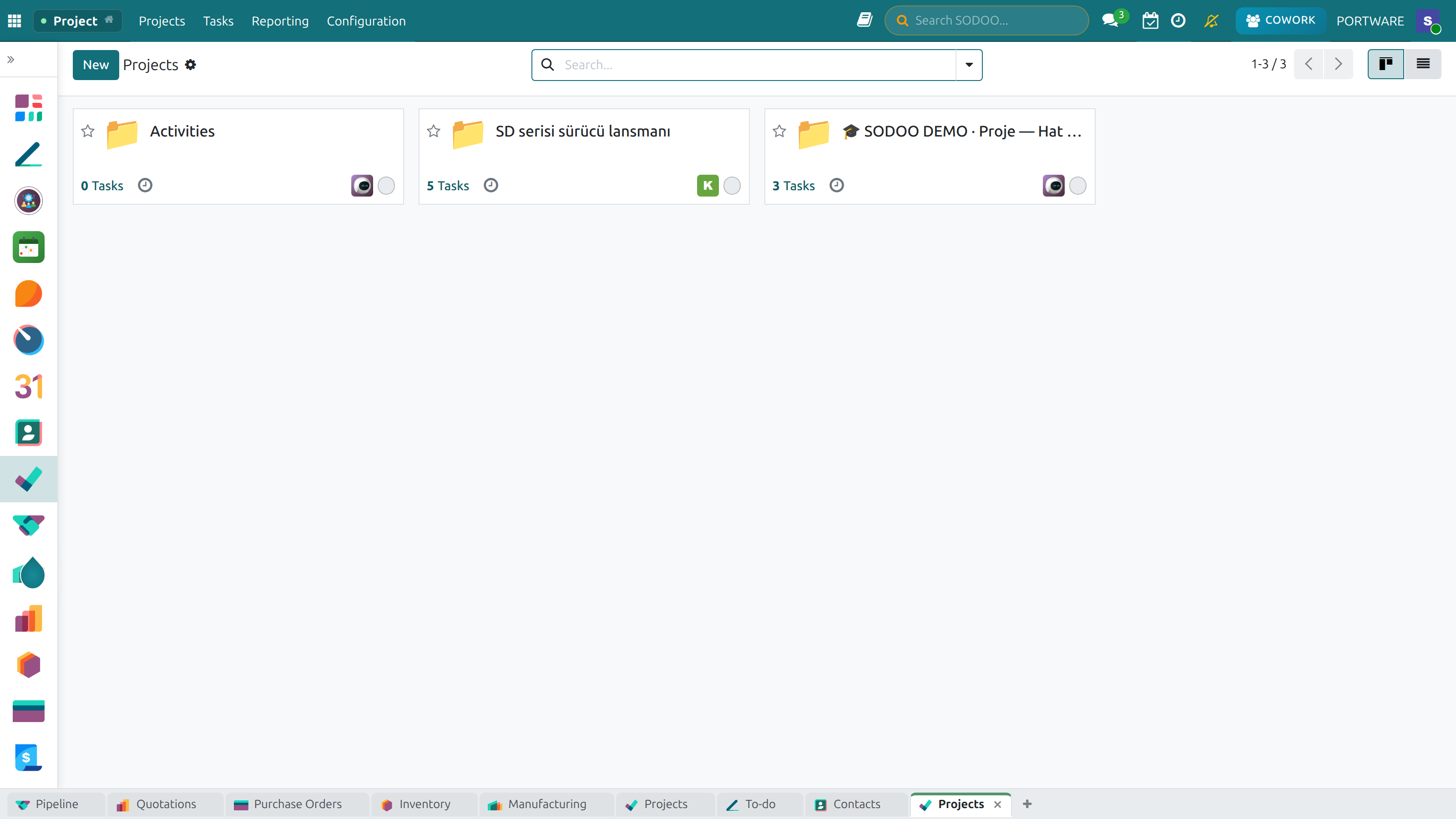
Projects home — every project on one Kanban board
Why Digital Project Management?
Imagine a website project: a client requested it, you have 3 months, and a 5-person team will work on it. What happens when you try to manage this with spreadsheets and email?
With Spreadsheets & Email
- Task list in Excel, everyone using different versions
- "Did Alex finish that task?" - Lost in email threads
- Is the project 80% or 60% done? Nobody knows
- No timesheets, actual hours spent are unknown
- Is the project profitable? You'll find out at month-end
- Panic every time a client asks for a status update
With SODOO Project Management
- Single source of truth: Everyone sees the same task list
- Kanban board: Which task is assigned to whom and at what stage
- Automatic progress: Calculated from completed tasks in real time
- Timesheet integration: Every hour recorded
- Instant profitability: Revenue - Cost = Profit (real-time)
- Client portal: Customers can check status themselves
Scenario: Managing a Website Project
Managing with Spreadsheets (2 hours wasted per day):
- Prepare the task list in Excel
- Send a daily email to the team: "What did you do today?"
- Collect replies and update the spreadsheet
- Present the status in weekly meetings
- Manually prepare reports whenever the client asks
- At project end, tally costs and calculate profitability
Managing with SODOO (Automated):
- Create the project, define tasks and stages
- Assign team members and share the Kanban board
- Everyone advances their own tasks with drag-and-drop
- Real-time progress and time tracking visible on the dashboard
- Client can follow the project from the portal
- Automatic profitability report — always up to date
Core Concepts
Project
A project is a collection of work with a defined goal and a start and end date. In SODOO, a project is the main container in which tasks are organized.
Project Types
- Customer Project: Billable work done for a specific client
- Internal Project: In-house development and improvement initiatives
- Support Project: A project that consolidates customer support tickets
- Service Project: Maintenance and technical service jobs
Task
The smallest unit of work in a project. Each task is assigned to a person and includes start/end dates and an estimated duration.
| Field | Description | Example |
|---|---|---|
| Title | Short description of the task | Homepage design |
| Assigned To | Person responsible for the task | Alice Johnson |
| Stage | Current Kanban stage | In Progress |
| Planned Hours | Estimated working time | 16 hours |
| Deadline | Due date for delivery | 2026-03-15 |
Milestone
Critical checkpoints in a project. They typically represent delivery, approval, or payment events.
Project Detail — project information and configuration
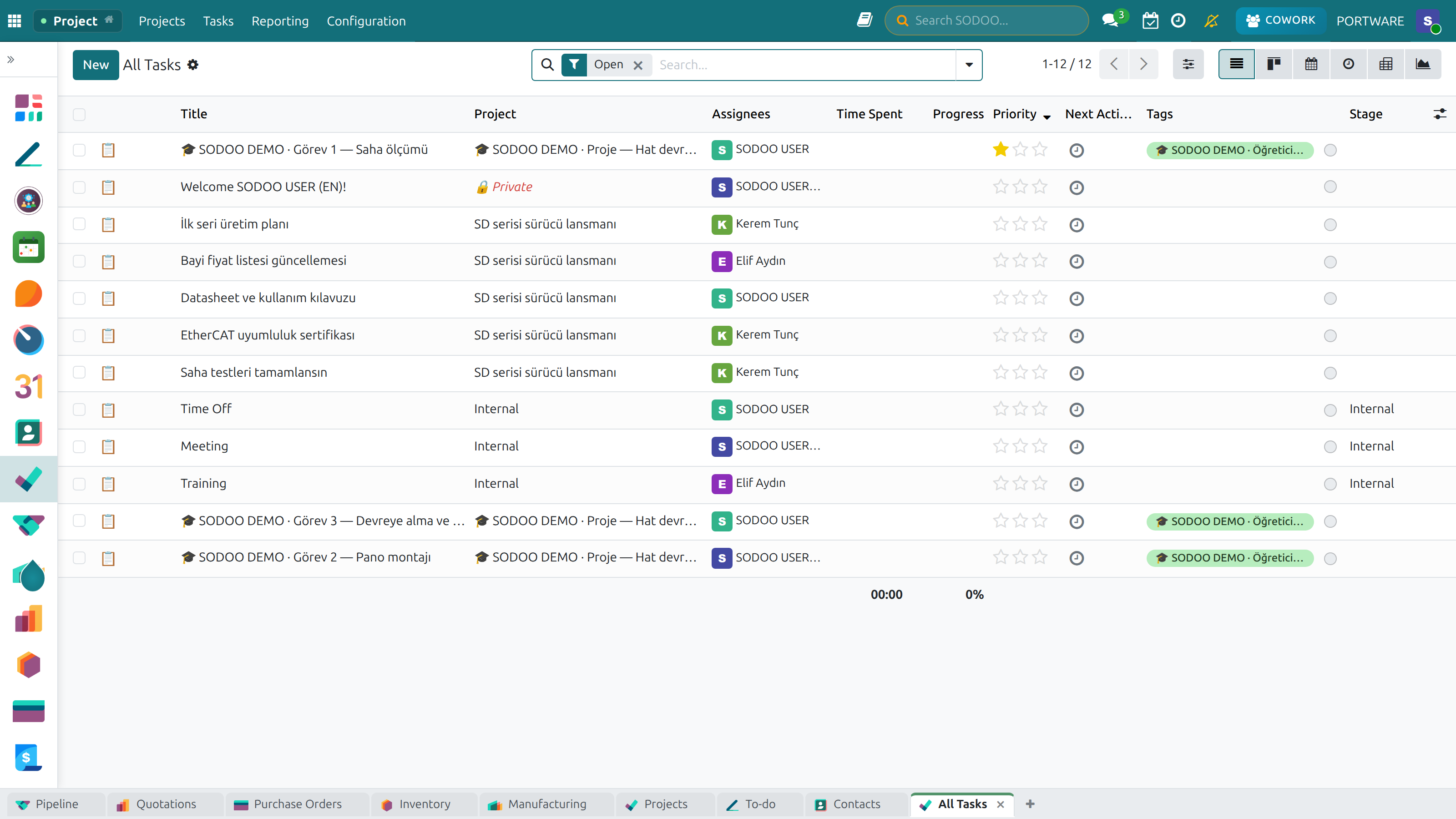
Tasks List — every task in the project, in list view
Creating Projects
To create a new project, go to Project → Projects → New.
Project Creation Steps
- Enter the project name (e.g., "Acme Corp - Corporate Website")
- Select the customer (for billable projects)
- Assign the project manager
- Define stages (Kanban columns)
- Set start and end dates
Project Settings
- Timesheets: Enable or disable timesheet logging
- Billing: Hourly, fixed price, or milestone-based
- Sub-tasks: Allow tasks to be broken into sub-tasks
- Recurring Tasks: For periodic recurring work
- Customer Portal: Allow clients to view the project
How to Do It in SODOO
Create a New Project
- Navigate to
- Click + New
- Fill in the Project Name (e.g., "Acme Corp - Website")
- Select the Customer from the dropdown
- Open the Settings tab and configure:
- Timesheets — enable for hour tracking
- Billing — choose Hourly or Fixed Price
- Sub-tasks — enable task breakdown
- Click Save
Customize Project Stages
- Navigate to
- Create stages such as: Backlog, In Progress, Review, Done
- Each stage becomes a Kanban column for your project
Project Settings — creating and configuring a new project
Project Settings — timesheets, invoicing and sub-task options
Advanced Project Settings — recurring tasks and the customer portal
Project Template Detail — configuring a template for recurring projects
Tasks Summary — a condensed view of every task and its status
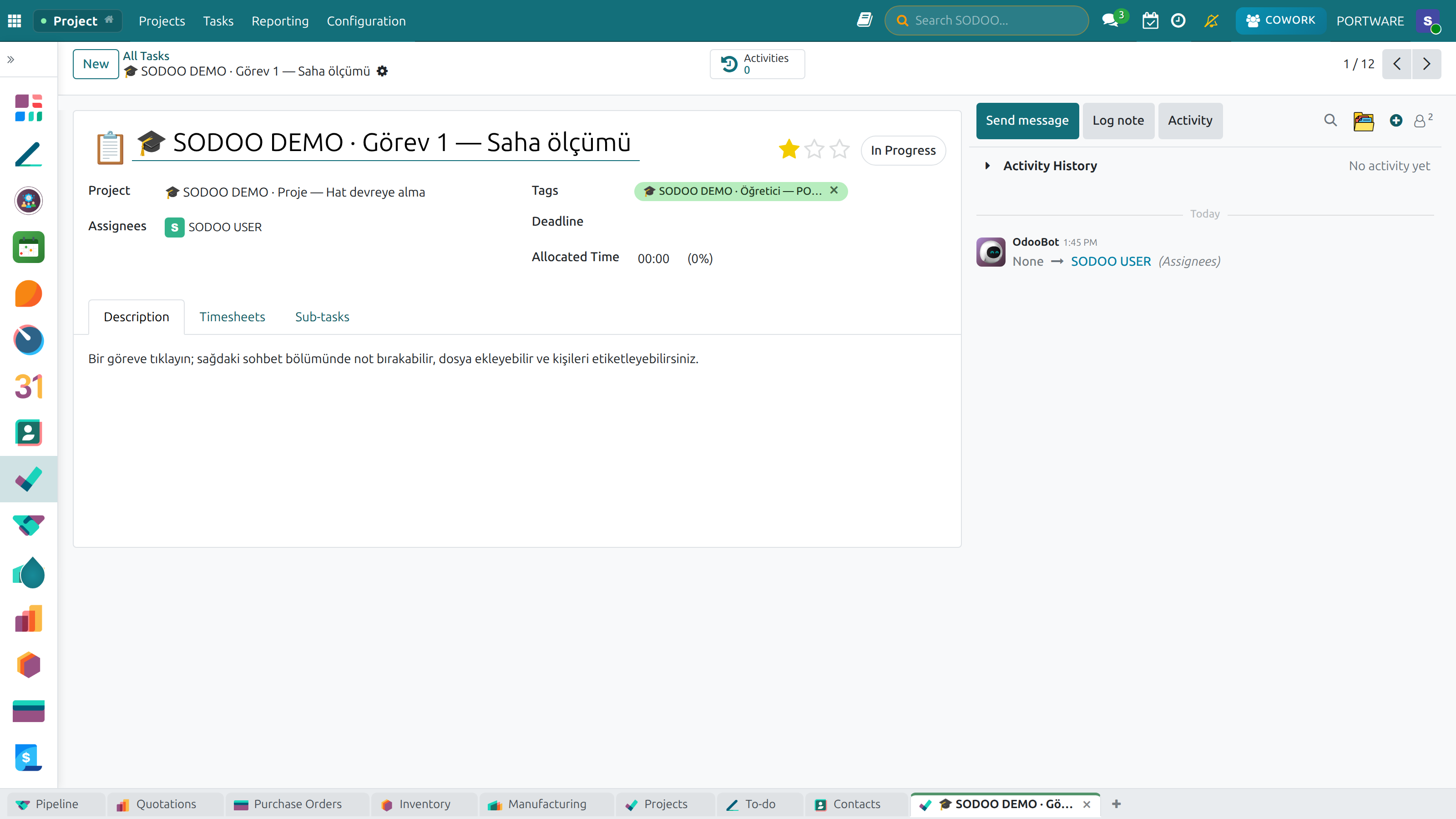
Task Detail — task information, assignments and progress
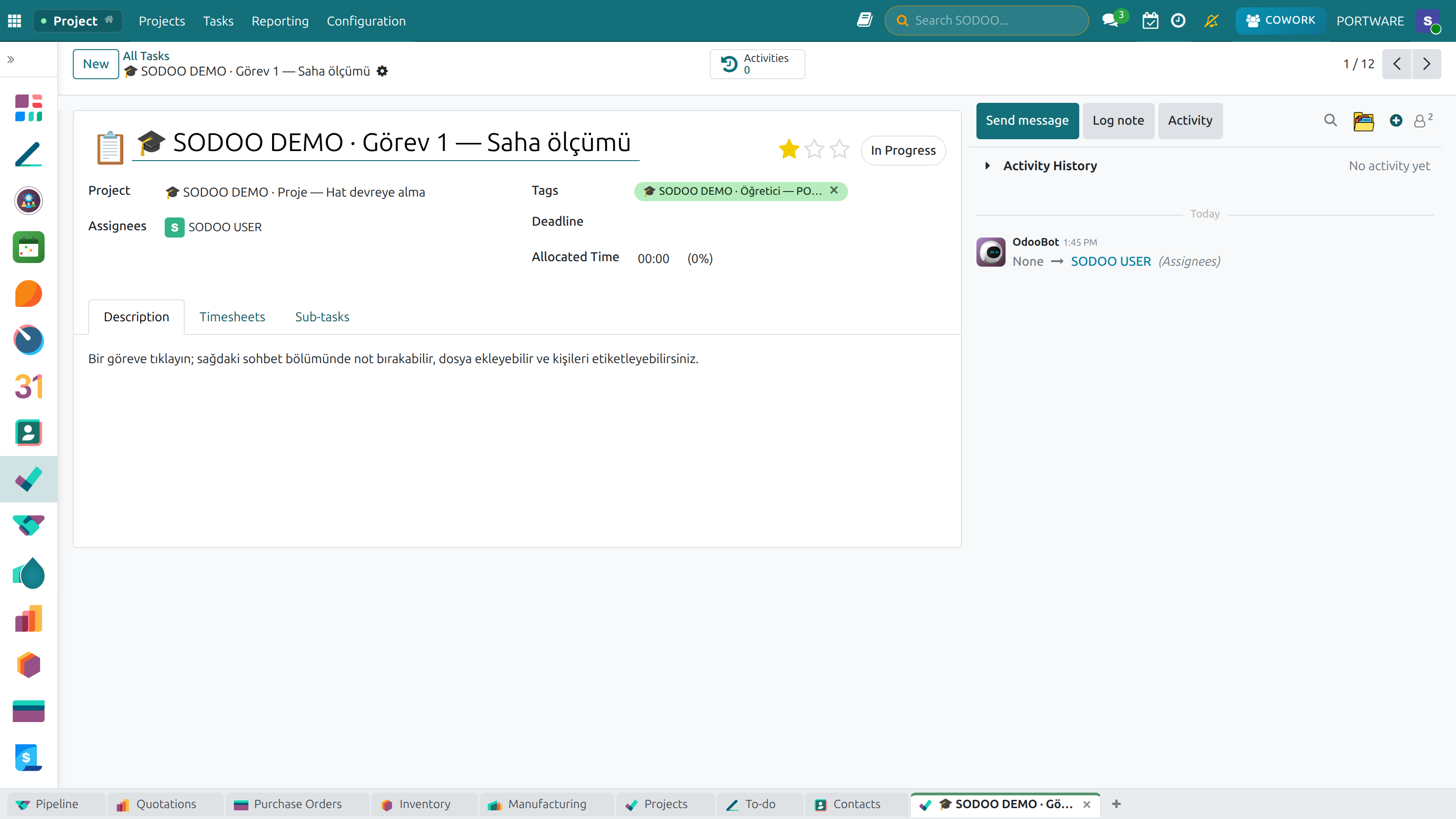
Task Tabs — description, sub-tasks, timesheets and the rest
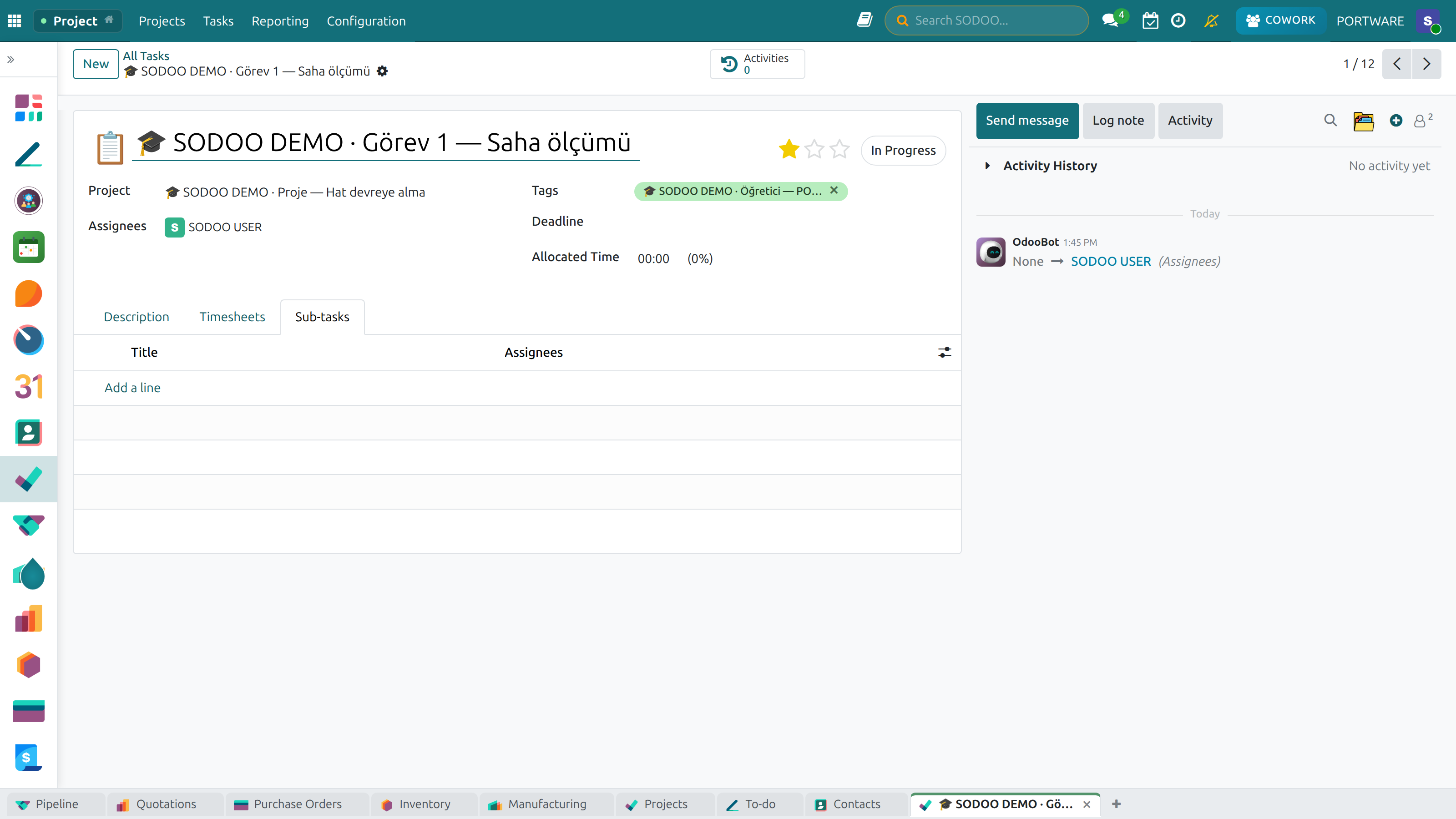
Sub-tasks — breaking a parent task down and following its progress
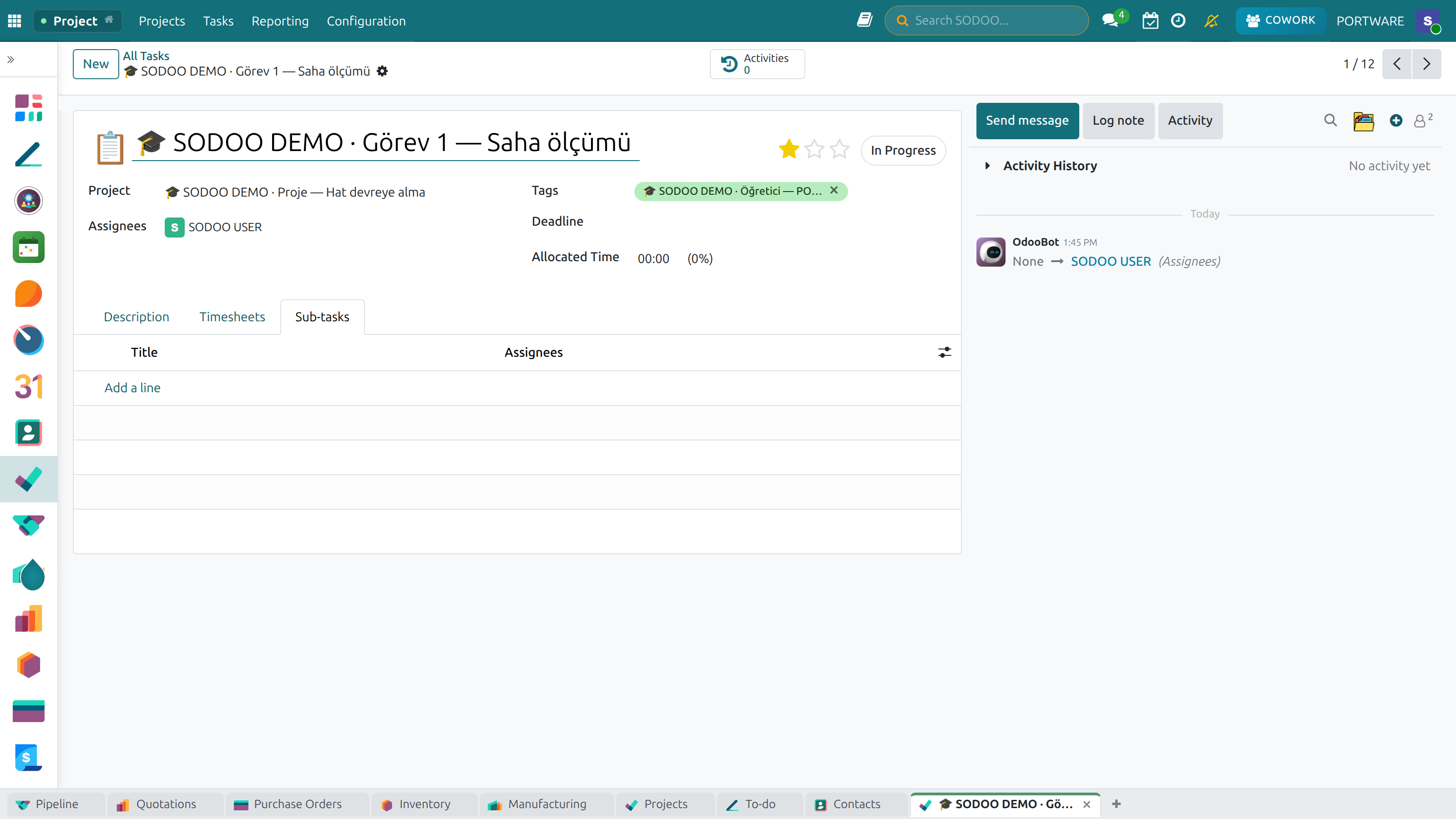
Sub-task — the detailed view of a single sub-task and its progress
Sub-task Timesheet — tracking the time spent on sub-tasks
Sub-task Detail — full information and the assignment screen
Sub-task View — sub-tasks in list and card layouts
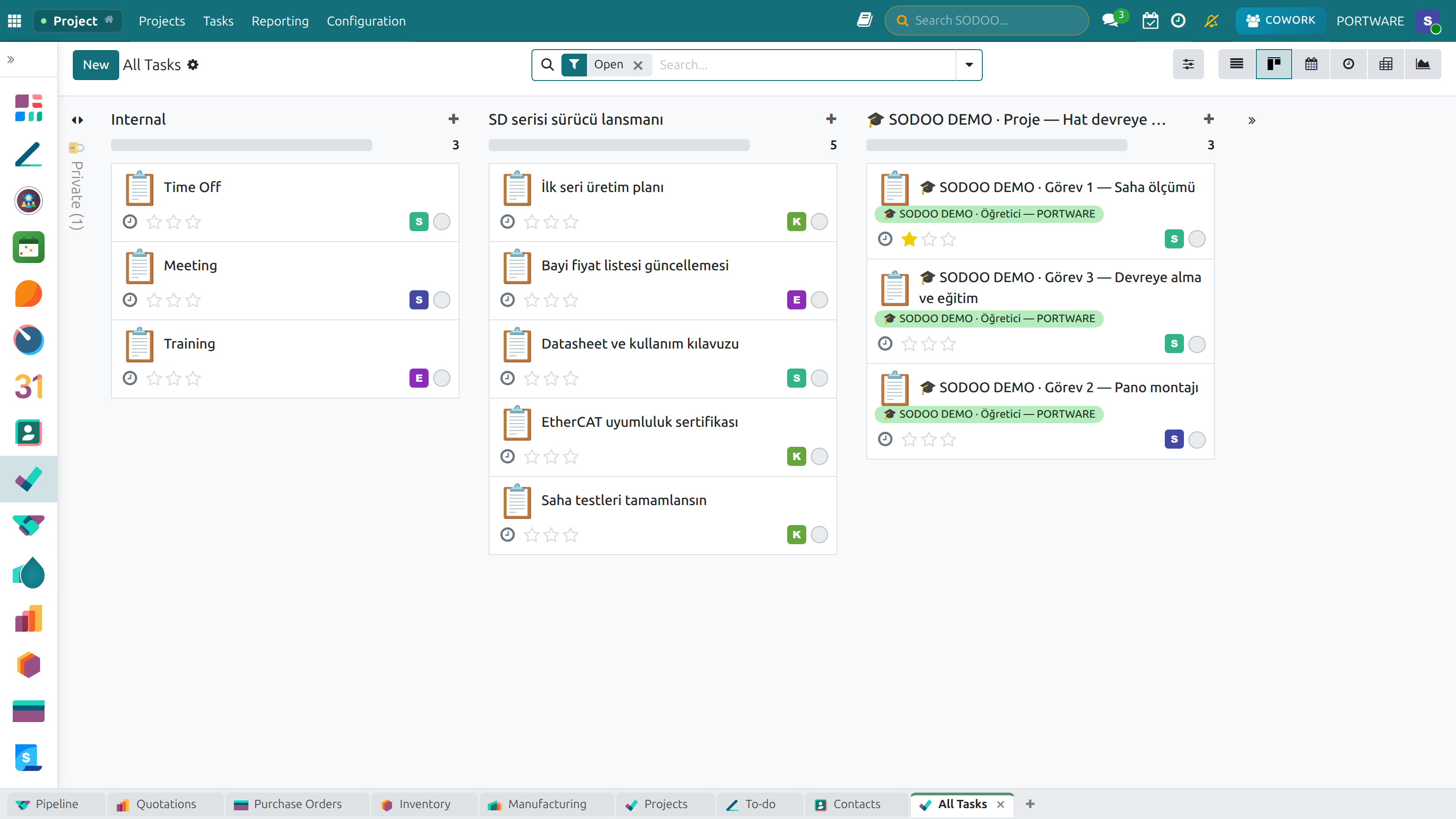
Kanban View — following tasks visually across stages
Sub-task Progress — completion percentage and status tracking
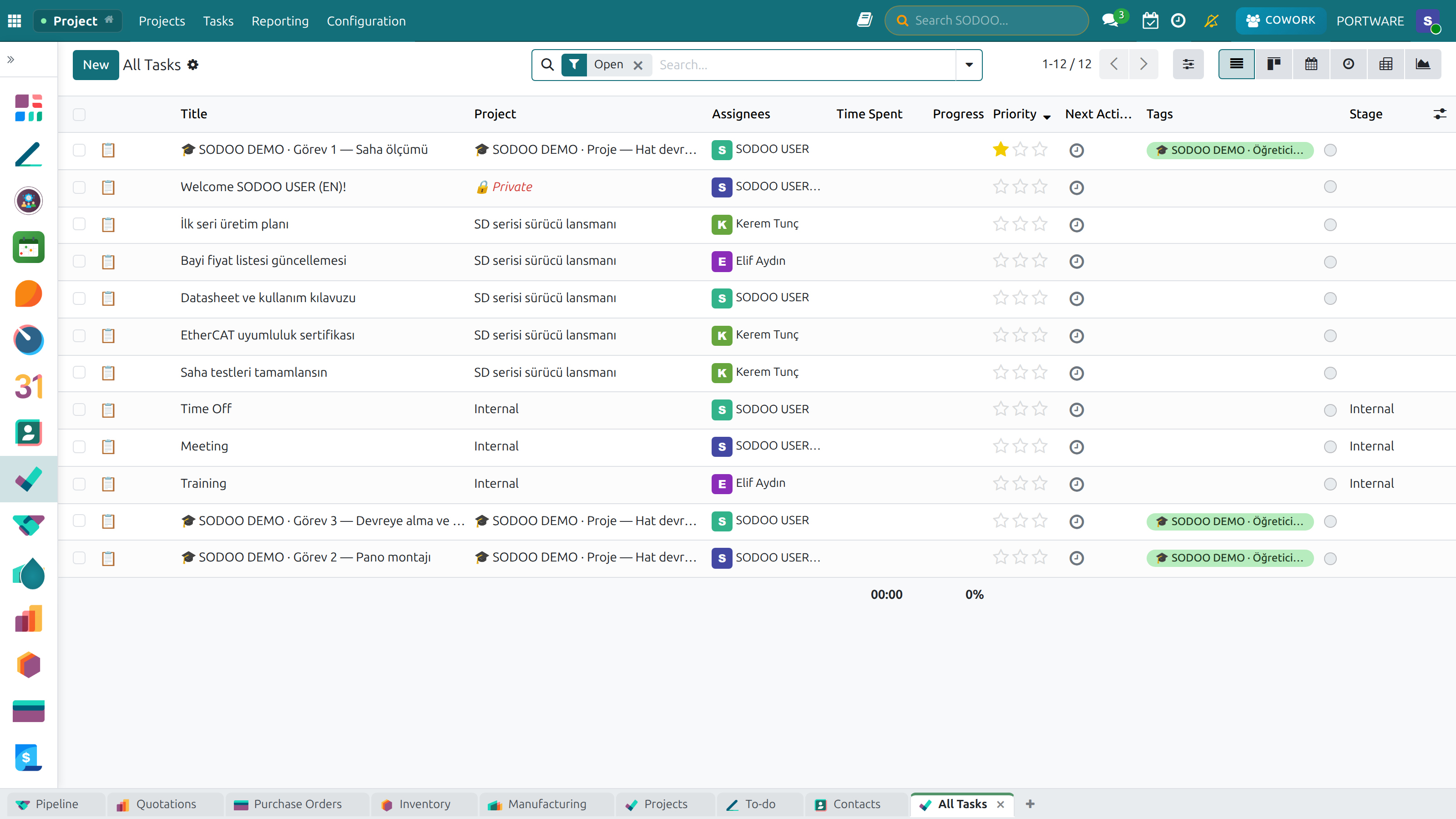
Project Summary — status, progress and the timeline
Project Activities — following milestones and key events
Milestone Detail — milestone information, target date and linked tasks
Activity Scheduling — planning task and project activities
Task Management
Tasks are the building blocks of every project. SODOO gives you powerful tools to create, assign, prioritize, and track tasks throughout the project lifecycle.
Creating and Assigning Tasks
Tasks can be created directly from the Kanban view by clicking + Add a Task in any column, or from the task list view.
Key Task Fields
- Title: Clear, action-oriented description (e.g., "Design login page UI")
- Assignees: One or multiple team members responsible
- Priority: Normal or Urgent (star indicator)
- Tags: Labels for filtering and grouping
- Planned Hours: Estimated time for completion
- Deadline: Target completion date
- Description: Detailed instructions, acceptance criteria
Sub-tasks and Dependencies
Large tasks can be broken down into sub-tasks. Sub-tasks inherit the parent task's project and can have their own assignees, deadlines, and timesheets.
Task Dependencies
- Task B can be blocked until Task A is marked done
- Dependency arrows are visible on the Gantt chart
- SODOO automatically highlights blocked tasks
- Enable in Configuration → Task Dependencies
Recurring Tasks
For tasks that repeat on a schedule (weekly reports, monthly invoicing, daily standups), use the recurring task feature. SODOO automatically creates the next occurrence when the current task is completed.
Recurrence Options
- Daily: Every day, every N days, specific weekdays
- Weekly: Every week on selected days
- Monthly: On a specific date each month
- Yearly: On a specific date each year
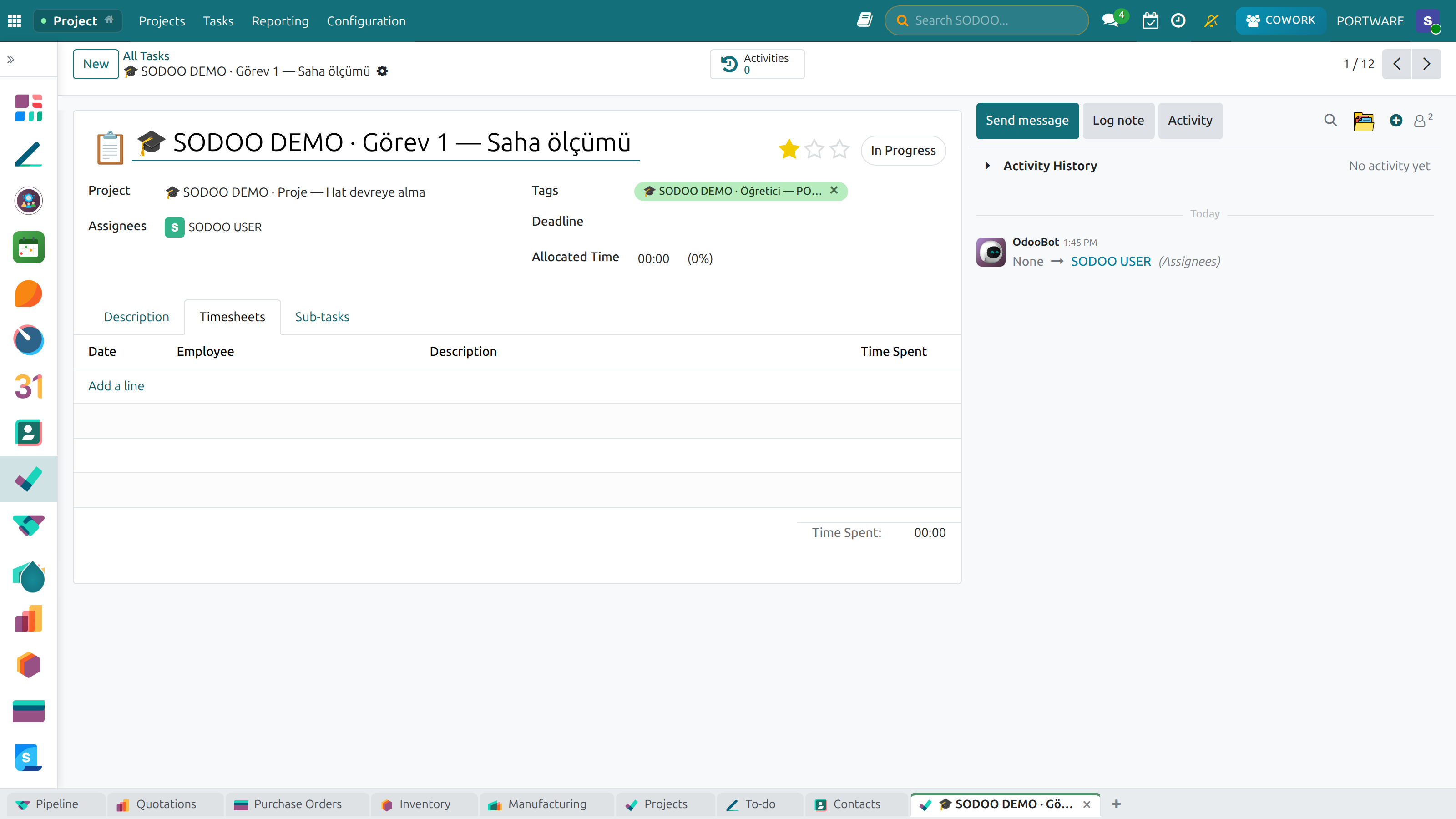
Task Timesheet — logging working hours against a task
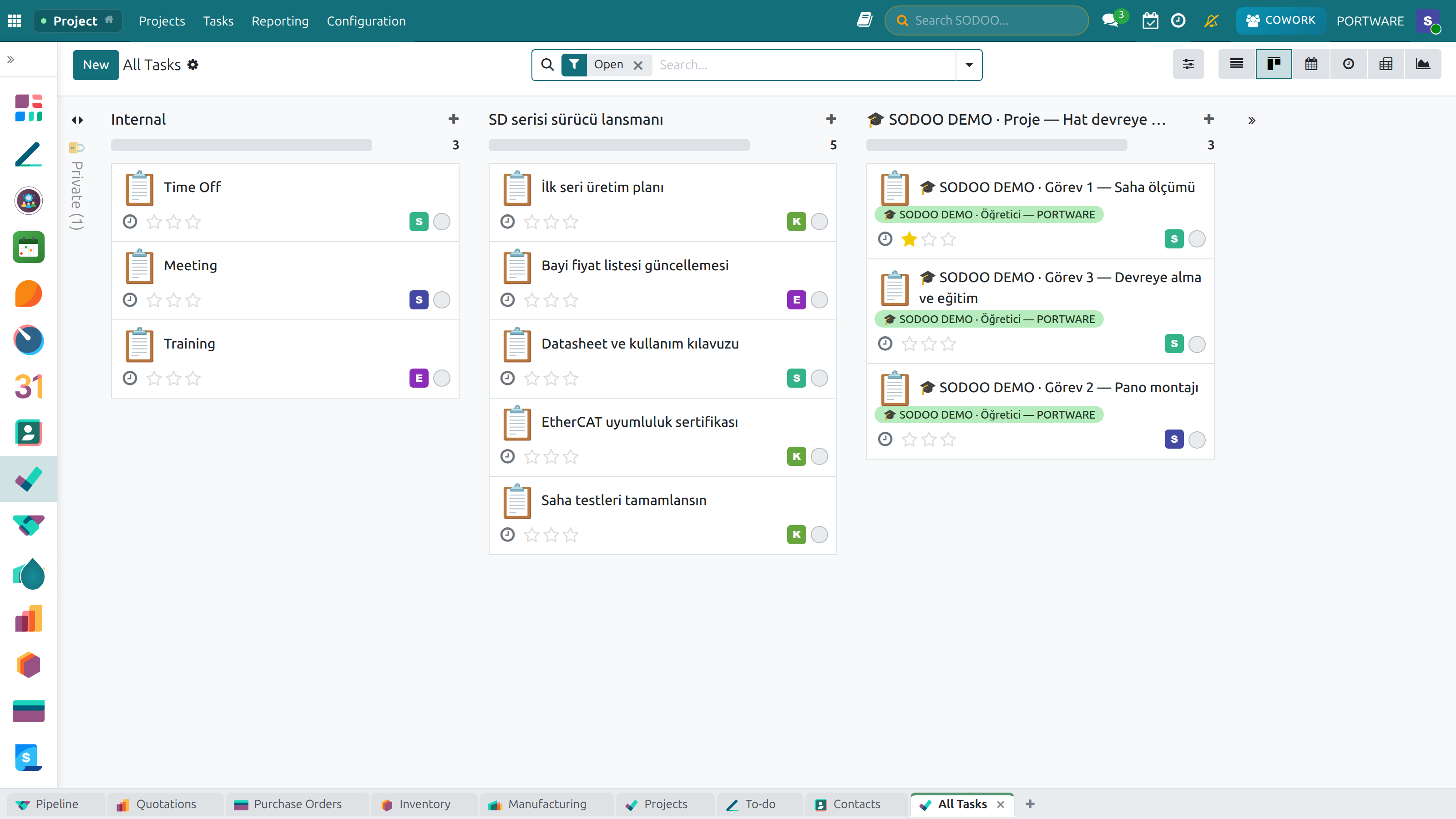
Project Summary — resource usage and progress in detail
Project Attachments — invoices, contracts and project files
Task Products — the products and service lines attached to a task
Kanban View
The Kanban view is the most intuitive way to manage tasks. Cards represent tasks, columns represent stages, and you move cards from left to right as work progresses.
Backlog
In Progress
Review
Done
Kanban Features
- Drag & Drop: Move tasks between stages with a single drag
- Quick Info: See assignee, deadline, and priority at a glance
- Folding Columns: Collapse columns you don't need to see
- Personal Stage: Each user can add their own task stages
- Color Coding: Cards change color based on deadline urgency
- Progress Bar: Sub-task completion shown on parent cards
How to Use Kanban in SODOO
Switch to Kanban View
- Open a project and click the (Kanban) icon in the top-right view switcher
- Tasks appear as cards grouped by stage
Move a Task to the Next Stage
- Click and hold a task card
- Drag it to the target column and release
- The task stage updates automatically — all team members see the change instantly
Mark a Task as Done Quickly
- On a Kanban card, click the checkmark circle on the left side of the card title
- The card turns green and moves to the "Done" state
- Or drag it to your "Done" column
Meeting Scheduling — planning project meetings and activities
Project Meetings — scheduled meetings and their attendees
Gantt Chart
The Gantt chart provides a timeline view of your project, showing tasks as horizontal bars plotted against time. It is essential for planning, identifying overlaps, and communicating the project schedule to stakeholders.
Gantt Chart Capabilities
- Timeline Visualization: See task start and end dates on a calendar axis
- Drag to Reschedule: Move or resize task bars to change dates
- Dependency Arrows: Visual lines showing task dependencies
- Milestone Markers: Diamond symbols for key delivery points
- Critical Path: Highlight the sequence of tasks that determines project duration
- Resource Grouping: Group bars by assignee to spot overloads
- Zoom Levels: Day, week, month, or quarter view
Scenario: Detecting a Schedule Conflict with Gantt
- Open the project Gantt view ( icon)
- Notice "Backend API" bar extends 3 days past "Frontend Integration" start date
- Drag "Frontend Integration" bar to the right to start after the backend
- SODOO automatically adjusts all downstream dependent tasks
- Send the updated Gantt to the client with one click
Field Service — technician assignments and appointments at a glance
File Versions — version control for service reports and technical documents
Version List — every revision of a document, and the comparison
Document Warnings — alerts for missing or out-of-date documents
Technical Document — motion control and motor drive settings
Technical Document — motion control parameters and configuration in detail
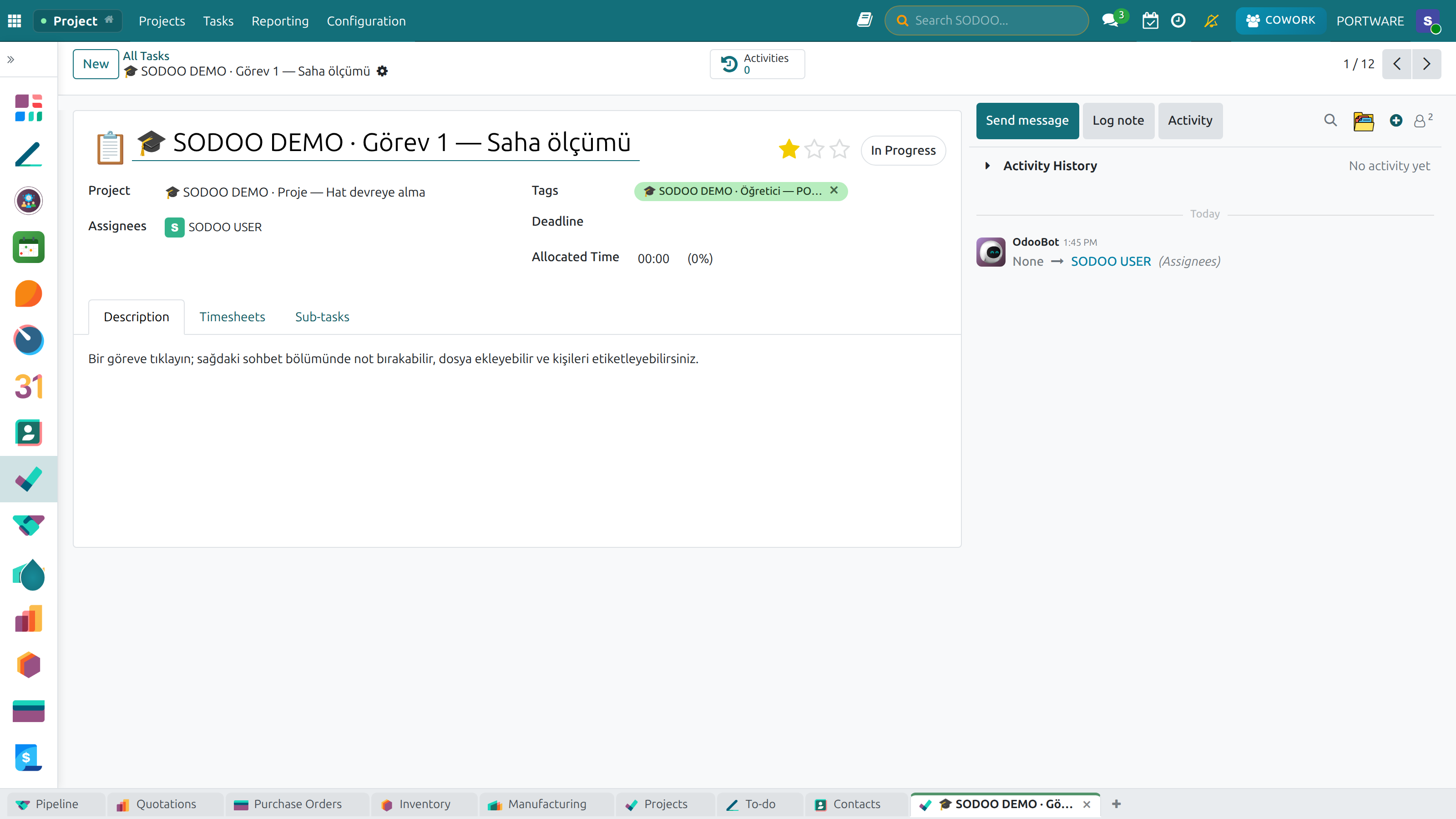
Task Extra Information — technical details and parameters for field service
Encoder Voltage Information — encoder and voltage parameters for field service
Field Service Work Order — customer, location and service details
Work Order Detail — technical details, materials and completion status
Milestones
Milestones are zero-duration events that mark critical moments in a project. Use them to represent client deliverables, payment triggers, or major phase completions.
Why Use Milestones?
- Clearly communicate delivery schedule to clients
- Trigger invoicing at specific project points
- Provide natural checkpoints for project health reviews
- Motivate teams with visible, achievable goals
Creating Milestones in SODOO
- Open a project and go to Milestones tab
- Click Add a Milestone
- Enter a name (e.g., "Design Approval") and a target date
- Optionally link the milestone to a specific task or invoice
- Milestones appear as diamond markers on the Gantt chart
Project Dashboard — planning and resource usage at a glance
Timesheets
Timesheets allow team members to log time spent on tasks and projects. Accurate timesheet data enables precise billing, cost calculation, and profitability analysis.
Without Timesheets
- You don't know actual hours per project
- Can't calculate true project cost
- Billing disputes with clients
- No data for estimating future projects
With SODOO Timesheets
- Every hour linked to a task and project
- Automatic cost calculation using employee rates
- Generate invoices directly from timesheets
- Build a library of historical estimates
Logging Time
Team members can log time in several ways:
- From a Task: Open any task and click the Timesheets tab, then add a line
- From the Timesheet Module: Go to Timesheets → My Timesheets → New
- Timer: Use the built-in timer button on a task to start/stop tracking in real time
- Mobile App: Log time from anywhere using the SODOO mobile app
| Field | Description |
|---|---|
| Date | The date work was performed |
| Employee | Person who did the work |
| Project | Which project this time is charged to |
| Task | Specific task (optional but recommended) |
| Hours | Time spent in hours (e.g., 2.5 = 2h 30m) |
| Description | What was accomplished during this time |
Timesheet Billing
When billing type is set to Hourly, SODOO can automatically create invoices from validated timesheet entries. This eliminates manual invoice creation and ensures you never miss billable hours.
Main Dashboard — project metrics and reporting view
Task Report — status, progress and performance metrics
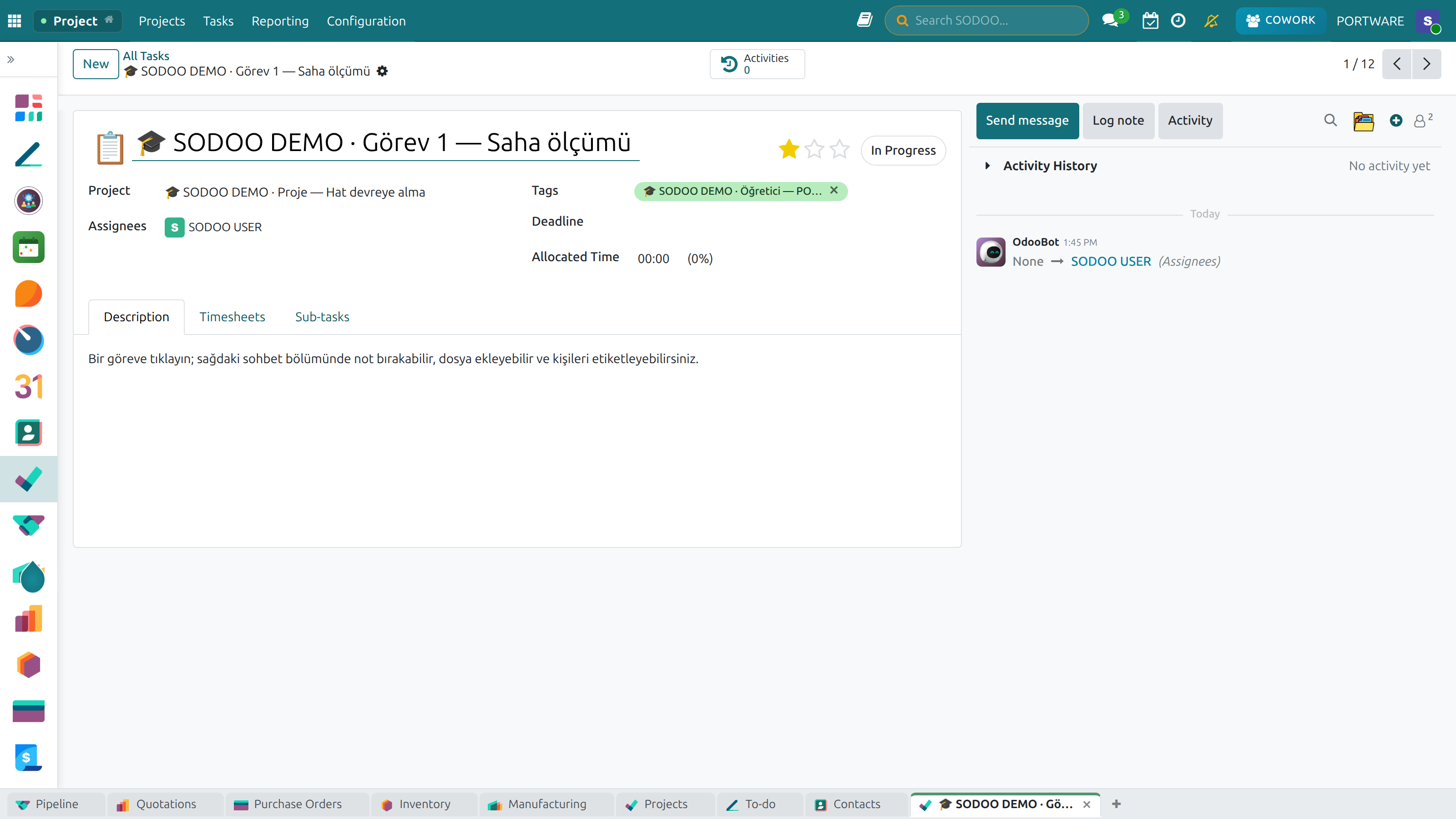
Task Document Detail — the documents and files attached to a task
Resource Planning
Resource planning helps you understand team capacity and avoid over-allocation. Knowing who is available and who is overloaded is critical for on-time project delivery.
Resource Planning Features
- Workload View: See each team member's task load over time
- Capacity Heatmap: Color-coded availability per person per week
- Allocation Percentage: Assign team members at a fraction of their capacity
- Forecasting: Project future resource needs based on scheduled tasks
Project Billing
SODOO supports three billing models for client projects:
| Billing Model | How It Works | Best For |
|---|---|---|
| Hourly | Invoice based on validated timesheet hours | Consulting, development, ongoing support |
| Fixed Price | One invoice for the agreed project amount | Well-scoped deliverables with clear requirements |
| Milestone | Invoice triggered when specific milestones are reached | Long projects with phased deliveries and payments |
Helpdesk
The SODOO Helpdesk module provides a professional customer support system. Centralize all incoming support requests, assign them to agents, track resolution times, and measure customer satisfaction — all in one place.
Helpdesk Teams
Helpdesk is organized into Teams. Each team can have its own agents, SLA policies, email alias, and support channels. Common team structures include:
- Level 1 Support: General inquiries, FAQs, quick resolutions
- Level 2 Support: Technical issues requiring deeper expertise
- VIP Support: Premium customers with expedited response times
- Internal IT: Employee technical support
Ticket Channels
Customers can submit support tickets through multiple channels:
- Email: Emails to support@yourcompany.com automatically become tickets
- Customer Portal: Customers log in and submit tickets directly
- Live Chat: Chat conversations escalated to tickets
- Phone: Agents manually create tickets during phone calls
- API: Integrate with your website or other systems
Ticket Management
Each support request becomes a ticket. Effective ticket management means the right agent gets the right ticket at the right time, with all the context needed to resolve it quickly.
Ticket Fields
- Subject: Brief description of the issue
- Customer: Who submitted the request
- Team: Which helpdesk team handles it
- Assigned To: Specific agent responsible
- Priority: Low, Normal, High, Urgent
- Category/Tag: Issue classification for reporting
- Stage: New, In Progress, Pending, Solved, Cancelled
Automatic Assignment
SODOO can automatically assign incoming tickets based on rules you define:
- Round Robin: Distribute tickets evenly across all team agents
- Random: Assign to a random available agent
- Expertise Match: Assign based on agent skills or tags
- Workload Balanced: Assign to the agent with the fewest open tickets
Escalation
When a ticket cannot be resolved at the current support level, it should be escalated. SODOO supports both manual and automatic escalation:
- Manual: Agent clicks "Escalate" and chooses the target team or agent
- Automatic by SLA: If an SLA deadline is missed, the ticket is automatically escalated
- Automatic by Tag: Tickets with certain tags are routed directly to specialized teams
Customer Portal
Give your customers visibility into their support requests without requiring them to email or call. The customer portal lets them:
- Submit new tickets and check existing ones
- See ticket status (New, In Progress, Solved)
- Add comments and attachments to open tickets
- Rate their satisfaction when tickets are closed
- Access self-service knowledge articles
SLA Management
A Service Level Agreement (SLA) defines the response and resolution time commitments you make to customers. SODOO's SLA engine tracks these commitments and alerts you before they are breached.
SLA Policy Configuration
- Target: Which tickets the policy applies to (by team, priority, or tag)
- Stage: The ticket must reach this stage within the time limit
- Time to Reach: Hours allowed (e.g., 2h for first response, 8h for resolution)
- Working Hours: Only business hours count, not weekends
| SLA Type | Typical Target | Priority Level |
|---|---|---|
| First Response | Acknowledge receipt of ticket | All priorities |
| Resolution (Urgent) | Resolve critical issues | Urgent/High |
| Resolution (Normal) | Resolve standard requests | Normal/Low |
Field Service
The Field Service module is designed for companies that send technicians to customer sites — installation, maintenance, repair, and inspection work. It integrates with Projects, Inventory, and Invoicing for end-to-end field operation management.
Work Orders
A work order represents a field service task. It contains everything the technician needs: customer location, description of work, required materials, and instructions.
Work Order Fields
- Customer: Company or individual requesting service
- Address: Service location with map integration
- Service Type: Installation, maintenance, repair
- Assigned Technician: The field agent dispatched
- Scheduled Time: Appointment window
- Materials Used: Parts consumed on-site (linked to inventory)
- Timesheets: Technician hours logged from the field
- Customer Signature: Digital signature on completion
Mobile Operations
Technicians in the field use the SODOO mobile app to manage their work orders without being tied to an office. From the mobile app, they can:
- View their daily schedule and assigned work orders
- Navigate to the service address with built-in maps
- Log time spent on-site with the timer
- Record materials used from the parts checklist
- Take photos and attach them to the work order
- Collect digital customer signatures
- Mark work orders as complete offline (syncs when connected)
Route Planning
When technicians have multiple work orders in a day, efficient routing saves time and fuel costs. SODOO's map view helps dispatchers assign and sequence field visits.
Dispatch Optimization
- Map view shows all work orders as pins on a map
- Color-coded by technician for easy visibility
- Drag work orders between technicians to rebalance workload
- Estimated travel time between appointments
- SMS/email notifications sent to customers with appointment windows
Planning Module
The Planning module is designed for scheduling shifts and managing resource allocation across teams. It is particularly valuable for companies with rotating schedules, project-based staffing, or multiple service locations.
Resource Scheduling
Planning uses a visual calendar to assign employees to shifts or project slots. Managers see the full team schedule and can drag-and-drop to make adjustments.
Planning Features
- Shift Templates: Predefined shift patterns (Morning, Evening, Night)
- Copy Previous Week: Quickly replicate last week's schedule
- Allocation by Role: Assign by job position, not just individual
- Employee Self-Service: Staff can indicate availability preferences
- Publish Schedule: Notify employees when the schedule is finalized
Shift Management
For businesses with rotating shifts — retail, manufacturing support, call centers — SODOO Planning provides complete shift management capabilities.
| Shift Type | Typical Hours | Use Case |
|---|---|---|
| Morning Shift | 06:00 – 14:00 | Production, early customer service |
| Day Shift | 09:00 – 17:00 | Office work, standard operations |
| Evening Shift | 14:00 – 22:00 | Retail, extended support |
| Night Shift | 22:00 – 06:00 | Security, 24/7 operations |
Reports & Analytics
SODOO provides rich reporting across all service modules. Move from reactive management to data-driven decision-making with real-time dashboards and exportable reports.
Key Reports
| Report | Content | Use Case |
|---|---|---|
| Project Summary | Task status, progress percentage, timesheet totals | Weekly status meetings |
| Timesheet Analysis | Hours by employee, project, and period | Productivity measurement |
| Profitability Report | Revenue, cost, and gross margin per project | Financial review and pricing decisions |
| Resource Utilization | Team capacity vs. actual hours worked | Capacity planning and hiring decisions |
| SLA Performance | On-time vs. breached ticket ratio | Service quality monitoring |
| Ticket Trends | Volume, resolution time, customer satisfaction | Support team benchmarking |
Project KPIs
How to Access Reports in SODOO
Task Analysis Report
- Navigate to
- The pivot view opens with default analysis
- Use Measures to choose metrics (Hours, Count, Cost)
- Use Group By to group by Assignee, Project, or Stage
- Switch to a bar or pie chart using the view icons
Project Profitability Report
- Navigate to
- Each project shows: Planned Revenue, Actual Cost, Profit Margin
- Red rows indicate loss-making projects; green rows indicate profitable ones
Timesheet Report
- Navigate to
- View a matrix of Employee × Project × Week hours
- Use Filters to select date range and department
Helpdesk SLA Performance Report
- Navigate to
- View SLA success rate, average response time, and breach count
- Filter by team, priority, and date range
Frequently Asked Questions
What is the difference between a project and a task?
Project: A collection of related work aimed at a specific goal, with a defined start and end date. Example: "Acme Corp Corporate Website".
Task: The smallest unit of work within a project. Example: "Design homepage", "Set up database".
A project contains many tasks. As tasks are completed, the project progresses.
Are timesheets mandatory?
Timesheets are optional, but strongly recommended when:
- You bill clients hourly (you need logged hours to invoice)
- You want to measure project profitability (cost requires hours × rate)
- You track employee performance and productivity
For purely internal projects you may skip timesheets, but for any client-facing project we strongly recommend enabling them.
How do Helpdesk and Project modules integrate?
Helpdesk tickets can be linked to a project. This enables you to:
- Convert a support ticket into a project task
- View all work for a client in one place
- Include support hours in the project cost calculation
Use the Helpdesk → Ticket → Convert to Task button to turn any ticket into a project task.
Can customers track their own projects?
Yes. With the SODOO Customer Portal, clients can:
- View project progress and milestones
- Check individual task statuses
- Add comments and upload files
- Submit support tickets
Enable Customer Portal in project settings and send clients a portal invitation email.
How do I calculate profitability on a fixed-price project?
Fixed-price profitability formula:
Profit = Contract Amount - (Total Hours × Employee Cost Rate)
Example: $50,000 contract, 250 person-hours at $80/hr average cost
Profit = $50,000 - (250 × $80) = $50,000 - $20,000 = $30,000 (60% margin)
SODOO calculates this automatically. Keep timesheets up to date daily and check the profitability report at each milestone.
How does Field Service billing work?
Field Service work orders can be invoiced in two ways:
- Time & Materials: Bill for technician hours (from timesheets) plus parts used (from inventory consumption)
- Fixed Price: Bill a flat rate for the service call
When a work order is marked as completed, SODOO generates a draft invoice automatically. Review and send it with one click.
Best Practices
At Project Start
- Clearly define scope and write it in the project description
- Set milestones for major deliverables
- Break tasks into small units of 4–8 hours each
- Define task dependencies (B cannot start until A is done)
- Make resource assignments before work begins
During the Project
- Run a daily standup using the Kanban board as your reference
- Log timesheets daily, not at the end of the week
- Identify blocked tasks early and unblock them
- Share progress updates with the client regularly
- Document scope changes and get client approval in writing
At Project Closure
- Verify all tasks are completed and approved
- Obtain formal client sign-off
- Review the profitability report
- Record lessons learned in the project notes
- Archive the project to keep the project list clean