

Repairs
Repairing a product a customer brings in. Parts move in stock, charges go through sales, the order stays one record.
- Parts leave stockAdded, removed and recycled parts become real stock moves.
- A quotation in one clickThe repair lines become a sales quotation.
- Status at a glanceNew, Confirmed, Under Repair, Repaired.
Where it appears: Repairs in the application panel
The Repairs application keeps the work on one record from the moment a product enters the workshop until it leaves. Parts become stock moves and charges go through a sales quotation.
Menus
| Menu | What it is for |
|---|---|
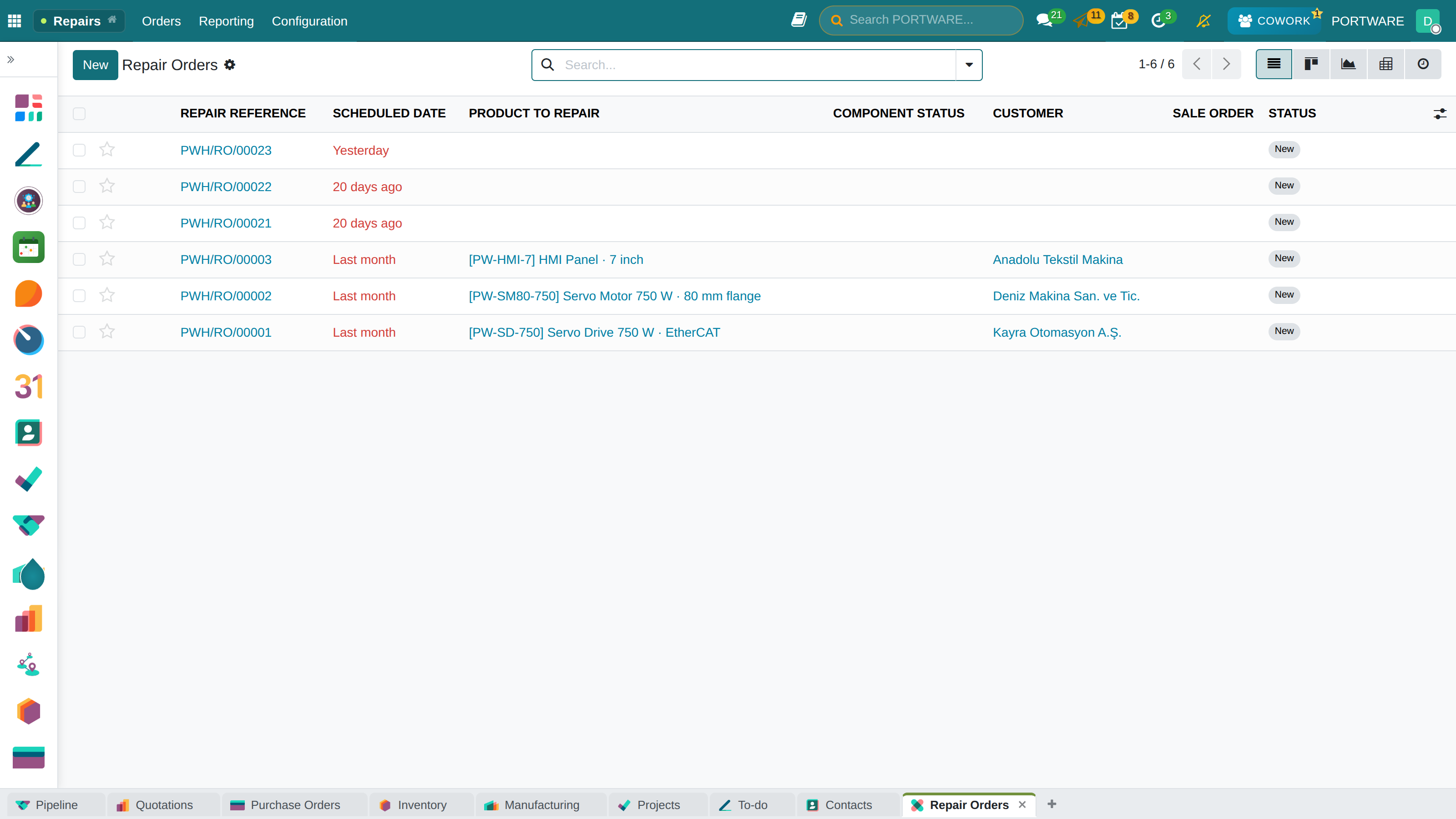
| Orders | The list of repair orders, a new order |
| Reporting | Repair analysis |
| Configuration | Tags and repair operation types |
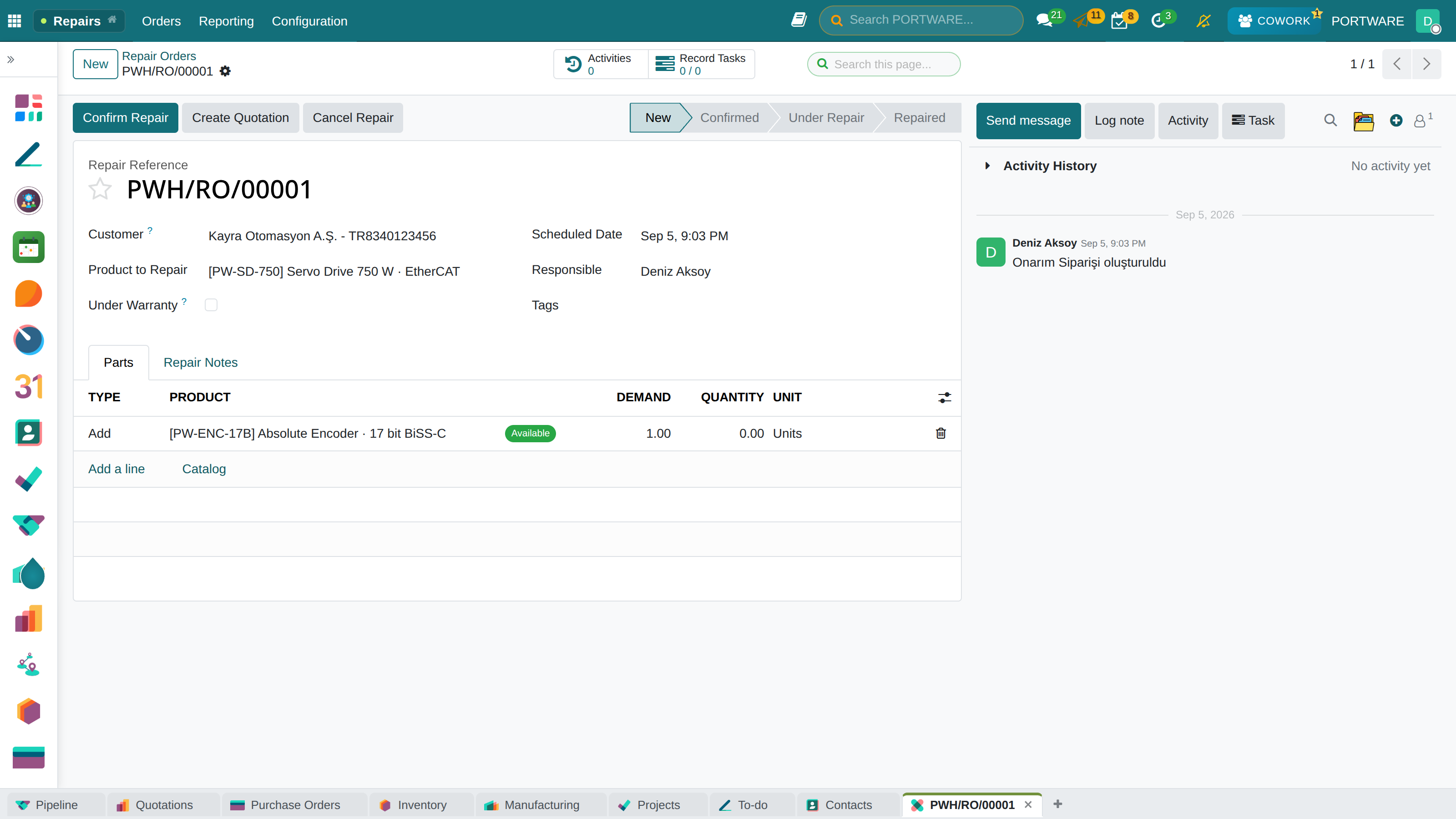
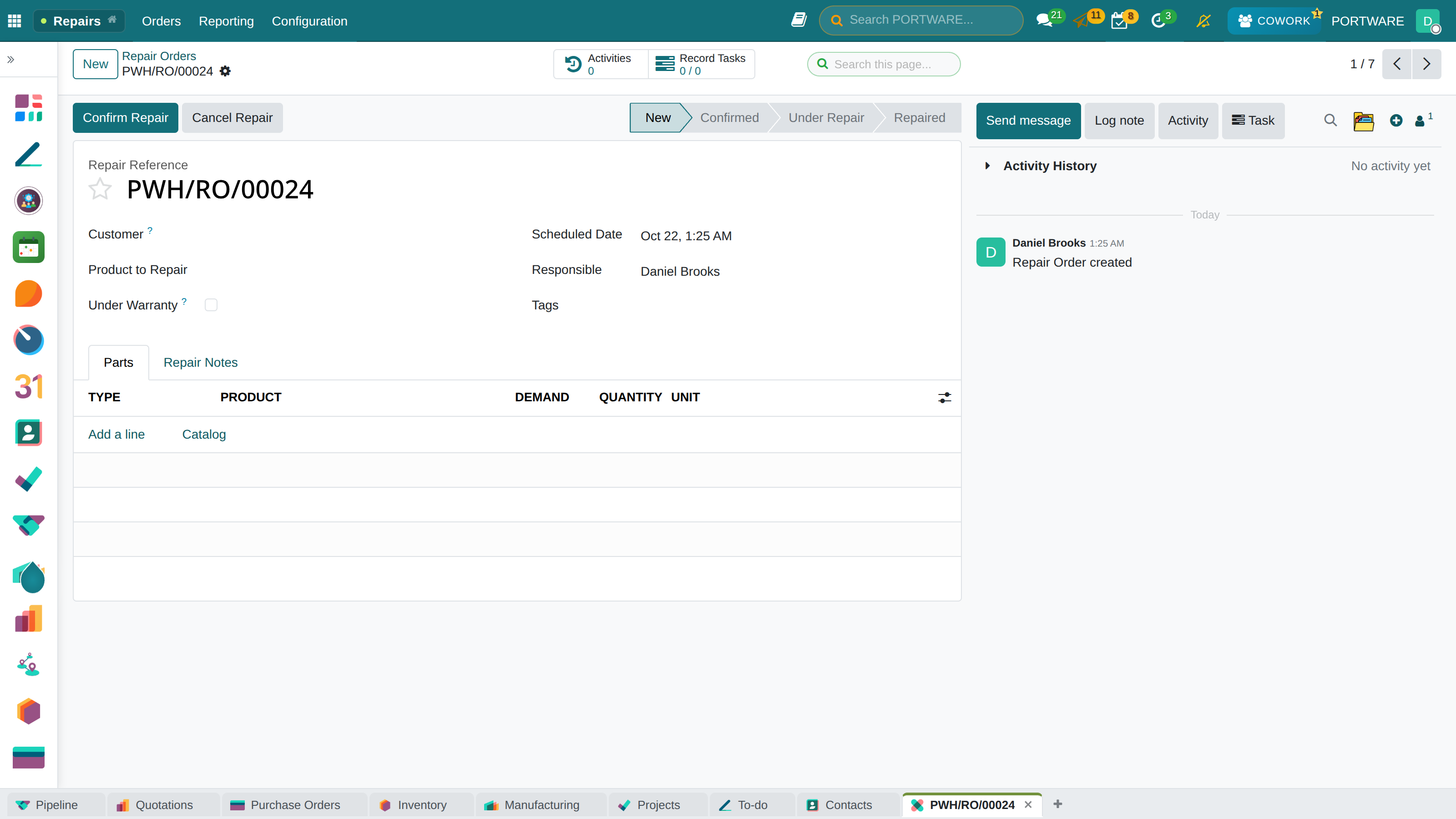
The Repair Order
The status bar at the top: New, Confirmed, Under Repair, Repaired.
| Field | Meaning |
|---|---|
| Customer | Who brought the product |
| Product to Repair | The product entering the workshop, with its serial number if tracked |
| Under Warranty | When ticked, the sales price of products moved from the repair is zero |
| Scheduled Date | The day the repair is planned |
| Responsible | The person running the repair |
| Tags | Free grouping |
Each line in the Parts tab has a Type with three values: Add, Remove and Recycle. Enter the product, demand and quantity, and the line shows whether the part is available. The Repair Notes tab is for the workshop's notes.
The Flow
- Open a New order: customer, product and parts.
- Create Quotation prepares the sales quotation for paid work.
- Confirm Repair confirms the order and reserves the parts.
- Start the repair. When the work ends it moves to Repaired and the part moves complete.
Cancel Repair cancels the order.
| Module | What it does |
|---|---|
| Repairs | Repair damaged products |